AI Detection & Response (AI-DR) for Azure
Remediation Setup
For remediation setup for AWS, Azure and GCP AI-DR please refer to the following links:
Introduction
AccuKnox AI-DR (AI Detection & Response) for Azure can be deployed using a Terraform configuration. The configuration deploys the following resources:
| Resource | Purpose |
|---|---|
| EventHub Namespace | Contains the EventHub |
| EventHub | Receives messages from the ActivityLog |
| EventHub Authorization Rule "activity_logs" | Allows ActivityLog to publish messages to the EventHub |
| EventHub Authorization Rule "logstash" | Allows Logstash to subscribe to the EventHub messages |
The Terraform configuration will be provided to you by the AccuKnox team in the onboarding phase.

To setup the integration please follow the steps below
Step 1: Deploy the resources
In this step we assume you that you are authenticated to Azure via the azure
CLI. You can authenticate using this command.
az login
Before applying the Terraform configuration, please update the
terraform.tfvars with the appropriate values.
| Variable | Description | Default Value | Requirement |
|---|---|---|---|
subscription_id |
Azure account subscription ID | Mandatory | |
location |
Azure location where the resources will be created | East US |
Optional |
resource_group_name |
Name of the resource group to be created | accuknox-cdr |
Optional |
event_hub_namespace_name |
Name of the event hub namespace to be created | accuknox-cdr |
Optional |
event_hub_namespace_sku |
Defines the event hub tier to be used. Possible values: "Basic", "Standard", "Premium" | Basic |
Optional |
event_hub_namespace_capacity |
Capacity / throughput units | 1 | Optional |
event_hub_name |
Name of the event hub | default |
Optional |
event_hub_partition_count |
Specifies the current number of shards on the Event Hub | 1 | Optional |
event_hub_message_retention |
Specifies the number of days to retain the events for this Event Hub | 1 | Optional |
Please run the following commands to deploy the required resources:
terraform init
terraform plan
terraform apply
Important
At this point, only the subscription mentioned in the terraform variables will be monitored, to monitor other subscriptions in the account, follow the commands in step 3
Step 2: Get the EventHub Primary Connection String
terraform output -json
E.g.,
{
  "event_hub_primary_connection_string": {
    "sensitive": true,
    "type": "string",
    "value": "Endpoint=sb://accuknox-cdr.servicebus.windows.net/;SharedAccessKeyName=logstash;SharedAccessKey=REDACTED;EntityPath=default"
  },
  "event_hub_secondary_connection_string": {
    "sensitive": true,
    "type": "string",
    "value": "Endpoint=sb://accuknox-cdr.servicebus.windows.net/;SharedAccessKeyName=logstash;SharedAccessKey=REDACTED;EntityPath=default"
  }
}
Step 3: Monitor additional subscriptions
You can monitor additional subscriptions in the organization by running the following commands. Before running the script you need to update the values of the the variables.
| Variable | Description |
|---|---|
SUBSCRIPTION_IDS |
Azure account subscription IDs to monitor |
EVENTHUB_AUTH_RULE_ID |
Can be found in the terraform output of step 1 |
EVENTHUB_NAME |
Can be found in the terraform output of step 1 |
# Array of subscription IDs
SUBSCRIPTION_IDS=("sub-11111111-aaaa-bbbb-cccc-111111111111" \
                  "sub-22222222-aaaa-bbbb-cccc-222222222222" \
                  "sub-33333333-aaaa-bbbb-cccc-333333333333")
EVENTHUB_AUTH_RULE_ID="<eventhub-authorization-rule-id>"
EVENTHUB_NAME="<eventhub-name>"

DIAGNOSTIC_NAME="accuknox-cdr-activity-to-eventhub"
for SUBSCRIPTION_ID in "${SUBSCRIPTION_IDS[@]}"; do
  echo "Configuring Activity Log → Event Hub for $SUBSCRIPTION_ID ..."

  az monitor diagnostic-settings create \
    --name $DIAGNOSTIC_NAME \
    --resource "/subscriptions/$SUBSCRIPTION_ID" \
    --event-hub-rule $EVENTHUB_AUTH_RULE_ID \
    --event-hub $EVENTHUB_NAME \
    --logs '[
        {"category": "Administrative", "enabled": true},
        {"category": "Security", "enabled": true},
        {"category": "ServiceHealth", "enabled": true},
        {"category": "Alert", "enabled": true},
        {"category": "Recommendation", "enabled": true},
        {"category": "Policy", "enabled": true},
        {"category": "Autoscale", "enabled": true},
        {"category": "ResourceHealth", "enabled": true}
    ]'
done
Provide the connection string to your AccuKnox Point of Contact to start the onboarding process.
Auto-Remediation for Azure OpenAI Use Case
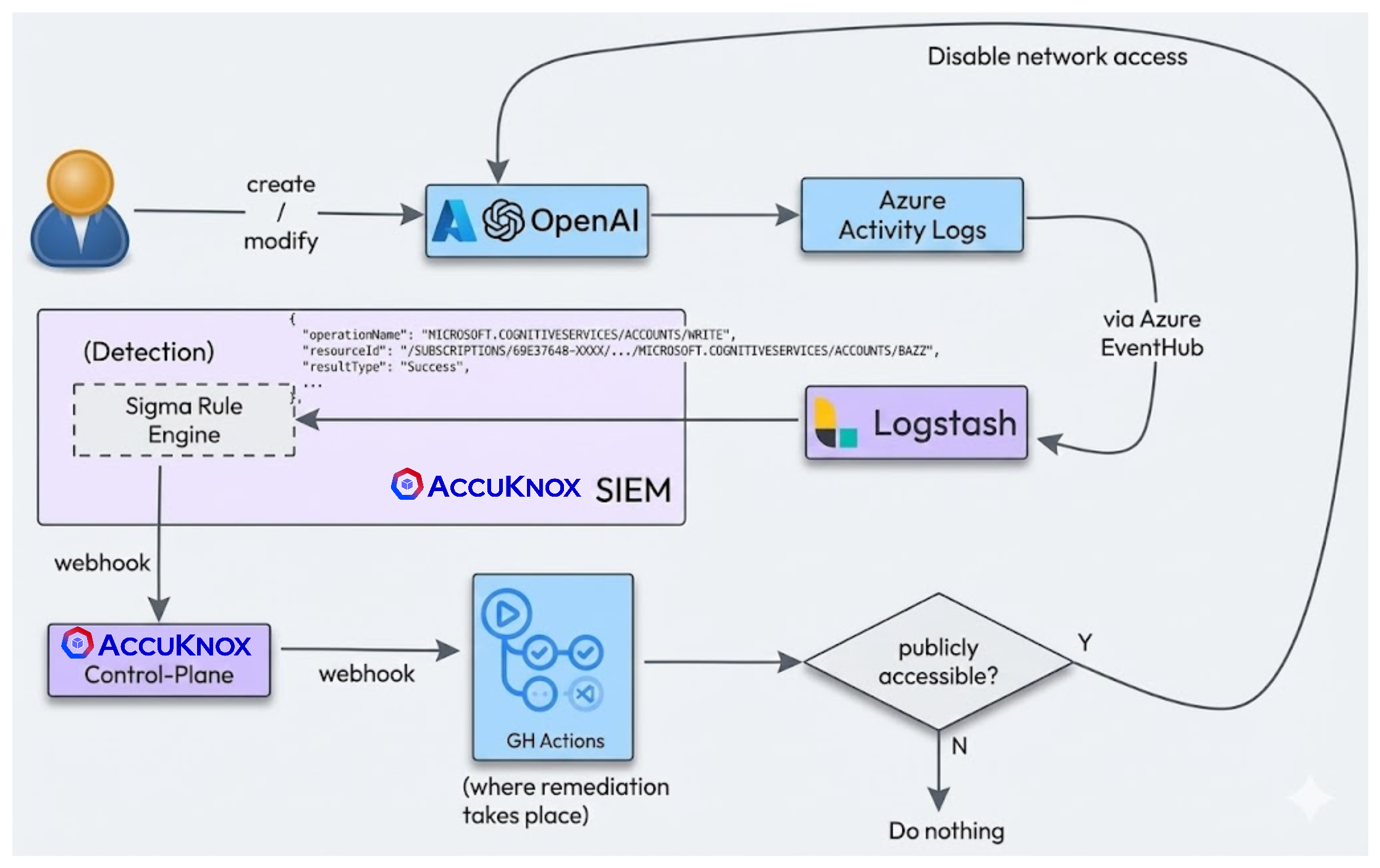
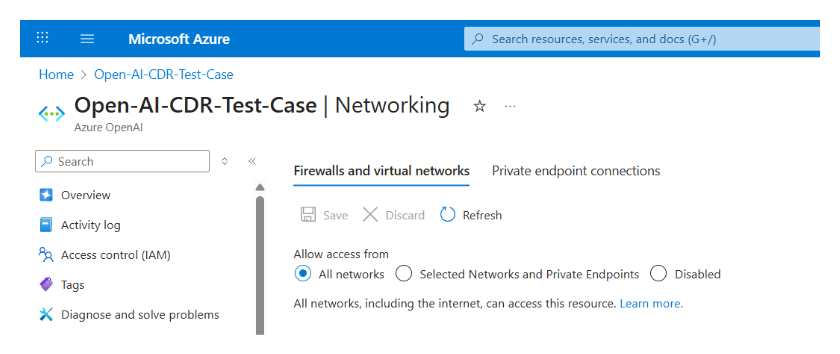
Step 1: Detection of Public Exposure
AccuKnox AI-DR detects if a network or other AI asset is inadvertently made public.
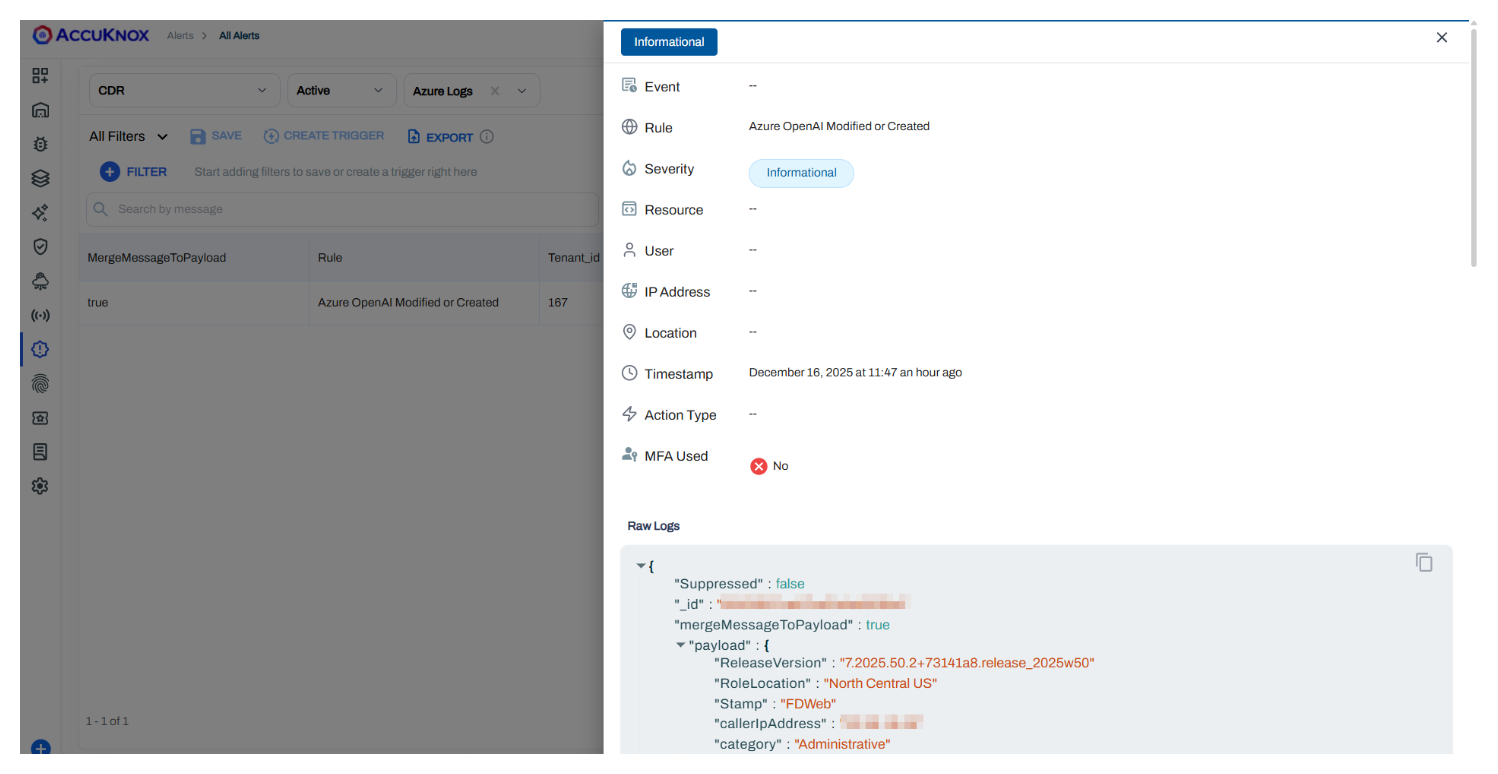
Step 2: Alert Generation
An alert is generated in the AccuKnox console indicating the public exposure of the AI asset.
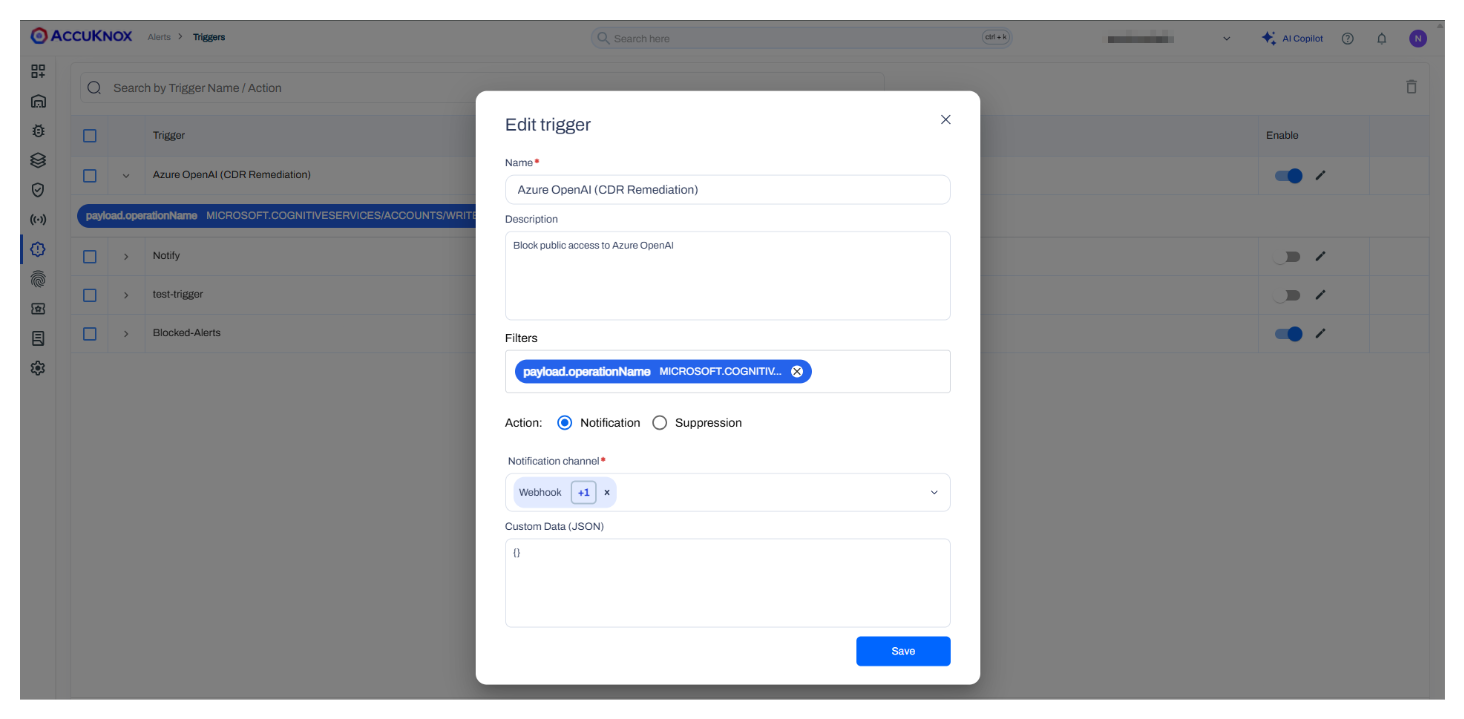
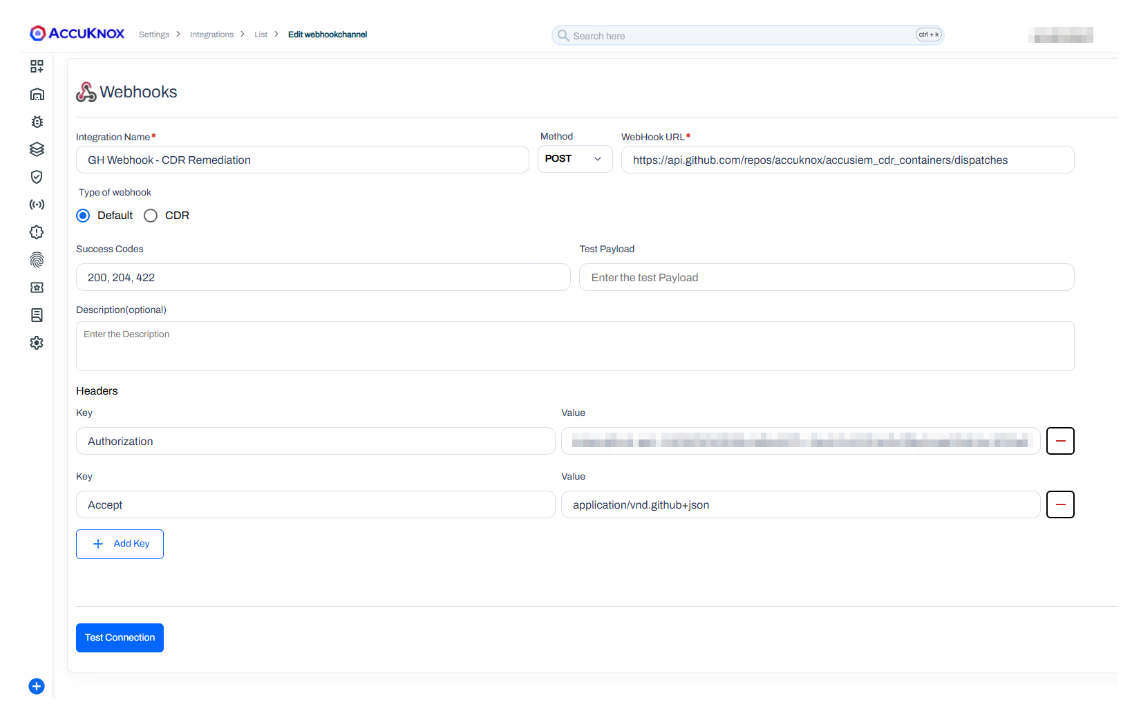
Step 3: Trigger and Webhook Integration
A trigger is set up to initiate an automated response. The alert is forwarded using a webhook integration to the remediation workflow.
See how to Configure and Trigger Alerts with Webhook
Step 4: Automated Remediation
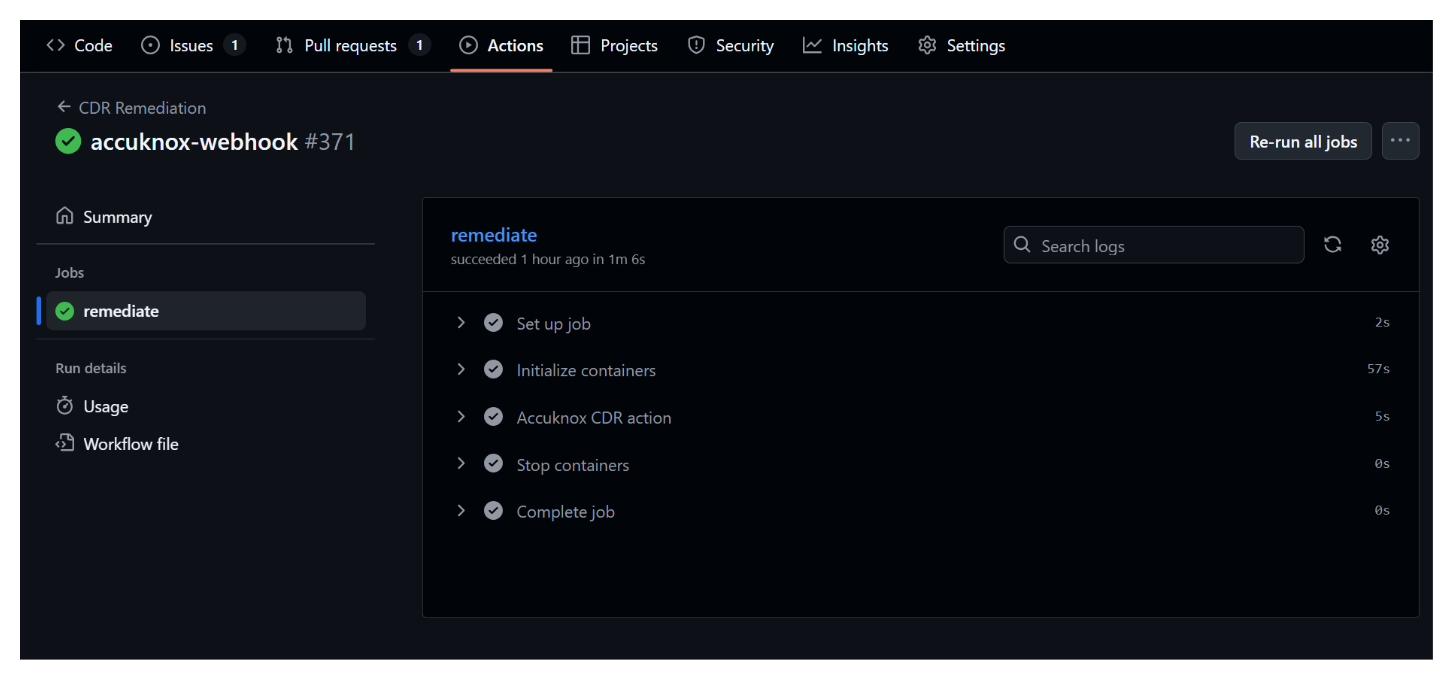
An auto-remediation action is triggered via GitHub Actions (or another automation tool) to address the issue.
Step 5: Asset Securing
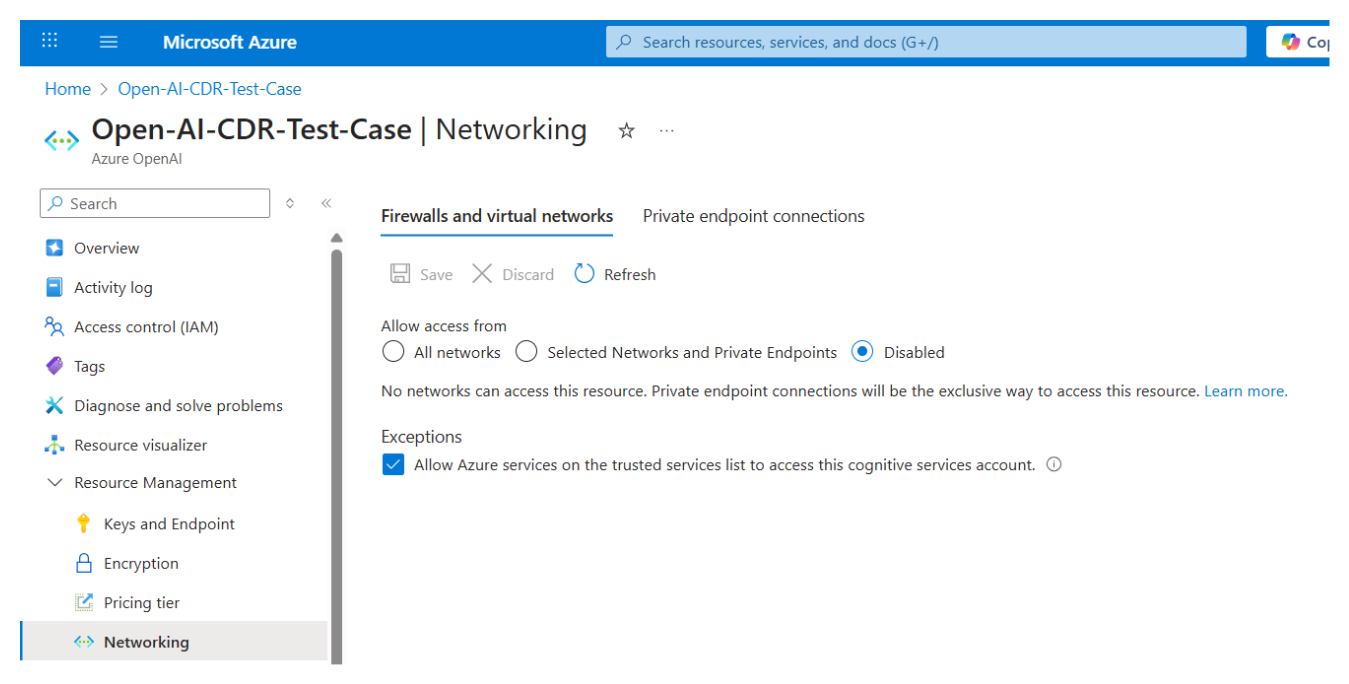
The asset configuration is automatically updated to make it private again, resolving the security risk.