AWS Account Onboarding
In this section we can find the steps to onboard an AWS cloud account to the AccuKnox SaaS platform.

AWS IAM User Creation
Follow these steps to provide a user with appropriate read access:
Step 1: Navigate to IAM → IAM Users and click on Create user

Step 2: Give a username to identify the user
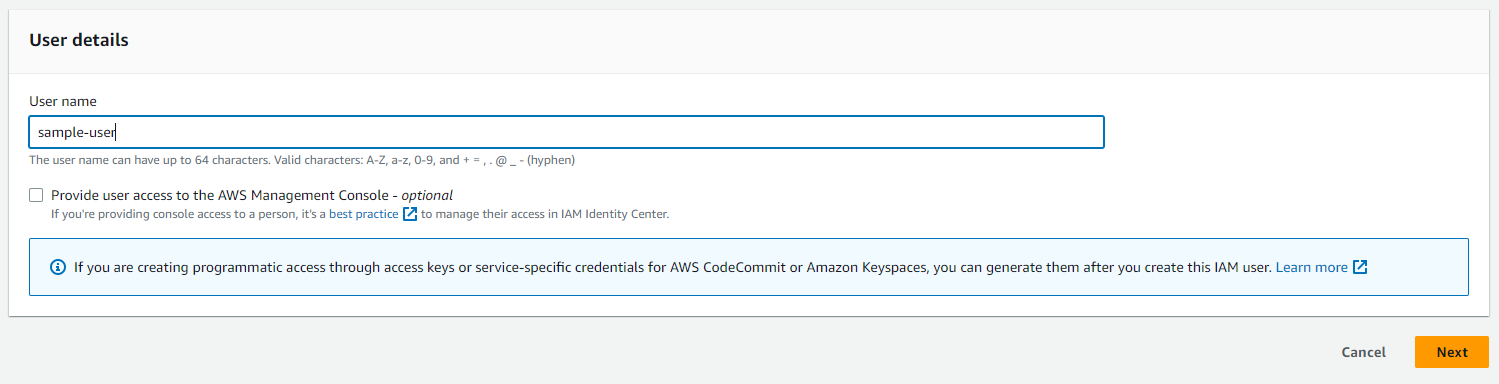
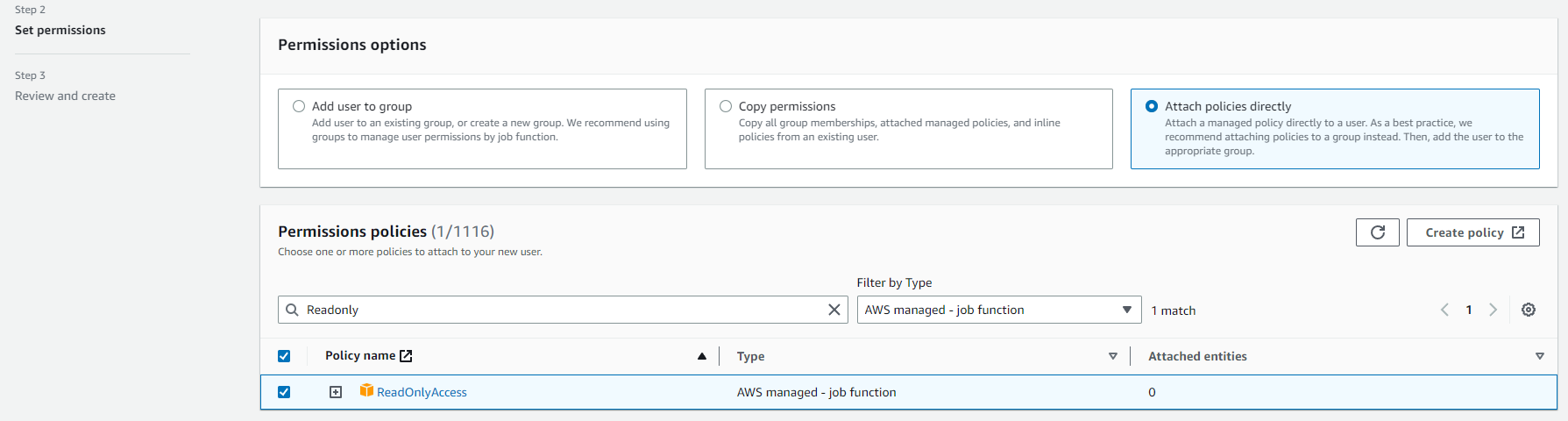
Step 3: In the "Set Permissions" screen:
a. Select "Attach policies directly"
b. Search "ReadOnly", Filter by Type: "AWS managed - job function" and select the policy
c. Search "SecurityAudit", Filter by Type: "AWS managed - job function" and select the policy
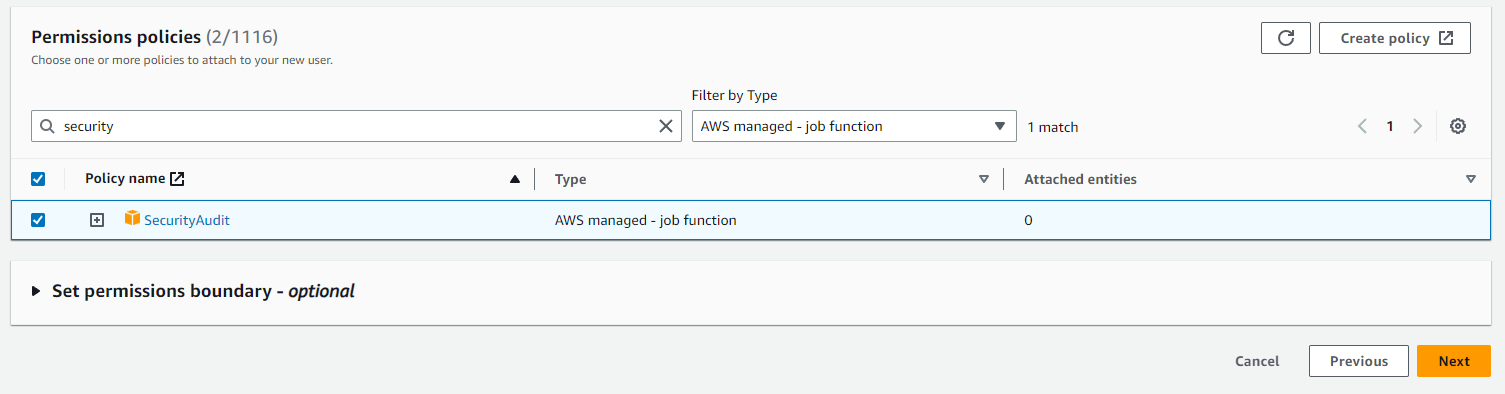
Step 4: Finish creating the user. Click on the newly created user and create the Access key and Secret Key from the Security Credentials tab to be used in the AccuKnox panel
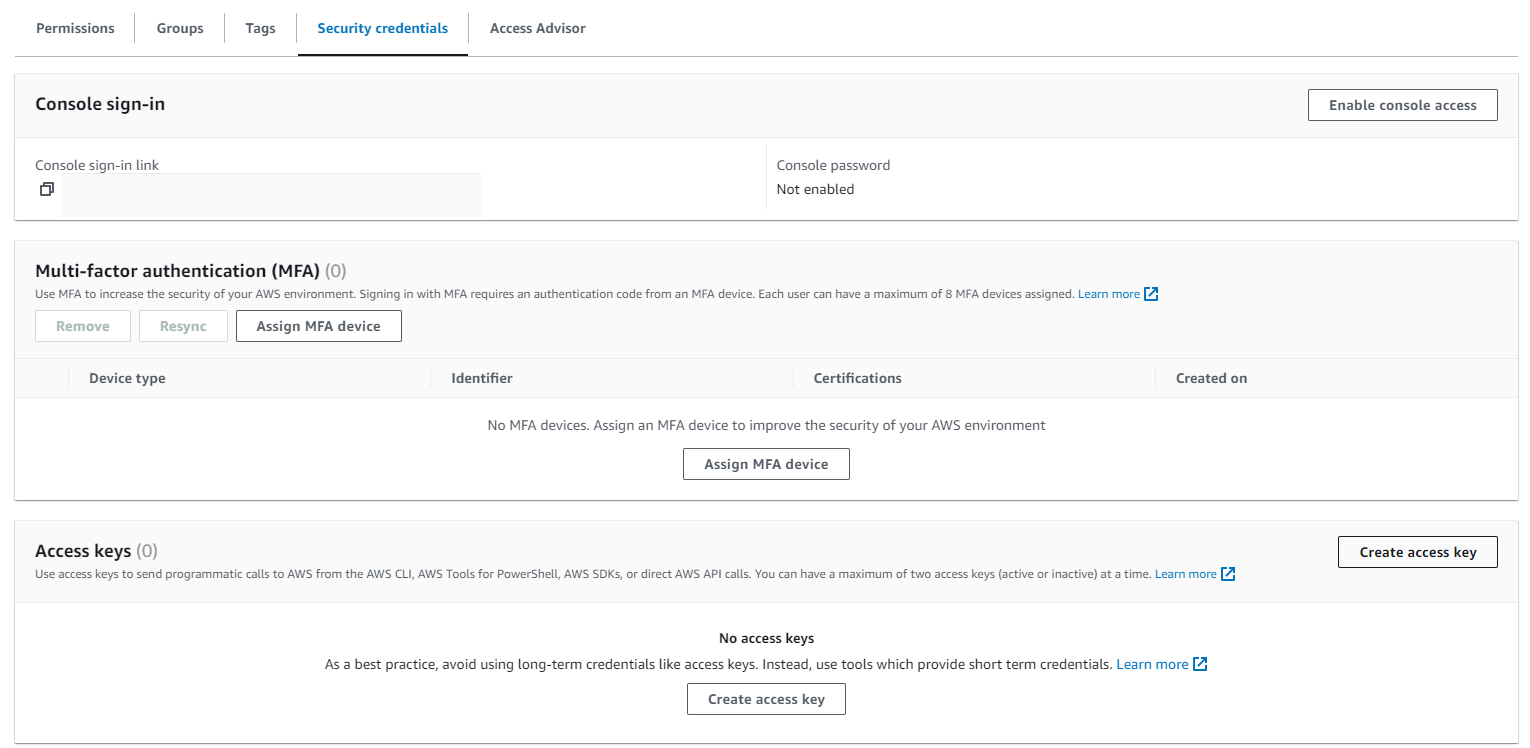
AWS Onboarding
In this example we are onboarding AWS account using the Access Keys method.
Step 1: To onboard Cloud Account Navigate to Settings → Cloud Accounts
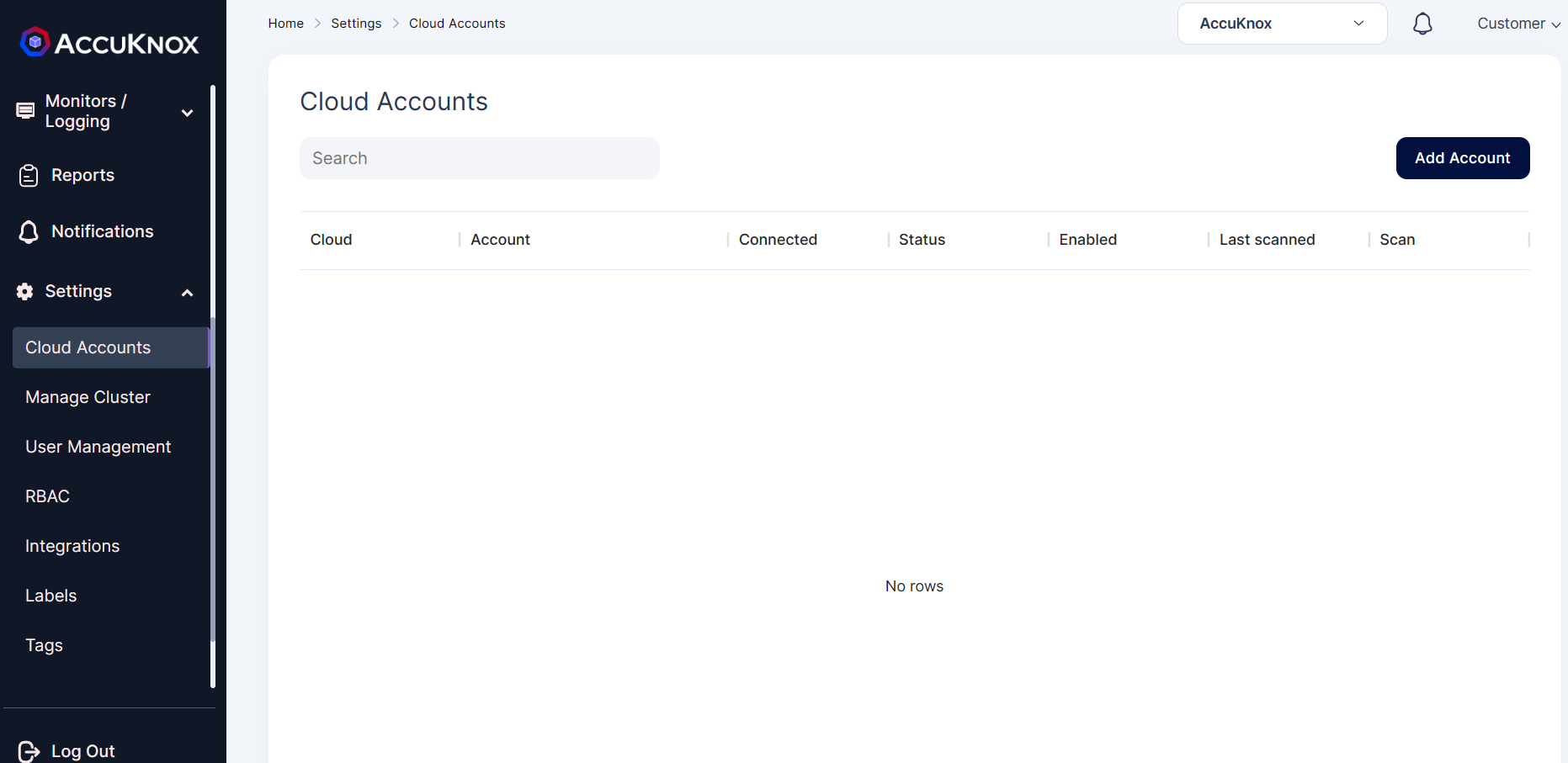
Step 2: In the Cloud Account Page select Onboard Account option
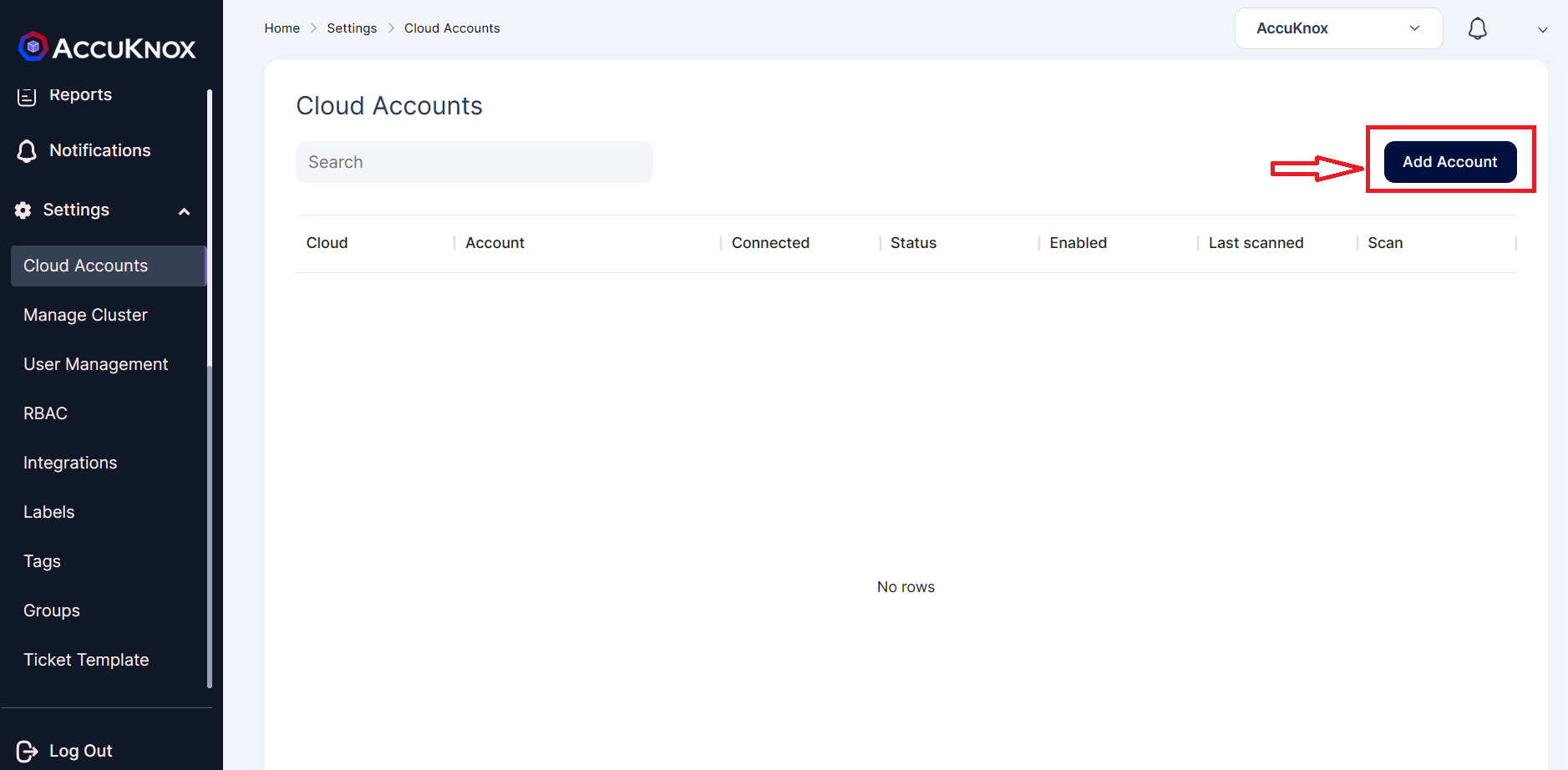
Step 3: Select the AWS option
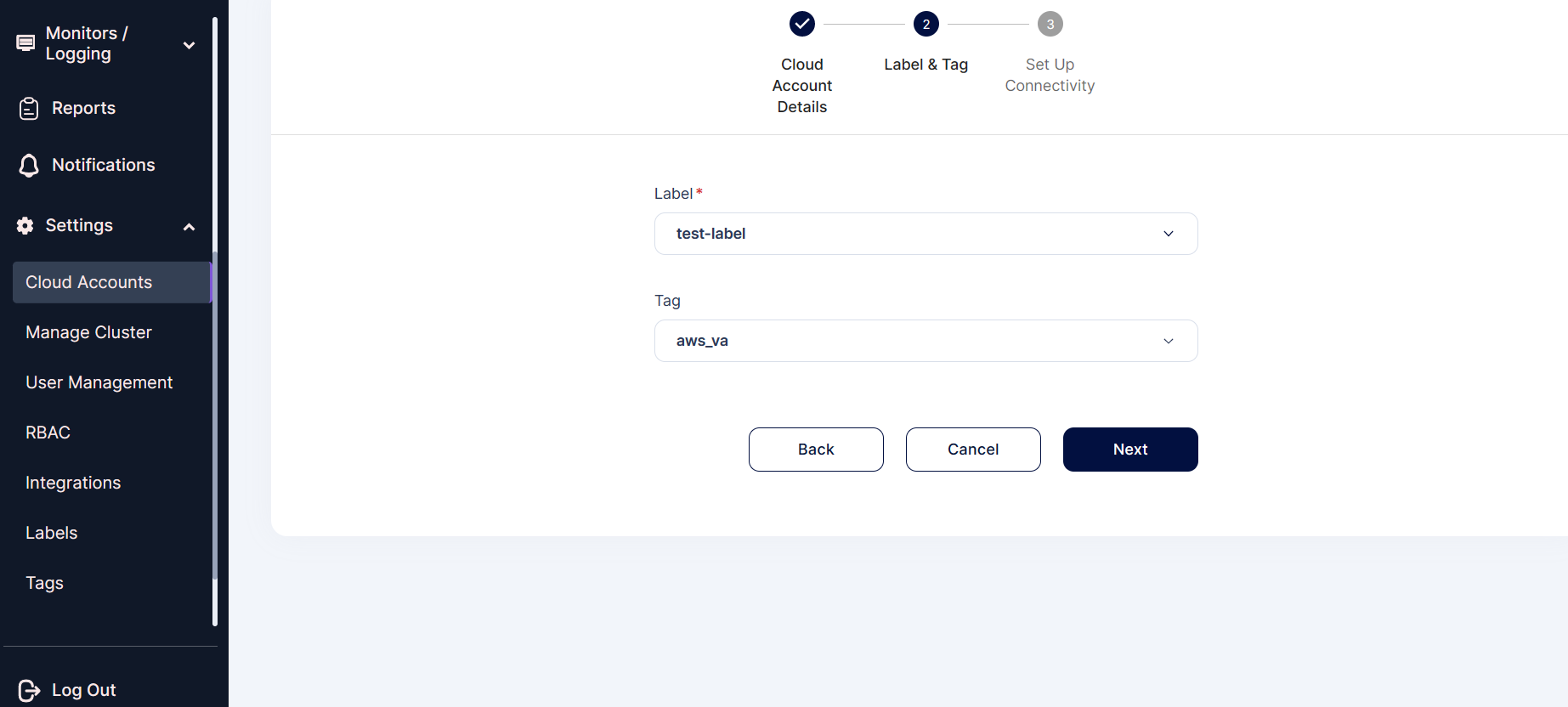
Step 4: In the next Screen select the labels and Tags field from the dropdown Menu.
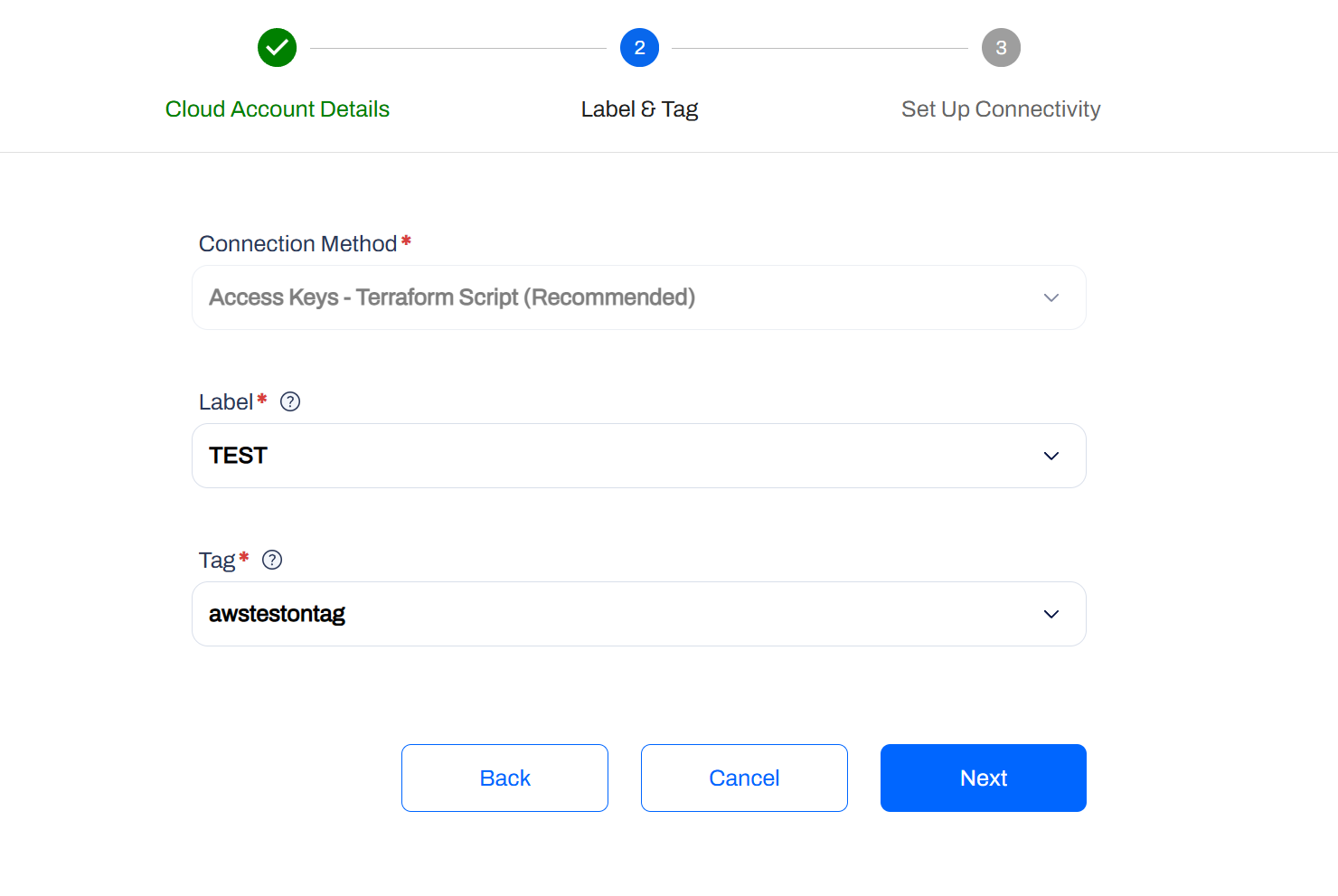
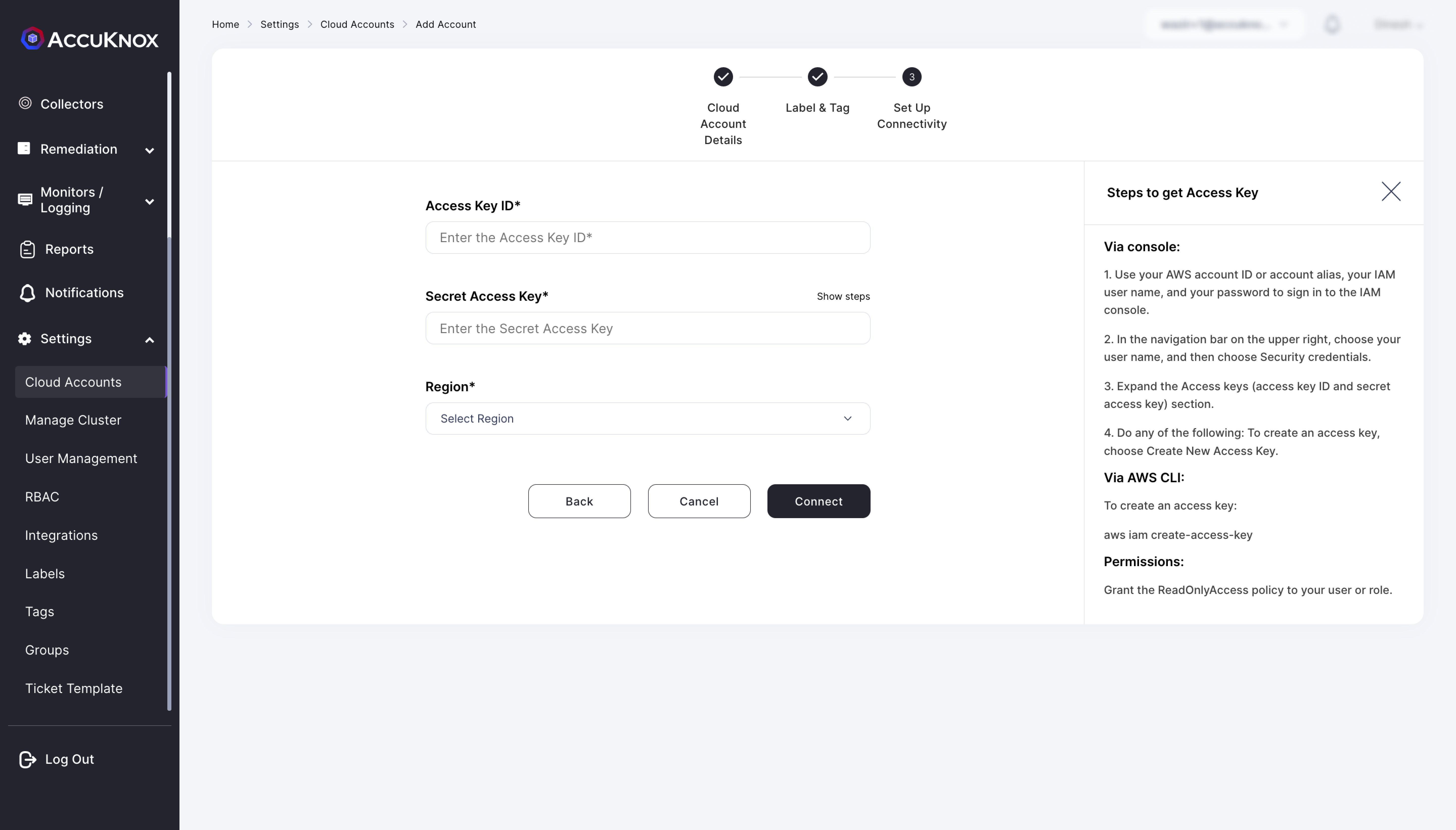
Step 5: After assigning a label and tag, on the next screen provide the AWS account’s Access Key and Secret Access Key ID and select the region of the AWS account.
Follow the on-screen instructions and scroll to the bottom of the page.
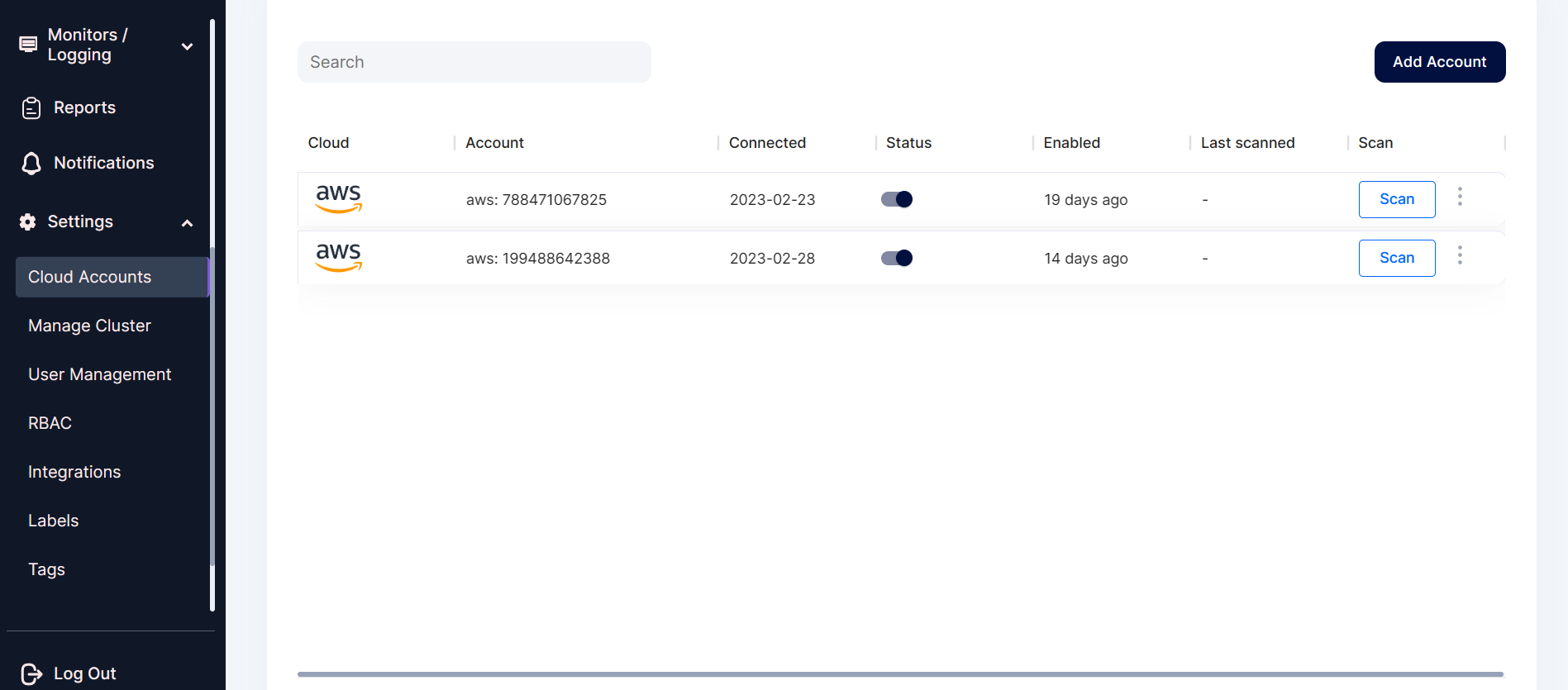
Step 6: The AWS account has been added to AccuKnox using the Access Key method. You can view the onboarded cloud account by navigating to Settings → Cloud Accounts.