Skip to content

xBOM Detailed Setup Guide

This guide walks you through setting up xBOM with your AccuKnox tenant and generating BOM files.

What is xBOM

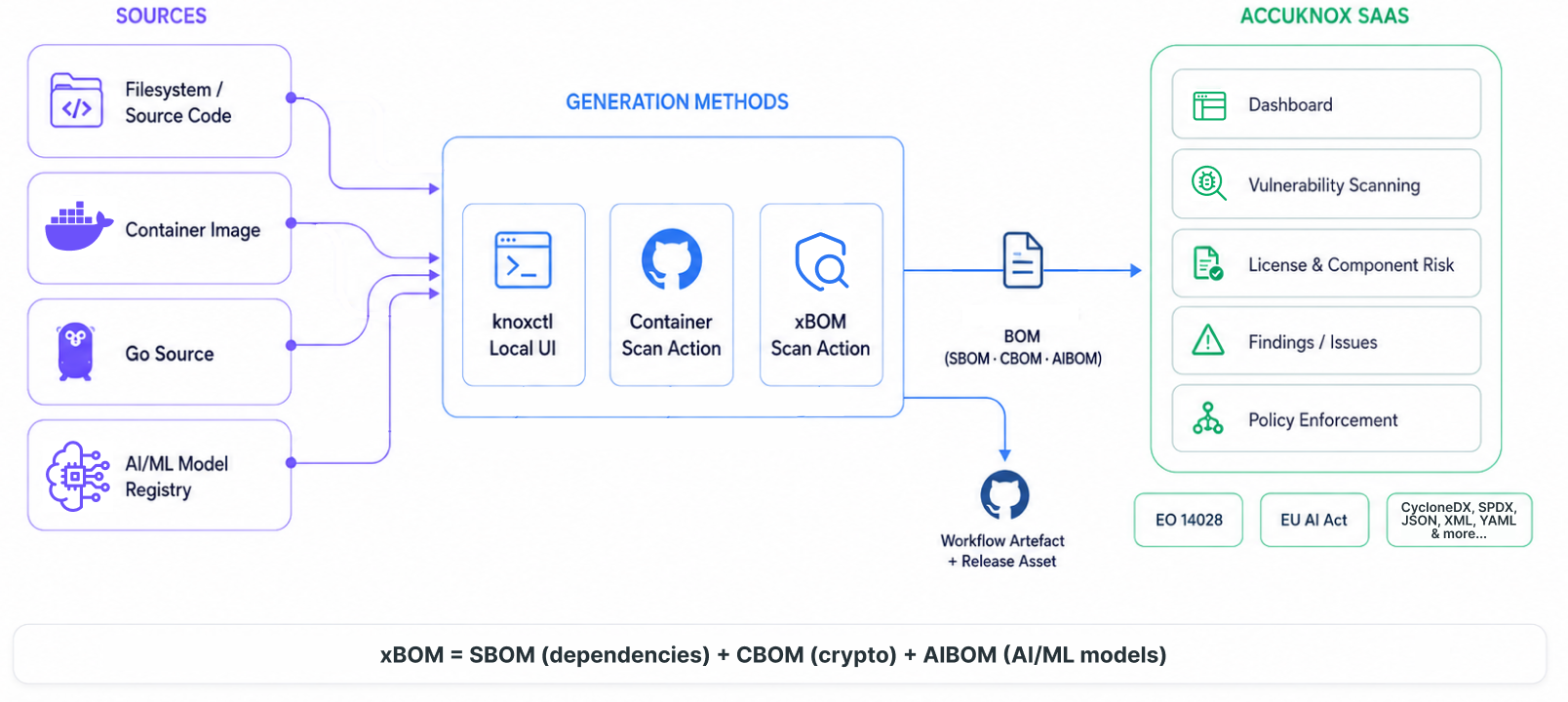
xBOM is an umbrella term covering SBOM (software dependencies), CBOM (cryptographic assets), and AIBOM (AI/ML models). Each maps a different layer of the supply chain to track risk, meet compliance requirements like EO 14028 and the EU AI Act, and respond to vulnerabilities faster.
Prerequisites

  • Access to AccuKnox UI
  • knoxctl binary installed on your system

Step 1: Create Project and Classifier

  1. Log in to the AccuKnox UI

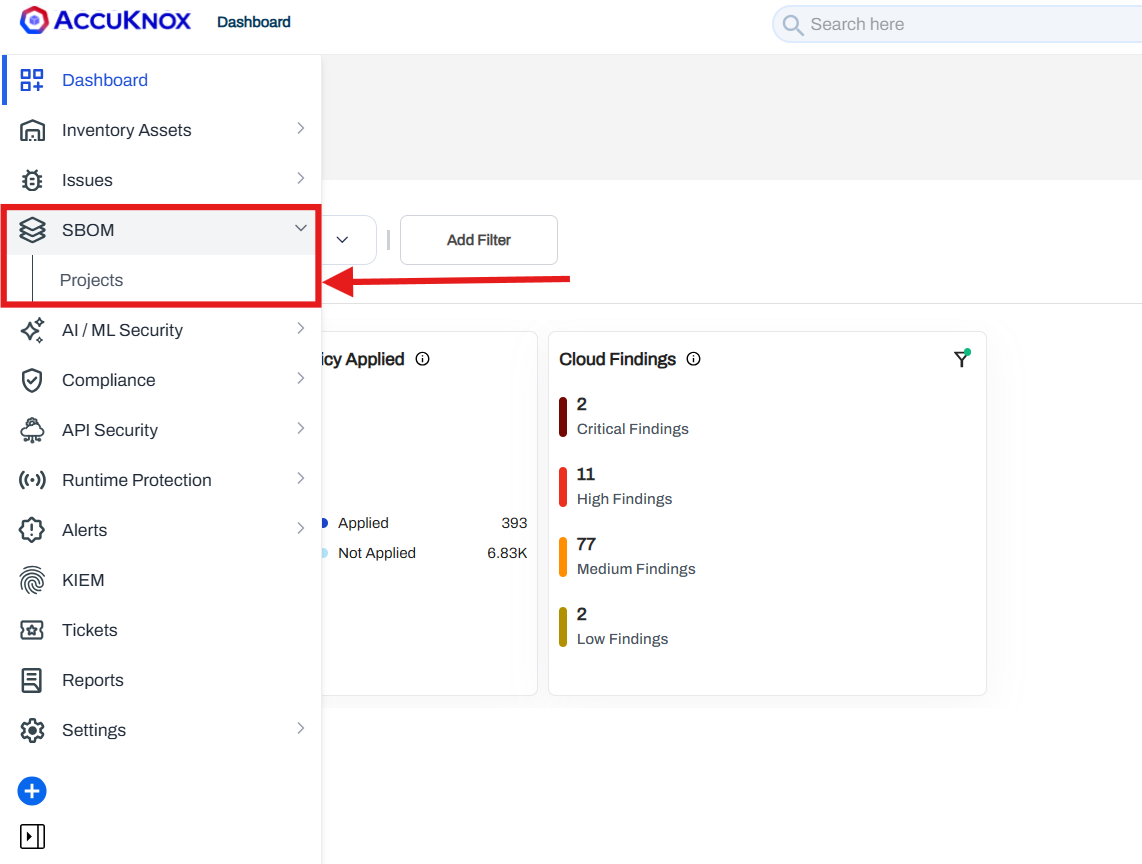
  2. Navigate to SBOM > Projects

    Navigate to SBOM Projects

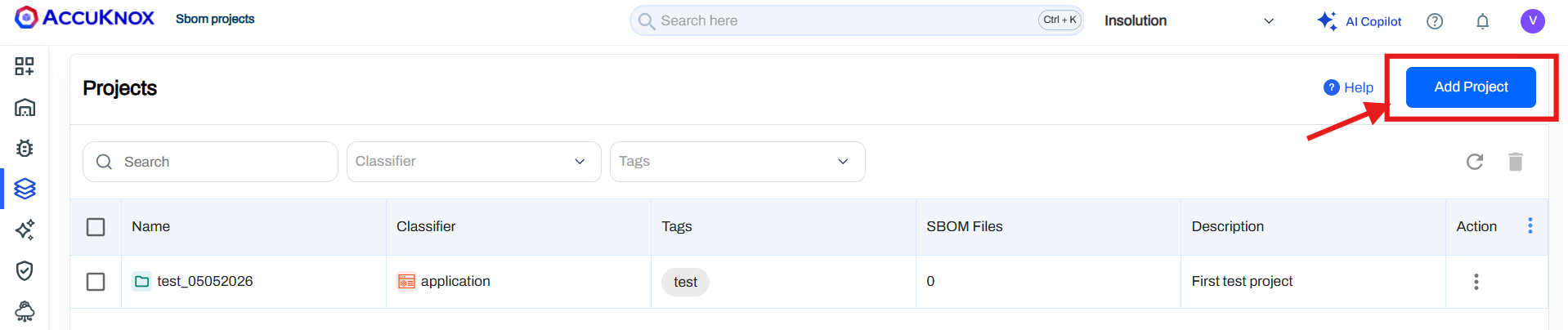
  3. Click Add Project

    Click Add Project

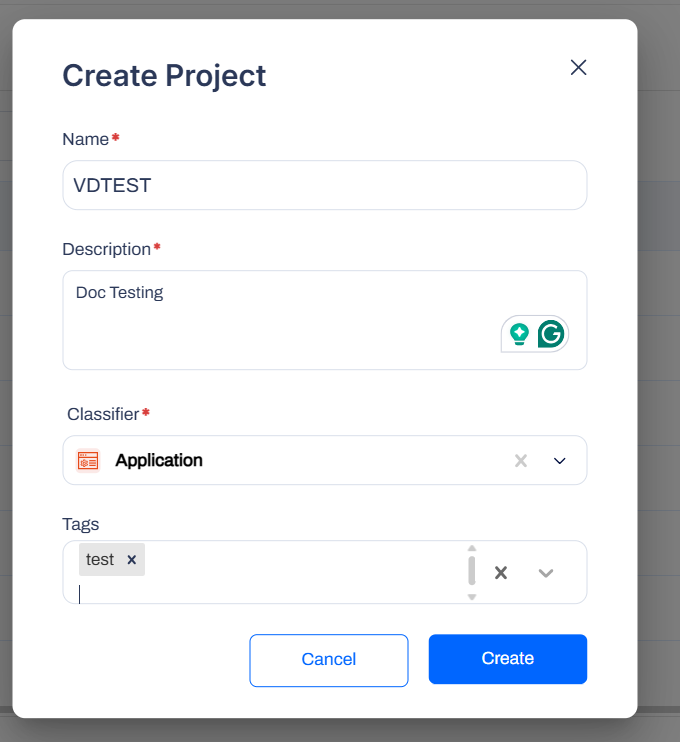
  4. Fill in the following fields:

    • Project name
    • Description
    • Classifier

    Fill in project fields

  5. Click on the Create button.

Step 2: Create Labels

Set up your labels for organising projects:

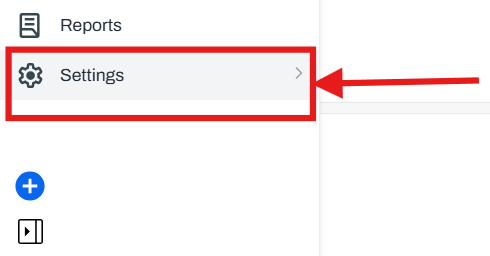
  1. In the AccuKnox UI, navigate to Settings

    Navigate to Settings

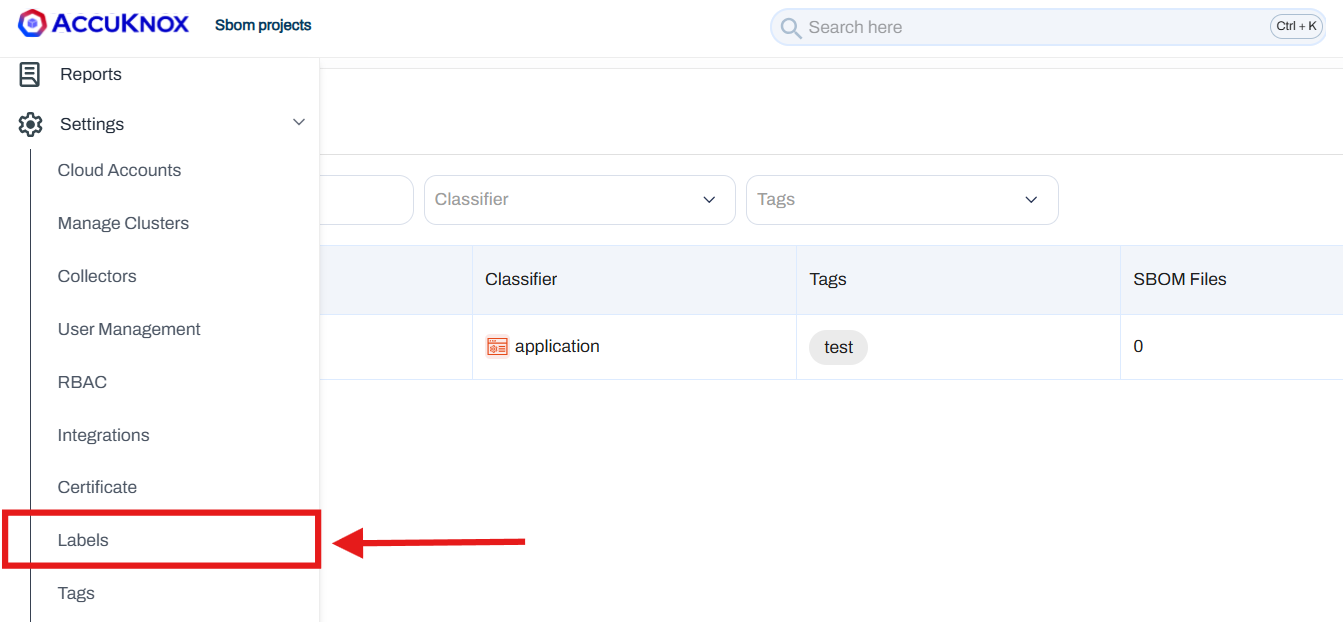
  2. Go to Labels

    Go to Labels

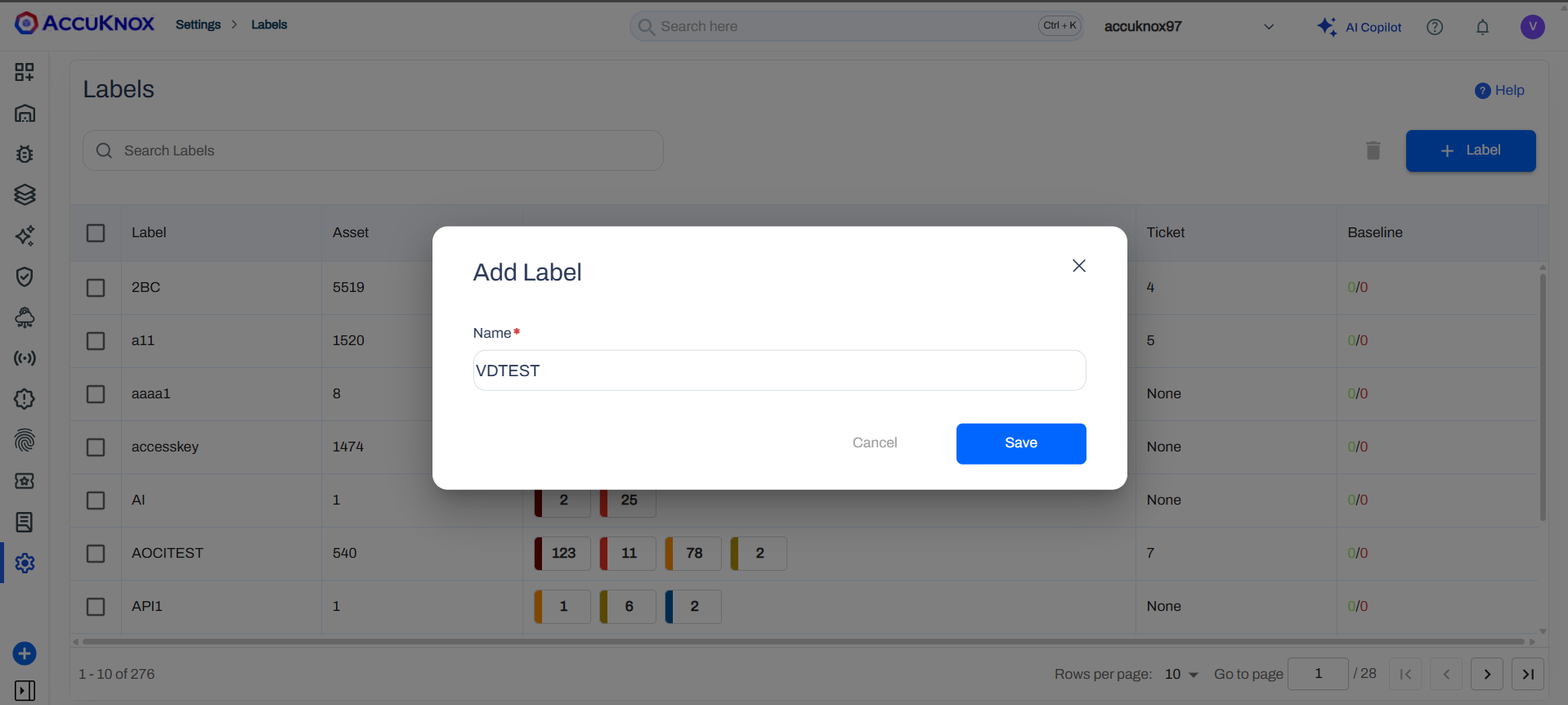
  3. Click the Label+ button

    Click Label+ button

  4. Create the labels you need for organising your projects

    Create labels

  5. Save your label configuration.

Reference: How to Create Labels

Step 3: Generate Access Key

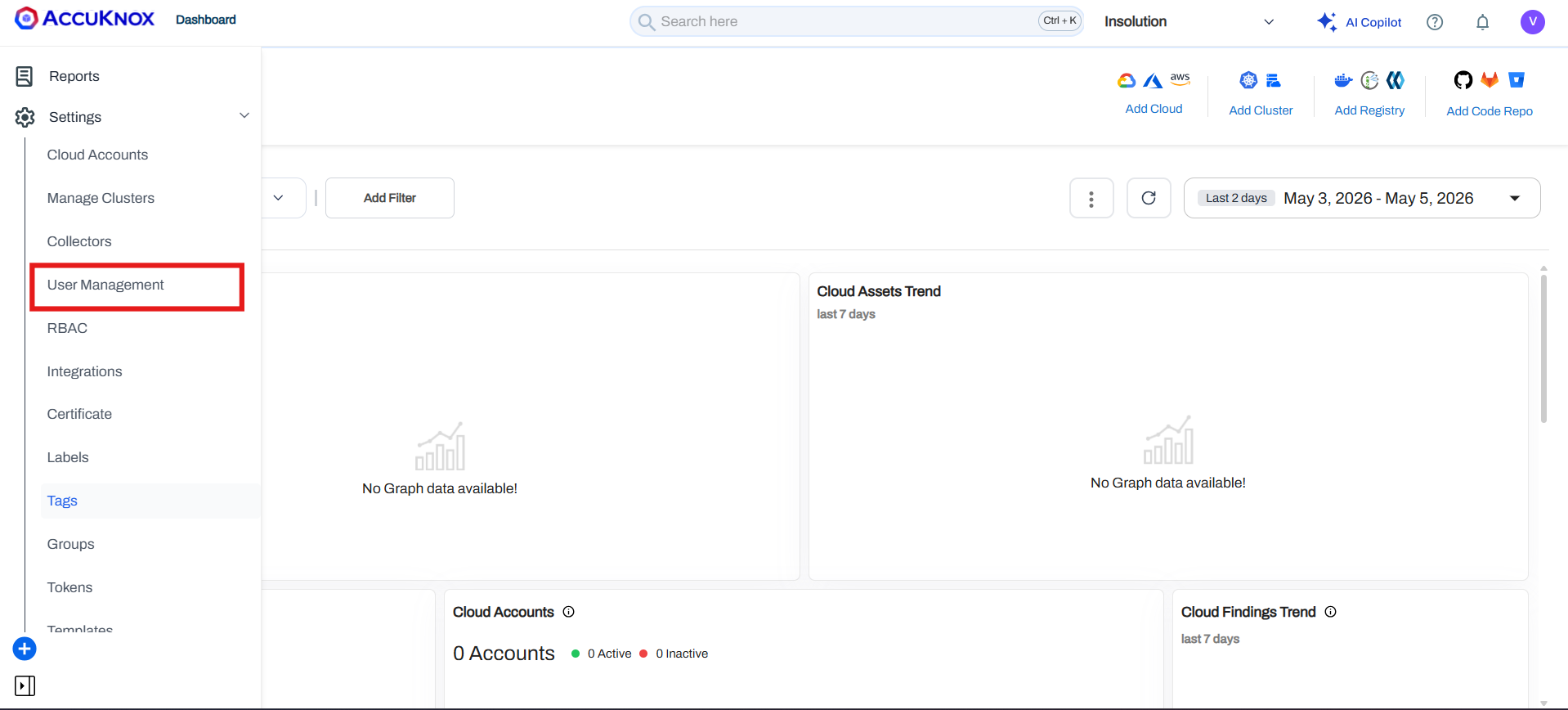
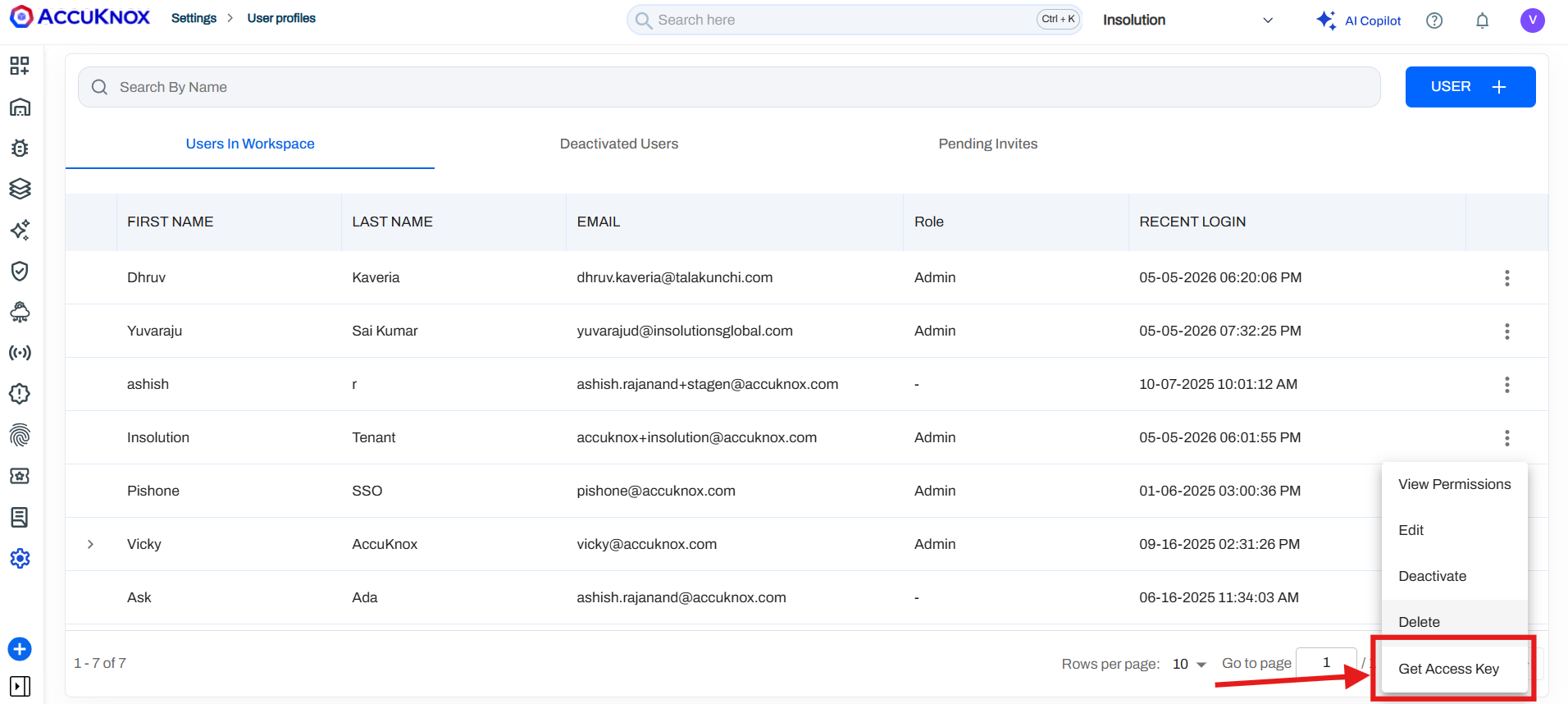
  1. Navigate to Settings > User Management

    Navigate to User Management

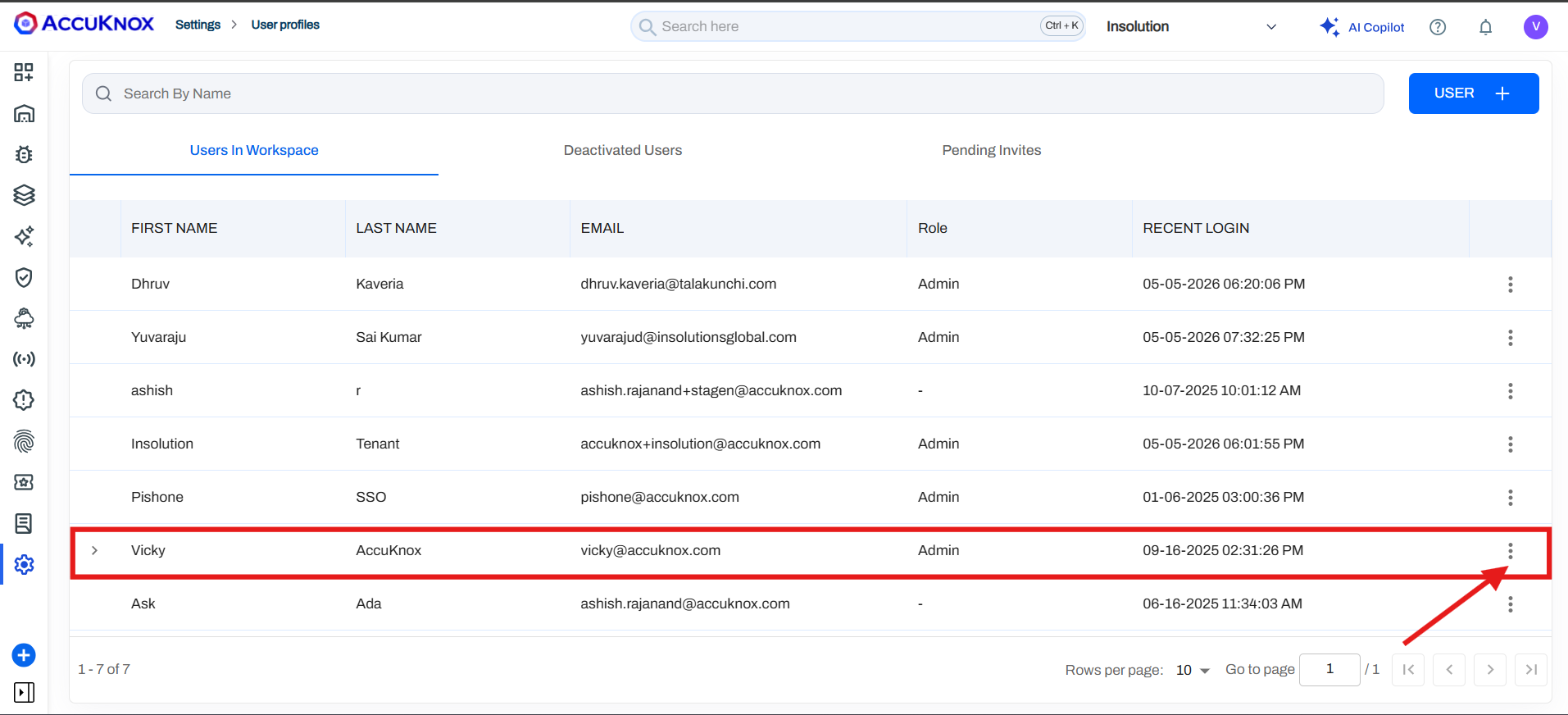
  2. Click on your user profile.

  3. Click the three-dot icon (⋮)

    Click the three-dot icon

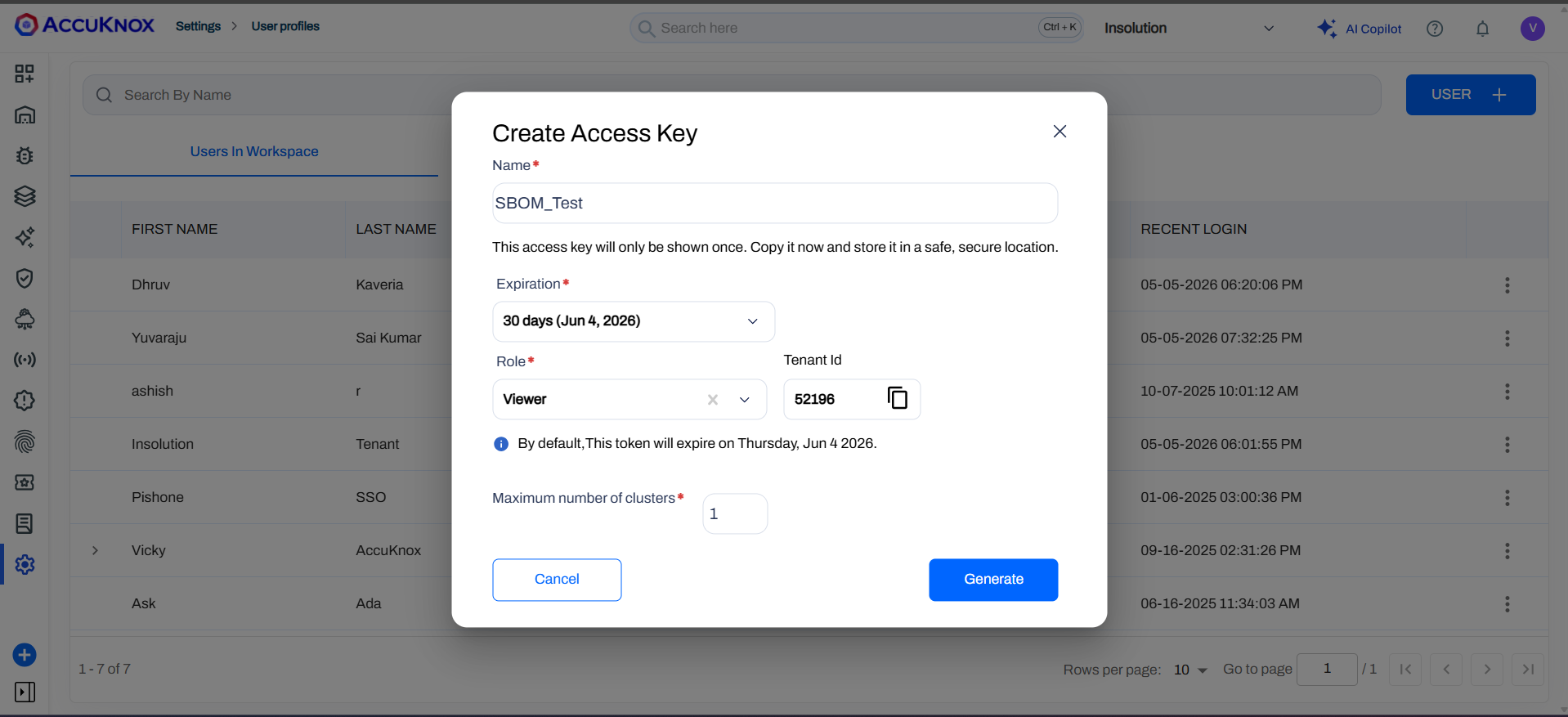
  4. Select Create Access Key

    Select Create Access Key

  5. Copy the access key and save it securely

    Copy access key

Note

You'll need this key for API authentication in the next steps.

Reference: How to Create Access Keys

Step 4: Run knoxctl (Windows)

Open your terminal and verify the installation:

./knoxctl.exe -h

knoxctl help output

This displays available commands and options.

Step 5: Launch knoxctl UI

Start the local UI server:

./knoxctl.exe ui

The UI will be available at:

Open either URL in your browser.

knoxctl UI

Step 6: Configure BOM Settings

In the knoxctl UI:

  1. Navigate to BOM Settings.
  2. Add the following configuration — Control Panel URL:

    https://cspm.stage.accuknox.com
    

    API Token: Paste the access key you created in Step 3.

  3. Click Save Settings

    Save BOM Settings

Step 7: Sync Projects and Labels

  1. Click Refresh for projects and labels.
  2. The UI will display all projects available on your tenant.
  3. All associated labels will be visible.

    Sync projects and labels

BOM File Generation

After completing the setup steps, you can generate different types of BOM files based on your needs.

Additional options available in all BOM types:

  • Sign artifact with cosign (ECDSA P-256): Optional checkbox to cryptographically sign the generated BOM.
  • CLI Preview: The UI displays the equivalent knoxctl command for your configuration, useful for automation.

Generate SBOM (Software Bill of Materials)

In the knoxctl UI:

  1. Navigate to Software Bill.
  2. Configure the following settings:

    • Source: Path to your project folder
    • Output Scheme: Select the output schema
    • Exclude Pattern: (Optional) Add any patterns to exclude
  3. Click Generate SBOM

    Generate SBOM

  4. Download the generated file from the interface.

  5. The generated SBOM will also appear in the UI under SBOM > Projects > [Your Project Name].

    SBOM in dashboard

Generate CBOM (Cryptographic Bill of Materials)

CBOM can be generated for either filesystem projects or container images.

In the knoxctl UI:

  1. Navigate to Software Bill.
  2. Select Source Code as the scan type.
  3. Configure the following settings:

    • Source Path: Path to your project folder
    • Project Name: (Optional) Name of your project
    • Group / Module: (Optional) Specify group or module
    • Version: (Optional) Project version
  4. Click Generate CBOM

    Generate CBOM

  5. Download the generated file from the interface.

  6. The generated CBOM will also appear in the UI under SBOM > Projects > [Your Project Name].

Generate AIBOM (AI Bill of Materials)

Option 1: Hugging Face Model Scanning

In the knoxctl UI:

  1. Navigate to Software Bill.
  2. Select Hugging Face as the source type.
  3. Configure the following settings:

    • Model Identifier: Format: owner/model-name (e.g., meta-llama/Llama-2-7b)
    • API Token: (Optional) Hugging Face API token
    • Override Name: Custom name for the model
    • Override Version: Custom version identifier
    • Manufacturer: Model manufacturer/creator
  4. Click Generate AIBOM

    Generate AIBOM - Hugging Face

  5. Download the generated file from the interface.

  6. The generated AIBOM will also appear in the UI under SBOM > Projects > [Your Project Name].

Option 2: AWS Bedrock Model Scanning

In the knoxctl UI:

  1. Navigate to Software Bill.
  2. Select AWS Bedrock as the source type.
  3. Configure the following settings:

    • AWS Region: us-east-1 (or your preferred region)
    • Model ID Filter: (Optional) Leave blank for all models
    • Credentials: Choose one of the following:

      • Use Default Credential Chain (if AWS credentials are already configured in your terminal)
        • Default chain: env vars → ~/.aws/credentials → IAM role
      • Custom Keys:
        • Access Key ID: AKIAIOSFODNN7EXAMPLE
        • Secret Access Key: wJalrXUtnFEMI/K7MDENG/bPxRfiCYEXAMPLEKEY
        • Session Token: (Optional) Temporary session token
    • Override Name: Leave blank to use model ID

    • Override Version: Leave blank for git SHA
    • Manufacturer: Override manufacturer name
  4. Click Generate AIBOM

    Generate AIBOM - AWS Bedrock

  5. Download the generated file from the interface.

  6. The generated AIBOM will also appear in the UI under SBOM > Projects > [Your Project Name].

Generate SBOM via GitHub Actions (CI/CD)

If you prefer an automated CI/CD approach, AccuKnox provides a GitHub Actions integration that scans container images and generates SBOMs on every push or pull request.

Additional prerequisites:

  • GitHub repository with a Dockerfile
  • GitHub Secrets configured: ACCUKNOX_TOKEN, ACCUKNOX_LABEL, ACCUKNOX_ENDPOINT

Setup

  1. In AccuKnox UI, navigate to SBOM > Projects and create a project (see Step 1 above). The project name must exactly match the project_name value in your workflow file.

    SBOM Projects page

  2. Click Add Project and fill in the project name, classifier (e.g., Container), description, and tags.

    Add Project Project creation form

  3. In your GitHub repository, create .github/workflows/containerscan.yml:

name: AccuKnox Container Scan Workflow

on:
  push:
    branches:
      - main
  pull_request:
    branches:
      - main

jobs:
  Container-scan:
    runs-on: ubuntu-latest
    steps:
      - name: Checkout repository
        uses: actions/checkout@v4.0.0
      - name: Run AccuKnox Container Scanner
        uses: accuknox/container-scan-action@latest
        with:
          accuknox_token: ${{ secrets.ACCUKNOX_TOKEN }}
          accuknox_label: ${{ secrets.ACCUKNOX_LABEL }}
          accuknox_endpoint: ${{ secrets.ACCUKNOX_ENDPOINT }}
          image_name: "test-nginx"
          tag: "latest"
          severity: "UNKNOWN,LOW,MEDIUM,HIGH,CRITICAL"
          soft_fail: true
          upload_results: true
          generate_sbom: true
          dockerfile_context: Dockerfile
          project_name: "Project Test"
![GitHub Actions workflow configuration](4.png)
  1. Push changes or open a pull request to trigger the workflow.

    Workflow triggered

  2. Review results:

    • Findings > Issues Page for container image vulnerabilities.

      Findings Issues page

    • SBOM > Projects > [Your Project Name] for SBOM results and comparisons.

      SBOM results in dashboard

Sample repository

Fork containers/image to test this workflow with a real container image.

Post-Generation Workflow

Once generated, BOMs automatically appear in your SBOM dashboard, where AccuKnox scans them for known CVEs, license issues, and outdated components. View vulnerability details, track remediation, and export reports under SBOM > Projects > [Your Project Name].