AWS Organization AI/ML Cloud Onboarding
One CloudFormation stack connects the AWS Management Account and the selected member accounts to AccuKnox AI Security. The stack creates the CNAPPOrgSecurityAuditor IAM role in the Management Account. A service-managed StackSet then deploys the same role to every account in the Organizational Units (OUs) that you select.
AccuKnox calls AWS STS AssumeRole on CNAPPOrgSecurityAuditor and gets temporary credentials. You do not create or store long-lived AWS access keys.
What cloud onboarding enables
Onboarding turns on these AI Security features for the onboarded accounts:
- Model and Data Security
- Shadow AI Discovery
- Prompt Firewall for Cloud Assets
Onboarding one AWS account?
Use AWS Standalone AI/ML Cloud Onboarding for an account that is not part of an AWS Organization.
Prerequisites
- Sign in to the AWS Organizations Management Account.
- Make sure that the member accounts you want to scan are part of the AWS Organization.
- Keep the AWS Organization ID and the Root or OU ID ready.
- Use an AWS user that can create CloudFormation stacks, StackSets and IAM roles.
- Activate trusted access between AWS CloudFormation StackSets and AWS Organizations. The template uses a service-managed StackSet, and a service-managed StackSet needs trusted access. The steps are in Activate trusted access for StackSets with AWS Organizations.
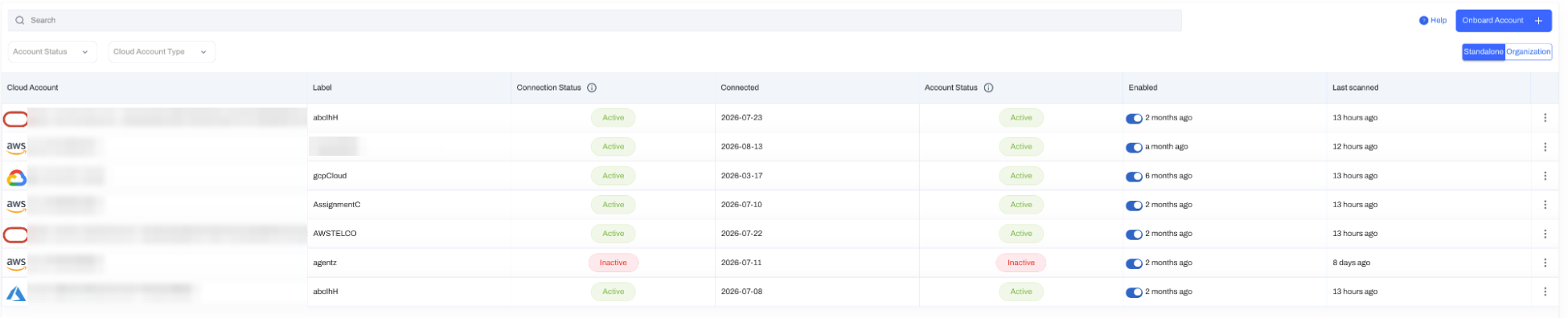
Step 1. Open Cloud Accounts
- In the AccuKnox console, go to Settings → Cloud Accounts.
- Click Onboard Account.
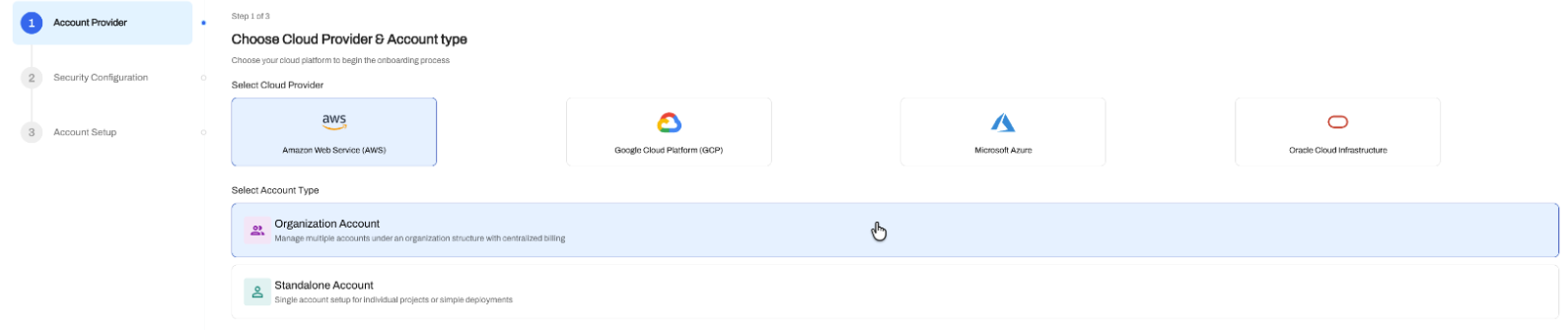
Step 2. Select the AWS Organization Account Type
- Select Amazon Web Service (AWS) as the cloud provider.
- Select Organization Account as the account type. This type onboards the Management Account and the member accounts in the OU that you select.
- Click Next.
Then complete the Security Configuration step.
- Turn on AI Security. This toggle enables AI/ML asset discovery and monitoring.
- Click Next.

Step 3. Enter the Organization Details
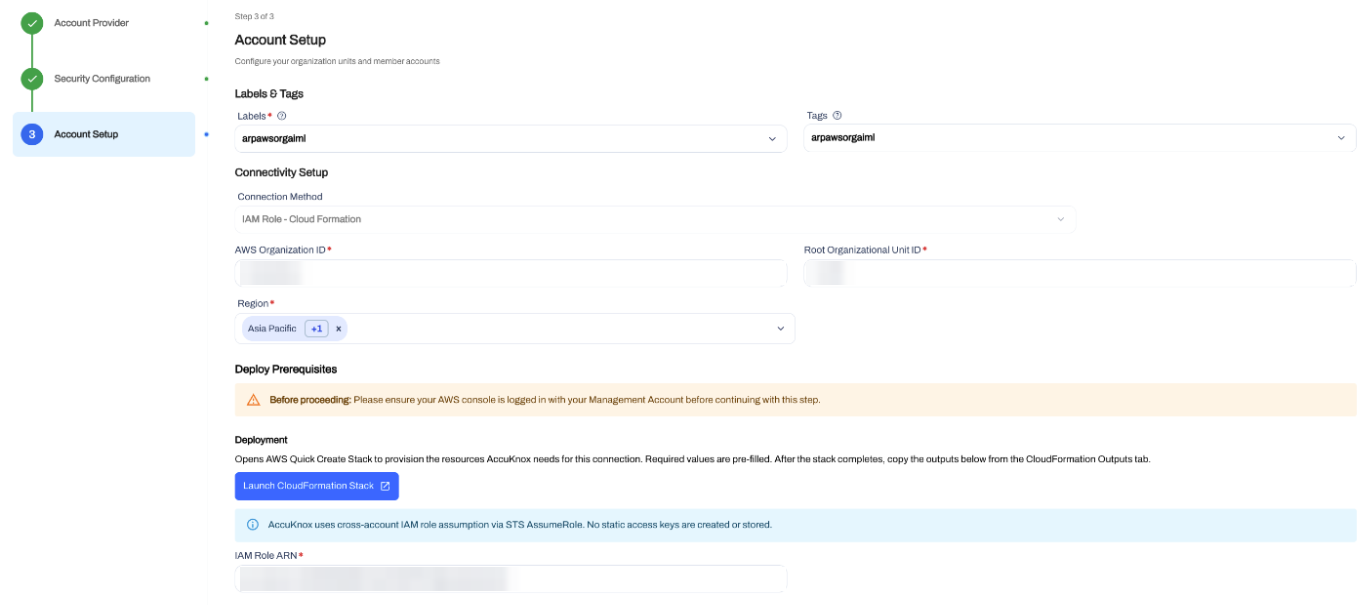
Fill in the Account Setup form.
| Field | Value |
|---|---|
| Labels | Select or create a label. The label identifies the AWS Organization and its scan results. |
| Tags | Optional. Add tags for extra grouping. |
| Connection Method | Select IAM Role - Cloud Formation. |
| AWS Organization ID | Enter the AWS Organization ID, for example o-xxxxxxxxxx. |
| Root Organizational Unit ID | Enter the Root or OU ID that holds the accounts to onboard, for example r-xxxxxxxxxx. |
| Region | Select the AWS regions to scan. |
Sign in to the Management Account first
The AWS console must be signed in to the Management Account before you launch the stack in Step 4.
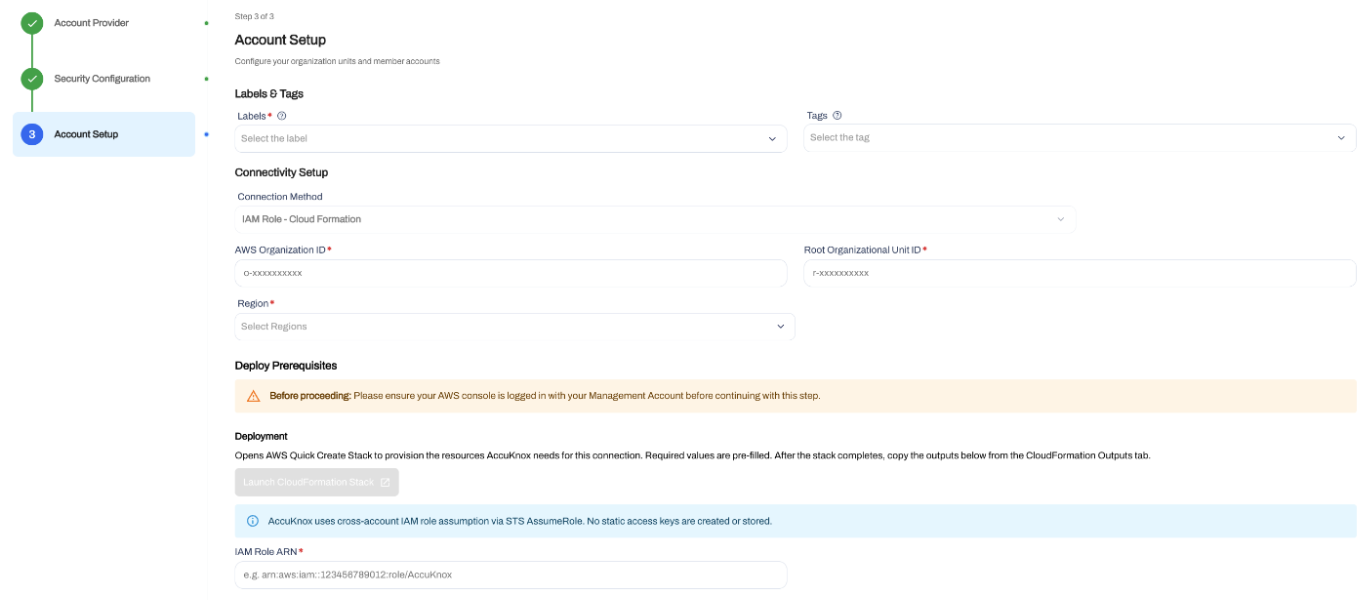
Step 4. Launch the CloudFormation Stack
- Under Deploy Prerequisites, click Launch CloudFormation Stack.
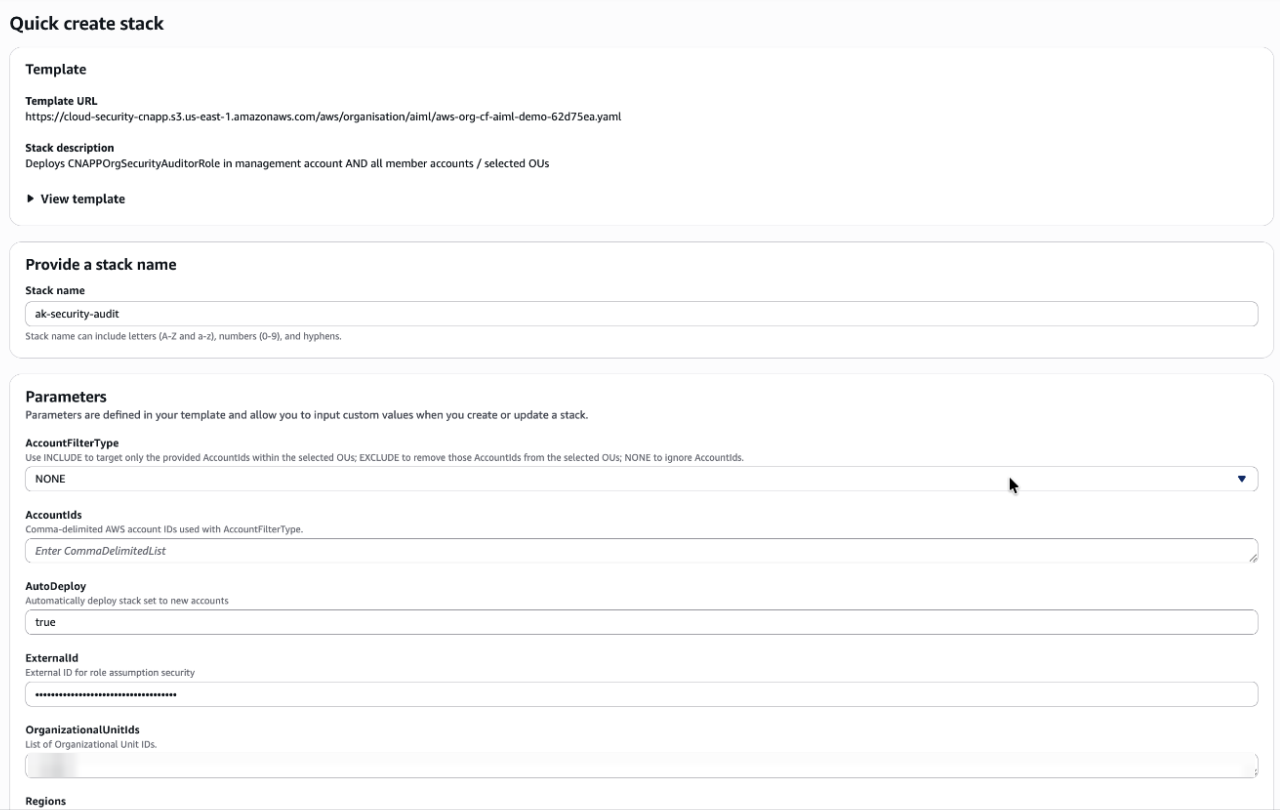
AccuKnox opens the AWS CloudFormation Quick create stack page with the onboarding parameters filled in. The stack creates the CNAPPOrgSecurityAuditor role in the Management Account. It also creates the AK-SecurityAuditorRoleStackSet StackSet. The StackSet then deploys CNAPPOrgSecurityAuditor to each targeted member account.
Step 5. Review the CloudFormation Parameters
Check the parameters on the Quick create stack page before you create the stack. Keep the generated values unless you need a different deployment scope.
| Parameter | What it controls |
|---|---|
OrganizationalUnitIds |
The Root or OUs that the StackSet deploys to. |
Regions |
The regions for the StackSet instances. |
AutoDeploy |
Automatic StackSet deployment to new accounts that join the targeted OUs. |
ExternalId |
An extra condition that AccuKnox must meet when it assumes the IAM role. |
AccountFilterType |
INCLUDE targets only the listed AccountIds. EXCLUDE removes them. NONE ignores AccountIds. |
AccountIds |
The AWS account IDs that AccountFilterType uses with INCLUDE or EXCLUDE. |
Step 6. Review the IAM Role and Its Permissions
The template gives CNAPPOrgSecurityAuditor two AWS managed policies, ReadOnlyAccess and SecurityAudit. It also adds an inline policy named AI-ML-permissions. The Management Account role and the member account roles get the same configuration.
STS AssumeRole With an External ID
The role trust policy lets the AccuKnox AWS principal call sts:AssumeRole. AWS STS returns temporary credentials that carry only the role permissions, so no long-lived access key exists.
The trust policy also checks sts:ExternalId. The role assumption request must carry the External ID from your onboarding session. This check adds protection for cross-account access by a third party.
Permissions That the Role Grants
| Permission | Why AccuKnox needs it |
|---|---|
ReadOnlyAccess |
Read-only access to discover AWS resources and read their configuration and metadata. |
SecurityAudit |
Read access to security-relevant AWS configuration. |
bedrock:InvokeModel |
Invokes Amazon Bedrock models when a supported AI/ML workflow needs model interaction. |
bedrock:ListImportedModels |
Discovers imported models in Amazon Bedrock. |
bedrock:ListModelInvocationJobs |
Reads Bedrock model invocation job information for supported AI/ML workflows. |
sagemaker:InvokeEndpoint |
Invokes deployed SageMaker inference endpoints for supported AI/ML workflows. |
aws-marketplace:ViewSubscriptions |
Reads AWS Marketplace subscription information for supported Marketplace AI models and services. |
aws-marketplace:Subscribe |
Subscribes to a supported Marketplace model that needs a subscription before use. |
bedrock-agentcore:InvokeAgentRuntime |
Invokes a Bedrock AgentCore runtime for supported workflows. |
bedrock-agentcore:StopRuntimeSession |
Stops the matching AgentCore runtime session. |
To read the full template, expand View template on the Quick create stack page.
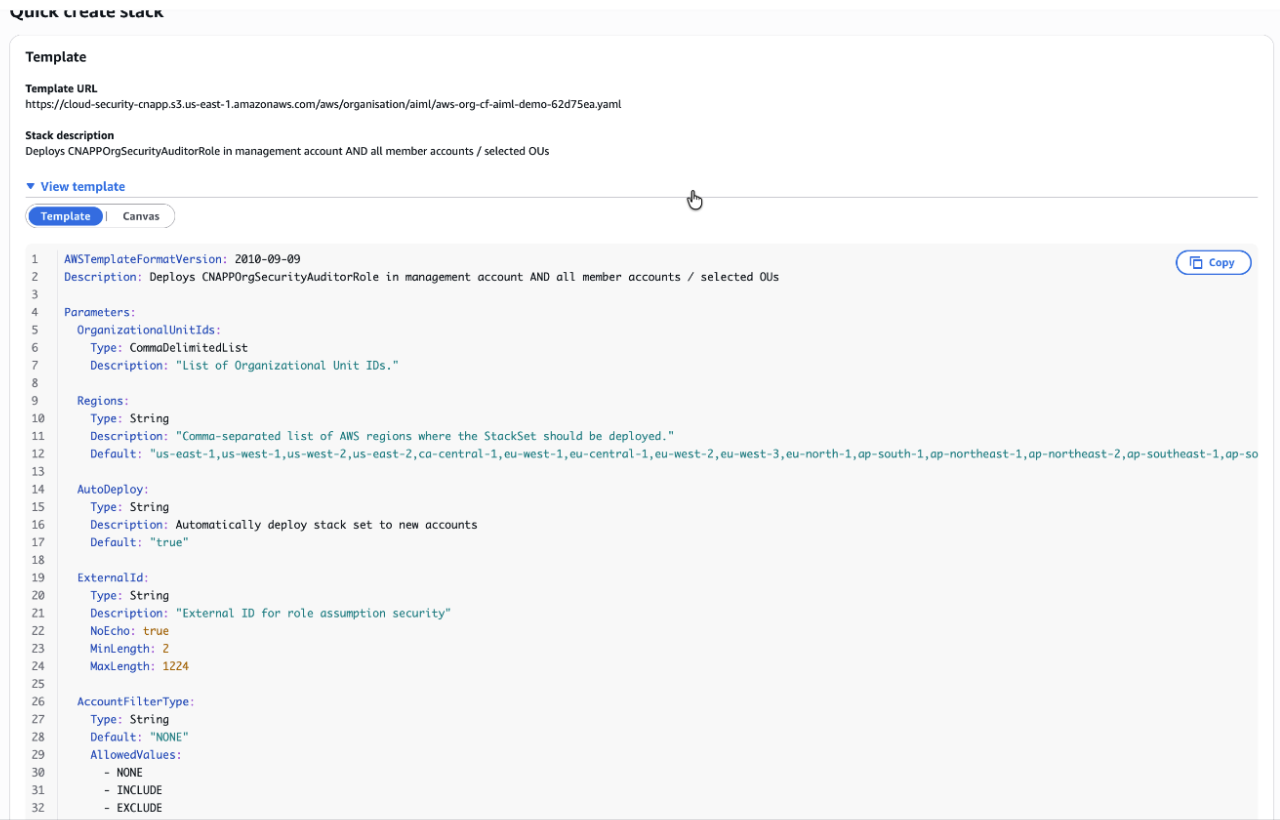
CloudFormation template
AWSTemplateFormatVersion: 2010-09-09
Description: Deploys CNAPPOrgSecurityAuditorRole in management account AND all member accounts / selected OUs

Parameters:
  OrganizationalUnitIds:
    Type: CommaDelimitedList
    Description: "List of Organizational Unit IDs."

  Regions:
    Type: String
    Description: "Comma-separated list of AWS regions where the StackSet should be deployed."
    Default: "us-east-1,us-west-1,us-west-2,us-east-2,ca-central-1,eu-west-1,eu-central-1,eu-west-2,eu-west-3,eu-north-1,ap-south-1,ap-northeast-1,ap-northeast-2,ap-southeast-1,ap-southeast-2,sa-east-1,af-south-1,me-south-1,eu-south-1,ap-east-1"

  AutoDeploy:
    Type: String
    Description: Automatically deploy stack set to new accounts
    Default: "true"

  ExternalId:
    Type: String
    Description: "External ID for role assumption security"
    NoEcho: true
    MinLength: 2
    MaxLength: 1224

  AccountFilterType:
    Type: String
    Default: "NONE"
    AllowedValues:
      - NONE
      - INCLUDE
      - EXCLUDE
    Description: "Use INCLUDE to target only the provided AccountIds within the selected OUs; EXCLUDE to remove those AccountIds from the selected OUs; NONE to ignore AccountIds."

  AccountIds:
    Type: CommaDelimitedList
    Default: ""
    Description: "Comma-delimited AWS account IDs used with AccountFilterType."

Conditions:
  HasAccountIds: !Not [!Equals [!Join [",", !Ref AccountIds], ""]]
  UseInclude: !Equals [!Ref AccountFilterType, "INCLUDE"]
  UseExclude: !Equals [!Ref AccountFilterType, "EXCLUDE"]
  AutoDeployEnabled: !Equals [!Ref AutoDeploy, "true"]

Resources:
  ManagementAccountRole:
    Type: AWS::IAM::Role
    Properties:
      Path: "/"
      RoleName: "CNAPPOrgSecurityAuditor"
      AssumeRolePolicyDocument:
        Version: "2012-10-17"
        Statement:
          - Effect: Allow
            Principal:
              AWS: arn:aws:iam::735362266271:user/cnapp-security-audit-ak
            Action: "sts:AssumeRole"
            Condition:
              StringEquals:
                "sts:ExternalId": !Ref ExternalId
      Description: "CNAPPOrgSecurityAuditor (Management Account)"
      MaxSessionDuration: 43200
      ManagedPolicyArns:
        - "arn:aws:iam::aws:policy/ReadOnlyAccess"
        - "arn:aws:iam::aws:policy/SecurityAudit"
      Policies:
        - PolicyName: "AI-ML-permissions"
          PolicyDocument:
            Version: "2012-10-17"
            Statement:
              - Sid: "AllowAIMLServices"
                Effect: Allow
                Action:
                  - "bedrock:InvokeModel"
                  - "bedrock:ListImportedModels"
                  - "bedrock:ListModelInvocationJobs"
                  - "sagemaker:InvokeEndpoint"
                  - "aws-marketplace:Subscribe"
                  - "aws-marketplace:ViewSubscriptions"
                  - "bedrock-agentcore:InvokeAgentRuntime"
                  - "bedrock-agentcore:StopRuntimeSession"
                Resource: "*"

  StackSet:
    Type: AWS::CloudFormation::StackSet
    Properties:
      AutoDeployment:
        Enabled: !Ref AutoDeploy
        # Only include RetainStacksOnAccountRemoval when AutoDeploy is true
        RetainStacksOnAccountRemoval:
          !If [AutoDeployEnabled, false, !Ref "AWS::NoValue"]
      PermissionModel: SERVICE_MANAGED
      Capabilities:
        - CAPABILITY_NAMED_IAM
      Description: Deploys CNAPPOrgSecurityAuditorRole across member accounts
      Parameters:
        - ParameterKey: ExternalId
          ParameterValue: !Ref ExternalId
      OperationPreferences:
        FailureTolerancePercentage: 99
        MaxConcurrentPercentage: 100
        RegionConcurrencyType: PARALLEL
      StackInstancesGroup:
        - DeploymentTargets:
            AccountFilterType: !If [HasAccountIds, !If [UseExclude, DIFFERENCE, !If [UseInclude, INTERSECTION, NONE]], NONE]
            OrganizationalUnitIds: !Ref OrganizationalUnitIds
            Accounts: !If [HasAccountIds, !Ref AccountIds, !Ref "AWS::NoValue"]
          Regions:
            - !Select
              - 0
              - !Split
                - ","
                - !Ref Regions
      StackSetName: "AK-SecurityAuditorRoleStackSet"
      TemplateBody: !Sub |
        {
          "AWSTemplateFormatVersion": "2010-09-09",
          "Parameters": {
            "ExternalId": {
              "Type": "String",
              "Description": "External ID for role assumption security",
              "NoEcho": true,
              "MinLength": 2,
              "MaxLength": 1224
            }
          },
          "Resources": {
            "CNAPPOrgSecurityAuditor": {
              "Type": "AWS::IAM::Role",
              "Properties": {
                "Path": "/",
                "RoleName": "CNAPPOrgSecurityAuditor",
                "AssumeRolePolicyDocument": {
                  "Version": "2012-10-17",
                  "Statement": [
                    {
                      "Effect": "Allow",
                      "Principal": {
                        "AWS": "arn:aws:iam::735362266271:user/cnapp-security-audit-ak"
                      },
                      "Action": "sts:AssumeRole",
                      "Condition": {
                        "StringEquals": {
                          "sts:ExternalId": {"Ref": "ExternalId"}
                        }
                      }
                    }
                  ]
                },
                "Description": "CNAPPOrgSecurityAuditor",
                "MaxSessionDuration": 43200,
                "ManagedPolicyArns": [
                  "arn:aws:iam::aws:policy/ReadOnlyAccess",
                  "arn:aws:iam::aws:policy/SecurityAudit"
                ],
                "Policies": [
                  {
                    "PolicyName": "AI-ML-permissions",
                    "PolicyDocument": {
                      "Version": "2012-10-17",
                      "Statement": [
                        {
                          "Sid": "AllowAIMLServices",
                          "Effect": "Allow",
                          "Action": [
                            "bedrock:InvokeModel",
                            "bedrock:ListImportedModels",
                            "bedrock:ListModelInvocationJobs",
                            "sagemaker:InvokeEndpoint",
                            "aws-marketplace:Subscribe",
                            "aws-marketplace:ViewSubscriptions",
                            "bedrock-agentcore:InvokeAgentRuntime",
                            "bedrock-agentcore:StopRuntimeSession"
                          ],
                          "Resource": "*"
                        }
                      ]
                    }
                  }
                ]
              }
            }
          }
        }

Outputs:
  ManagementAccountRoleArn:
    Description: "The ARN of the CNAPPOrgSecurityAuditor role in the management account"
    Value: !GetAtt ManagementAccountRole.Arn
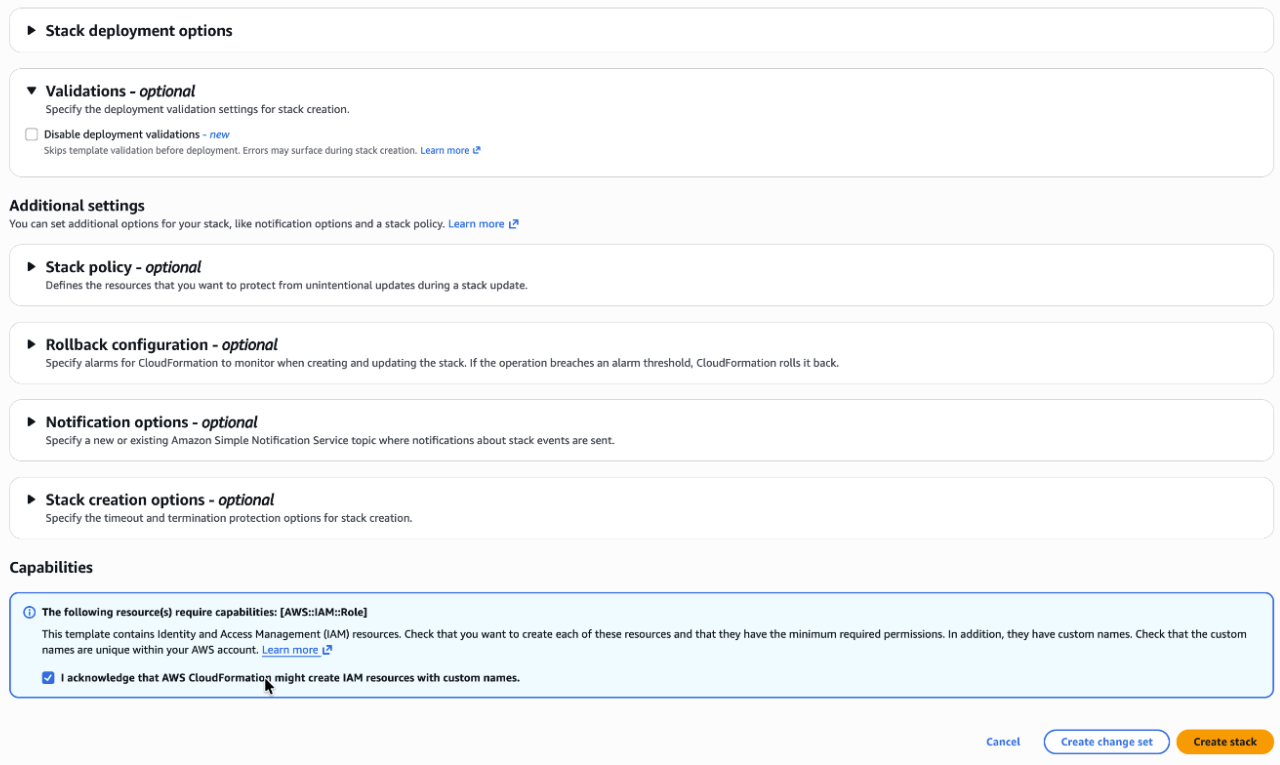
Step 7. Create the CloudFormation Stack
- Scroll to Capabilities.
- Select I acknowledge that AWS CloudFormation might create IAM resources with custom names.
- Click Create stack.
- Wait for the deployment to finish.
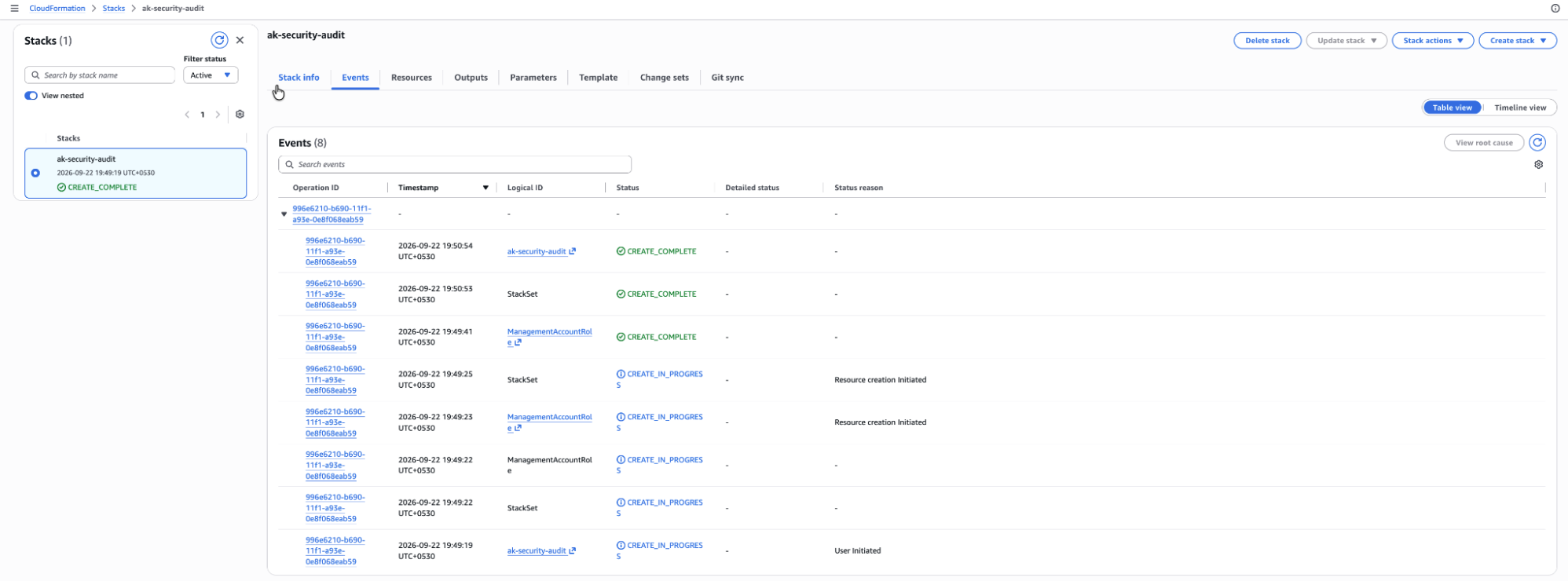
Step 8. Verify the CloudFormation Deployment
- Check that the stack status is
CREATE_COMPLETE. - On the Events tab, check that
ManagementAccountRoleandStackSetboth showCREATE_COMPLETE. - Go to CloudFormation → StackSets → AK-SecurityAuditorRoleStackSet → Stack instances.
- Check that each targeted member account instance shows a successful status. This status confirms that the IAM role exists in each account in the selected scope.
Step 9. Complete the Onboarding in AccuKnox
- In the CloudFormation stack, open the Outputs tab.
- Copy the
ManagementAccountRoleArnvalue. This value is the ARN ofCNAPPOrgSecurityAuditorin the Management Account. - Return to AccuKnox and paste the value into the IAM Role ARN field.
- Click Verify & Connect.
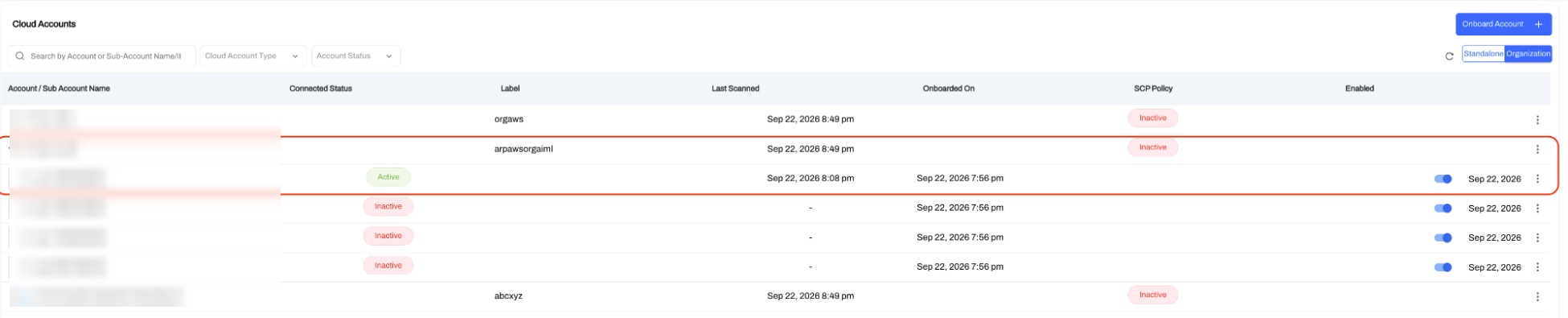
- Go to Settings → Cloud Accounts and select the Organization view.
- Find the organization by its label and expand it. The Management Account and the discovered member accounts show under the organization root.
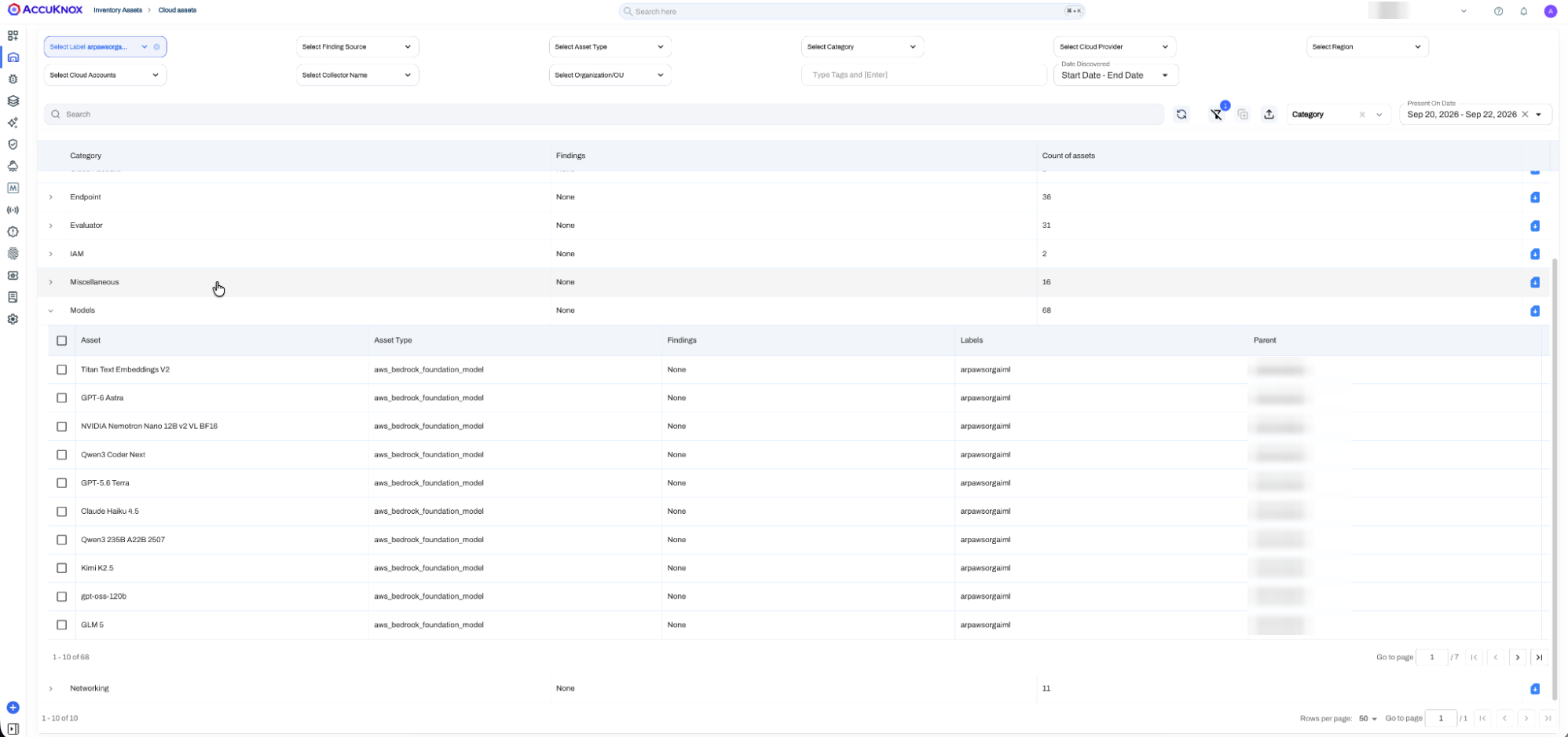
Step 10. Review the Cloud Assets
- After the scans complete, go to Inventory Assets → Cloud Assets.
- Filter by the organization label.
- Check that AWS resources from the onboarded accounts show in the inventory.
Step 11. Validate the AI/ML Assets
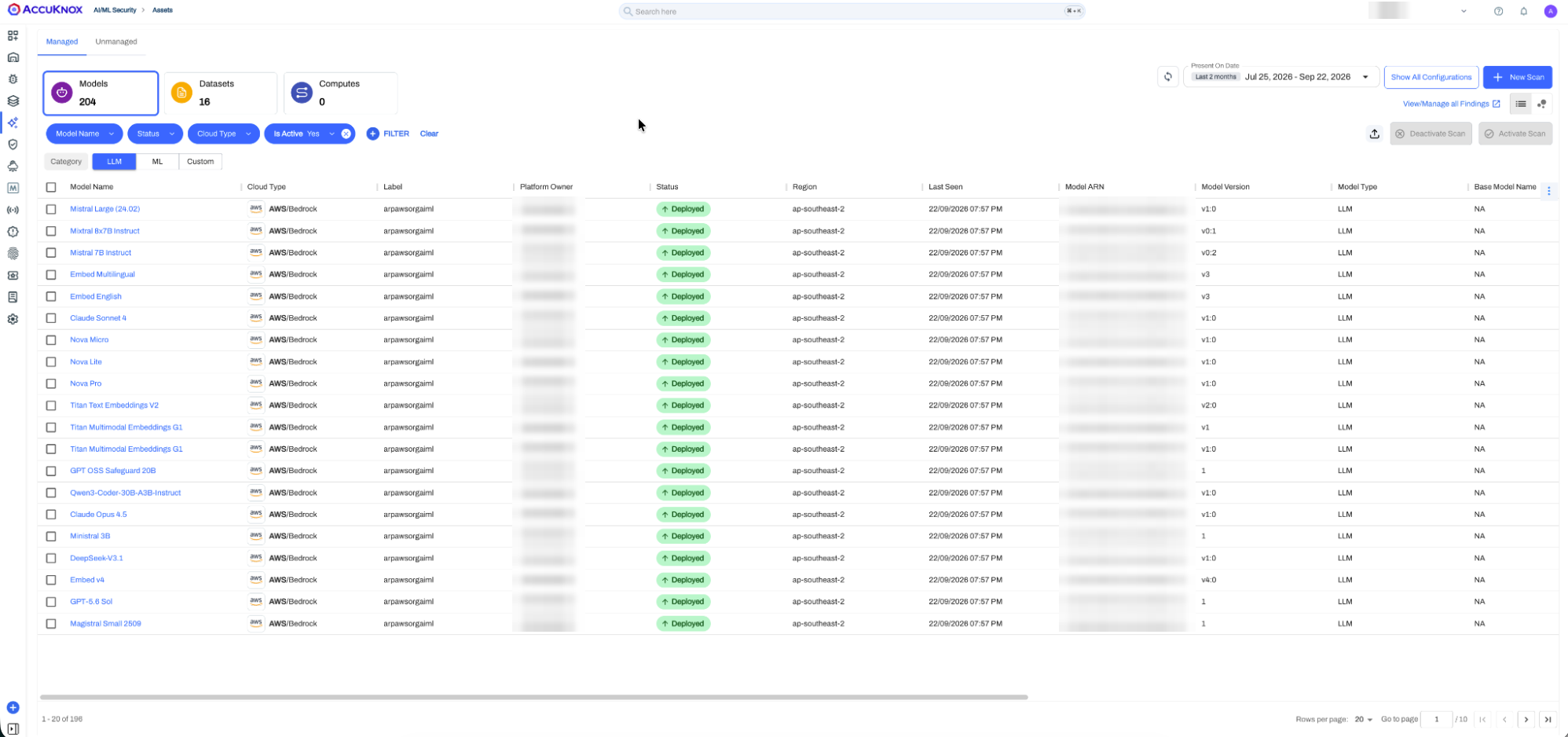
- Go to AI/ML Security → Assets → Managed.
- Filter by the organization label.
- Check that the discovered AI/ML assets show in the list.