AWS
Overview
Terraform automatically provisions the required AWS IAM resources needed to connect a standalone AWS account to the AccuKnox platform.
Prerequisites
- Terraform installed on the local machine.
- AWS CLI configured with an account that has IAM permissions.
- Access to the AccuKnox platform.
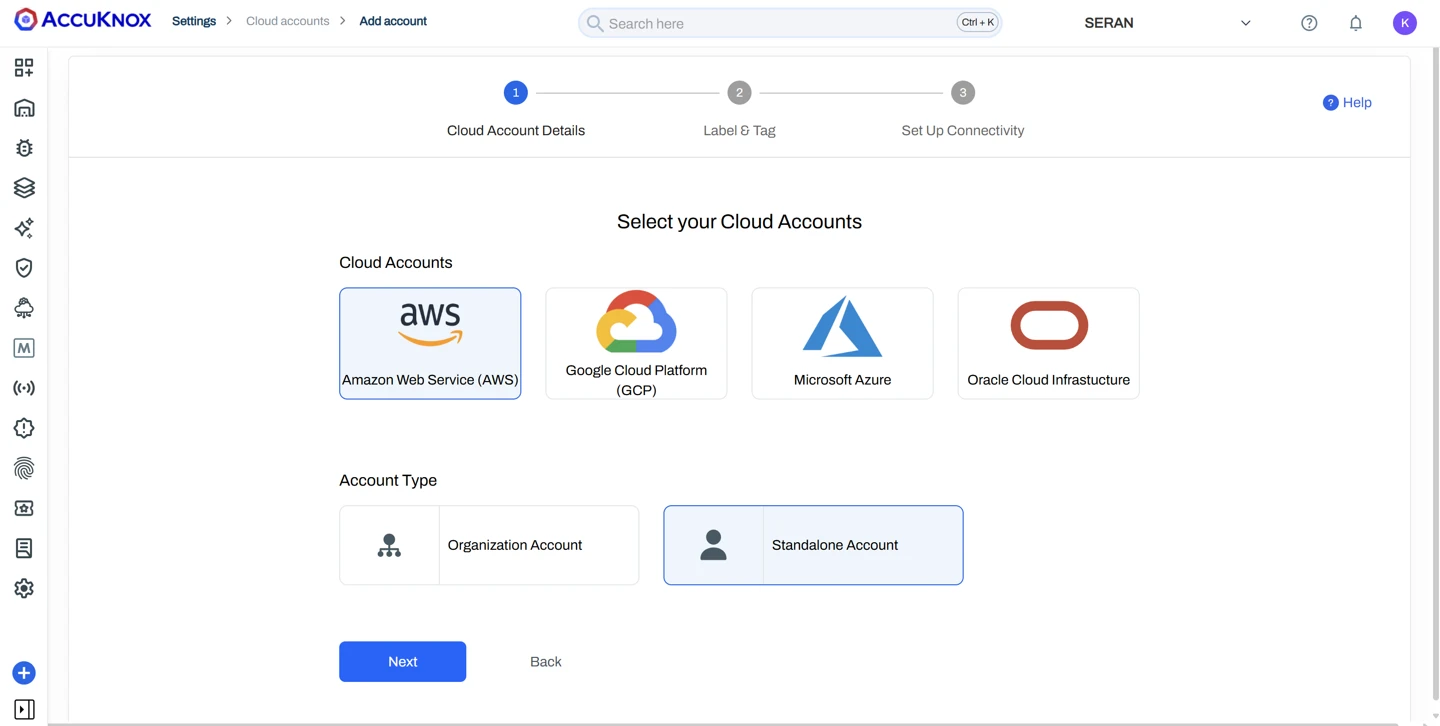
Step 1: Select the Cloud Account
- Open the AccuKnox Platform: https://app.demo.accuknox.com/.
- Log in using your credentials.
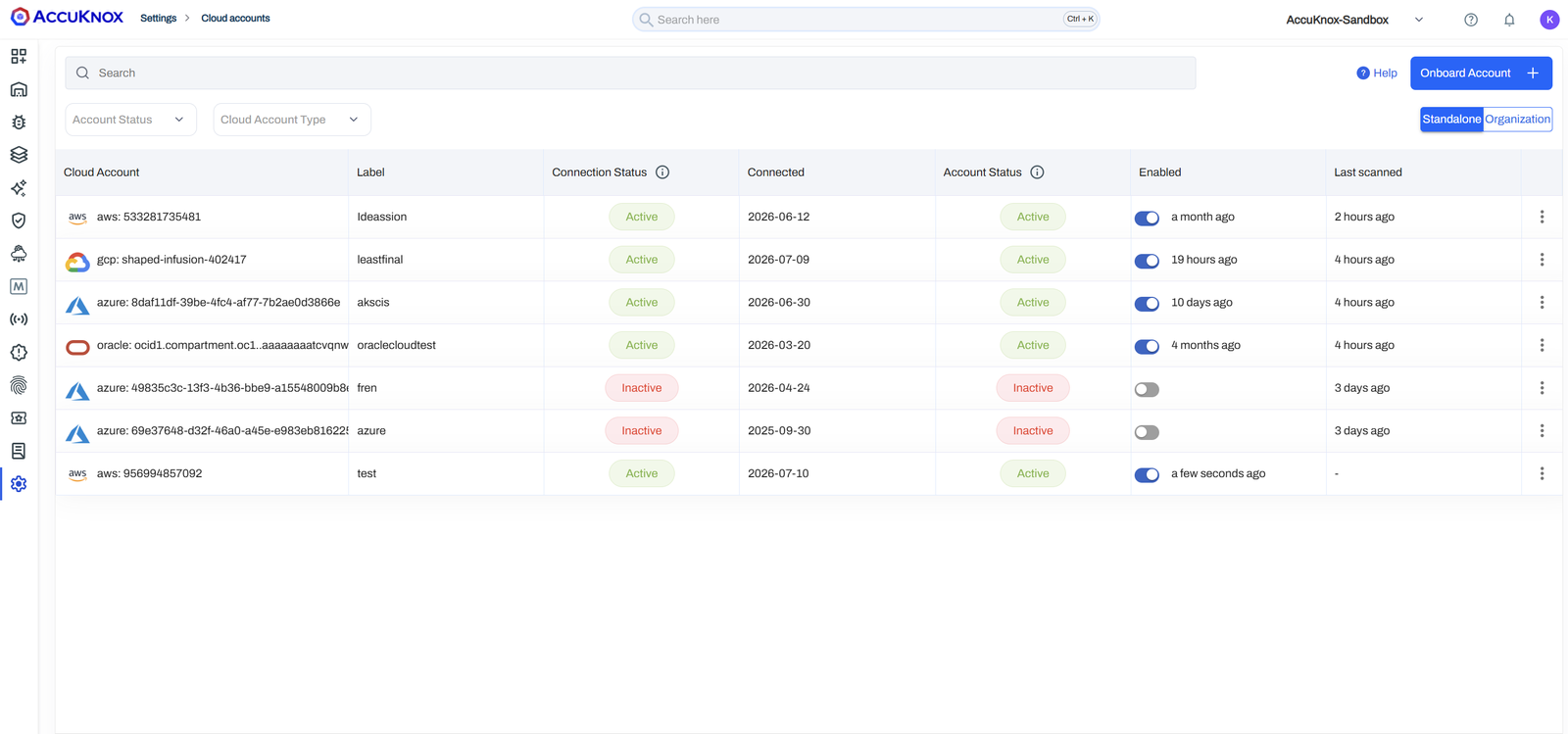
- Navigate to Settings → Cloud Accounts.
- Click Onboard Account.
- Select Amazon Web Service (AWS).
- Select Standalone Account.
- Click Next.
Step 2: Configure Label and Tag
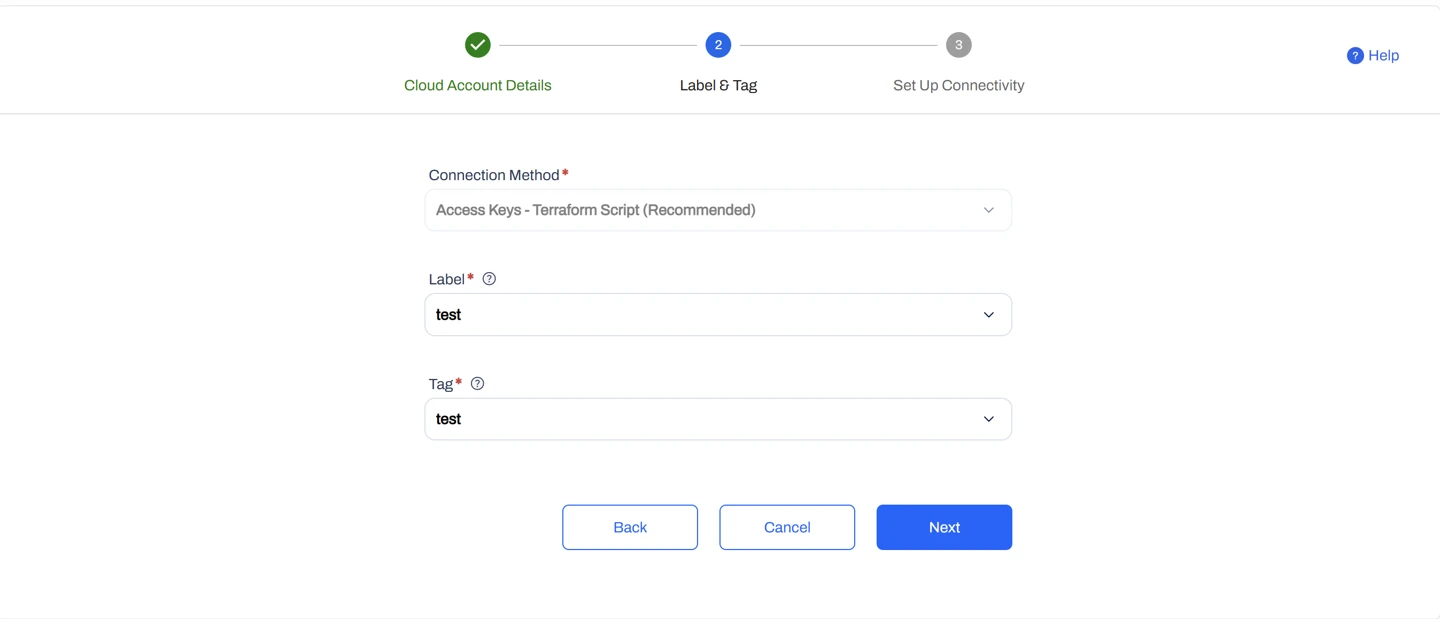
- Under Connection Method, select Access Keys - Terraform Script (Recommended).
- Select the required Label.
- Select the required Tag.
- Click Next.
Step 3: Create the Terraform Configuration
- Install Terraform if it is not already installed.
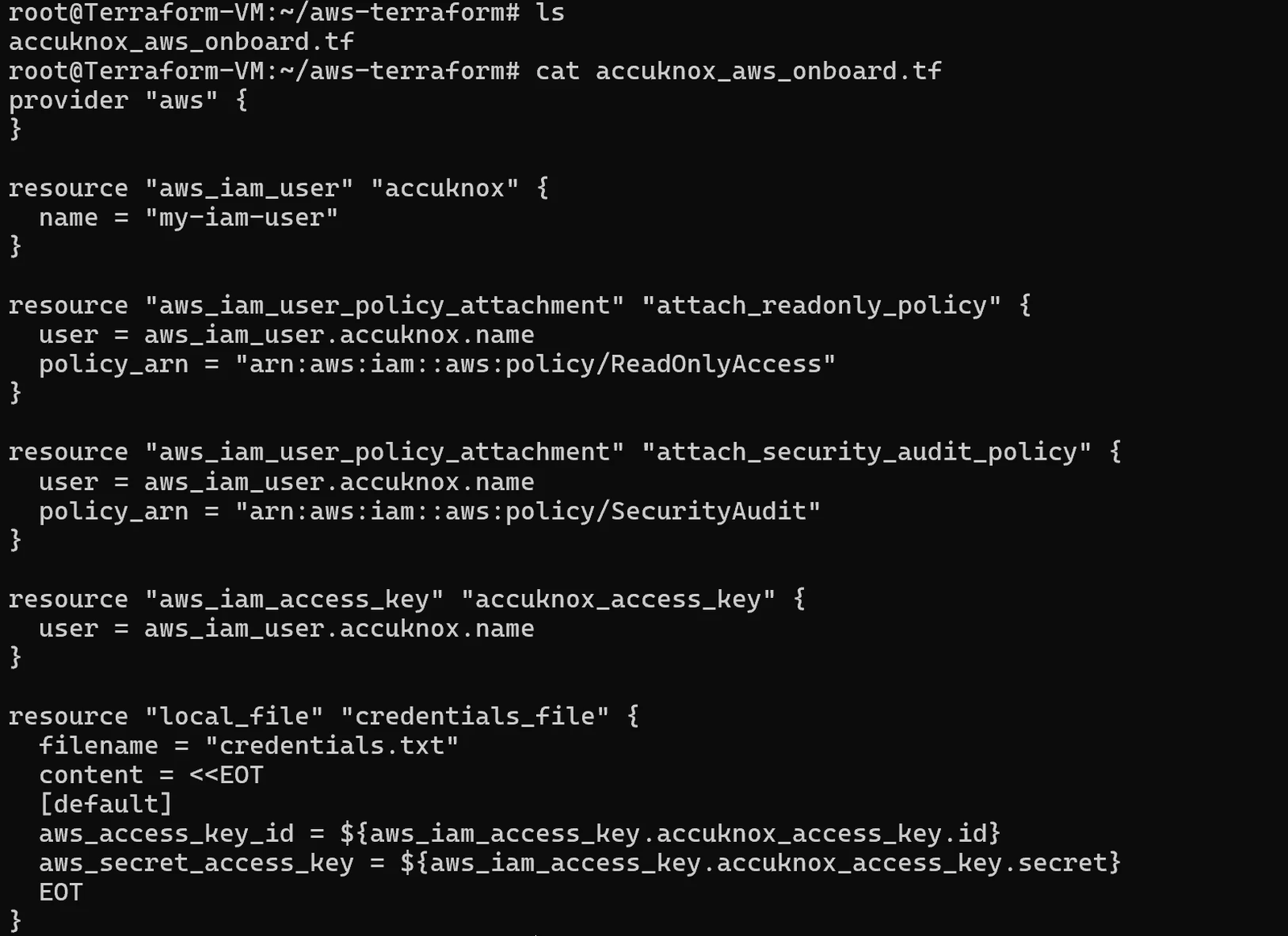
- Create a file named accuknox_aws_onboard.tf.
- Copy the Terraform script displayed on the onboarding page.
- Paste the script into accuknox_aws_onboard.tf.
Step 4: Apply the Terraform Configuration
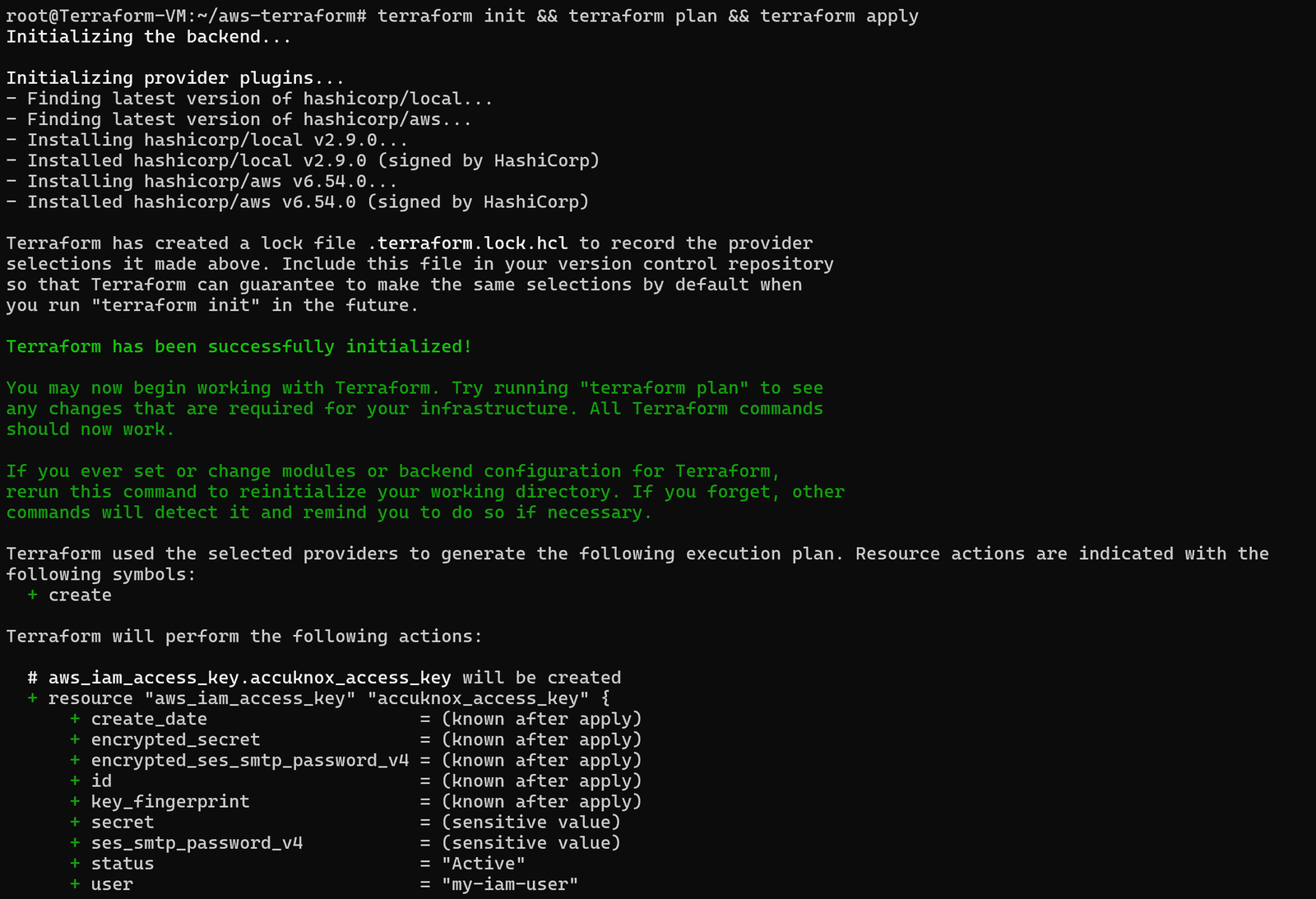
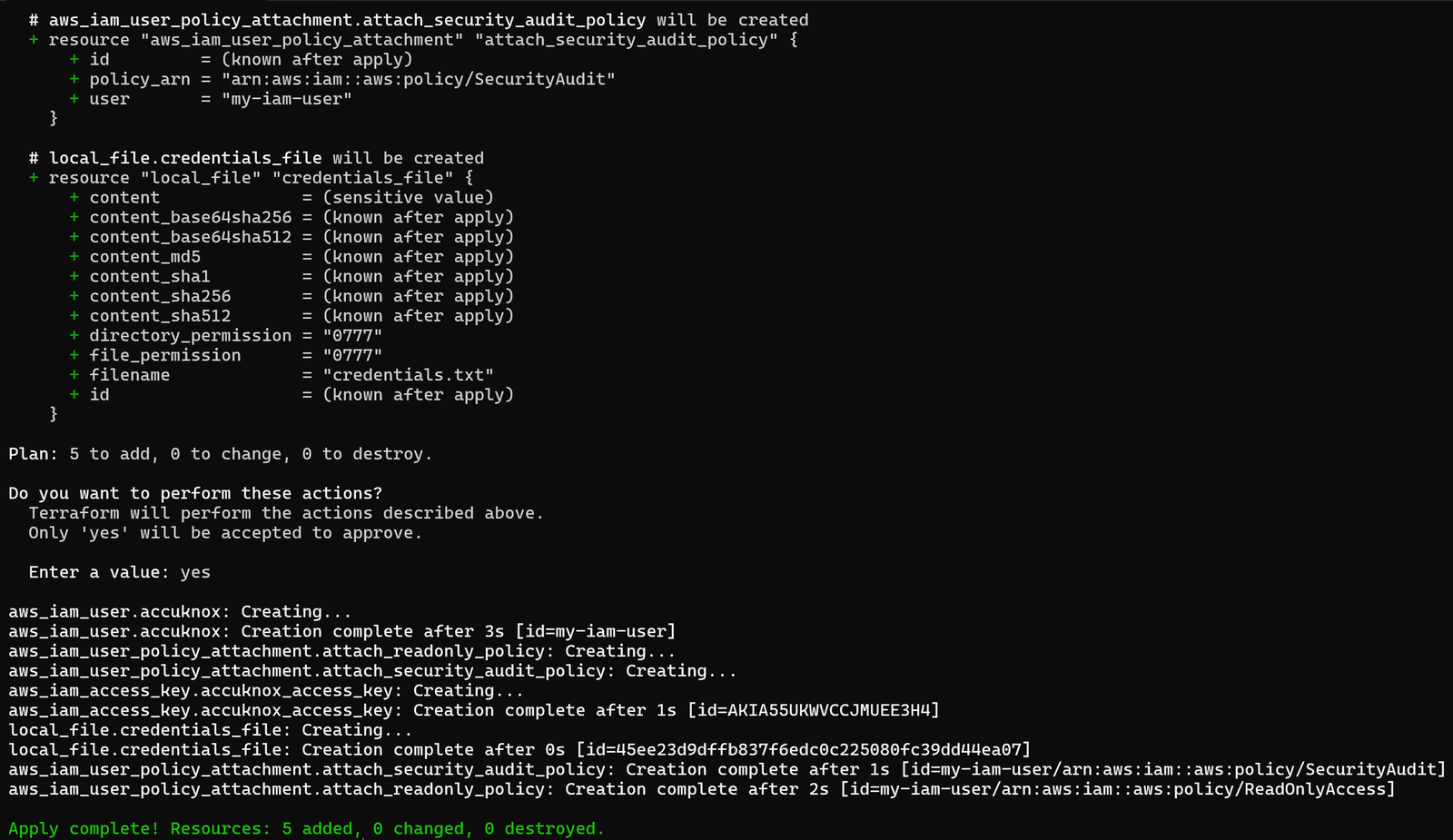
Open a terminal in the directory containing the Terraform file.
Run:
terraform init
terraform plan
terraform apply
Terraform creates:
- IAM User
- ReadOnlyAccess policy Attachment
- SecurityAudit policy Attachment
- Access Key
- Secret Access Key
credentials.txt
Step 5: Retrieve the Generated Credentials
Open the generated credentials.txt file.
Copy:
- Access Key ID
- Secret Access Key

Step 6: Connect the AWS Account
Return to the AccuKnox onboarding page.
Enter:
- Access Key ID
- Secret Access Key
- Region
- Scan Asset Type.
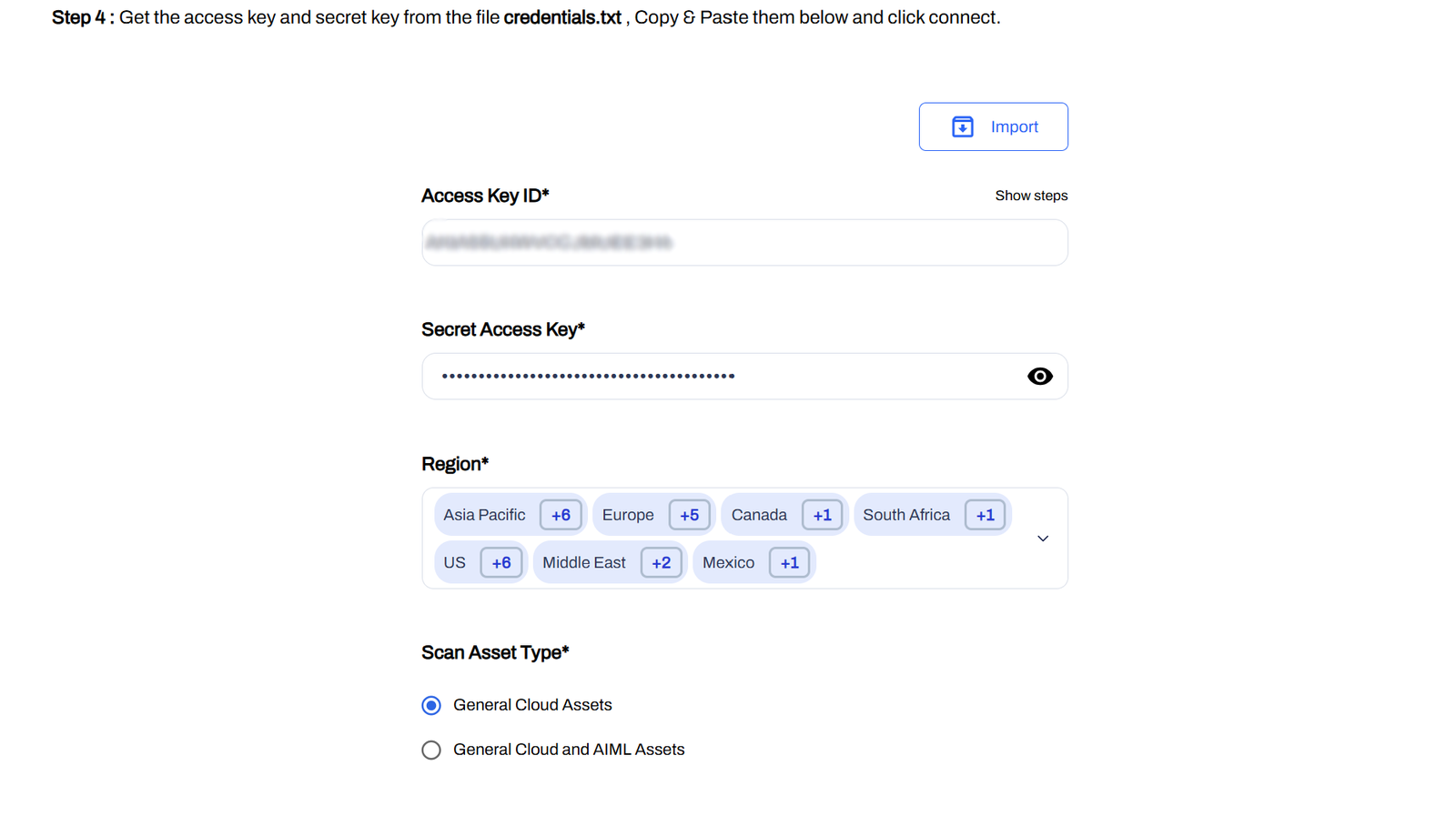
Click Connect.
Step 7: Verification
After the connection is complete, verify that the AWS account appears under Cloud Accounts.