Onboard a Cloud Account for CIEM
Coming soon
CIEM releases soon in a newer version of AccuKnox. The screens on this page come from the current build and can change before the release.
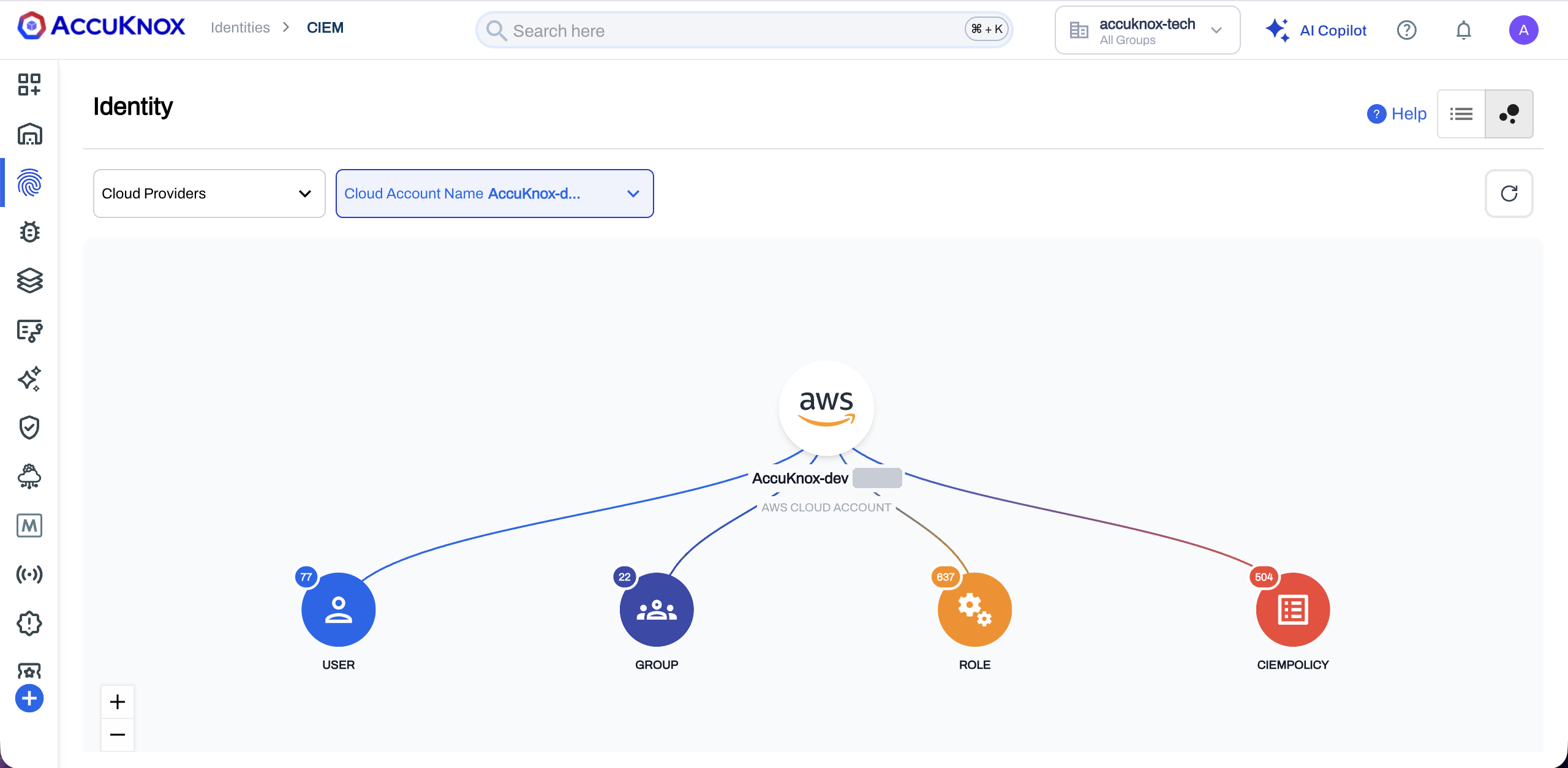
Turn on CIEM when you onboard a cloud account, then open Identities > CIEM to see the account's users, groups and roles. For what CIEM shows, see the CIEM overview.
Before You Begin
| Item | Requirement |
|---|---|
| Account type | A standalone AWS, GCP, Azure or OCI account. CIEM does not support organization accounts yet |
| Cloud-side setup | The prerequisites for your cloud in AWS, GCP, Azure or Oracle onboarding |
| Terraform | Terraform on your workstation, for the AWS script step |
Enable CIEM When You Onboard the Account
-
Start the onboarding. Go to Settings > Cloud Accounts and select Onboard Account.
-
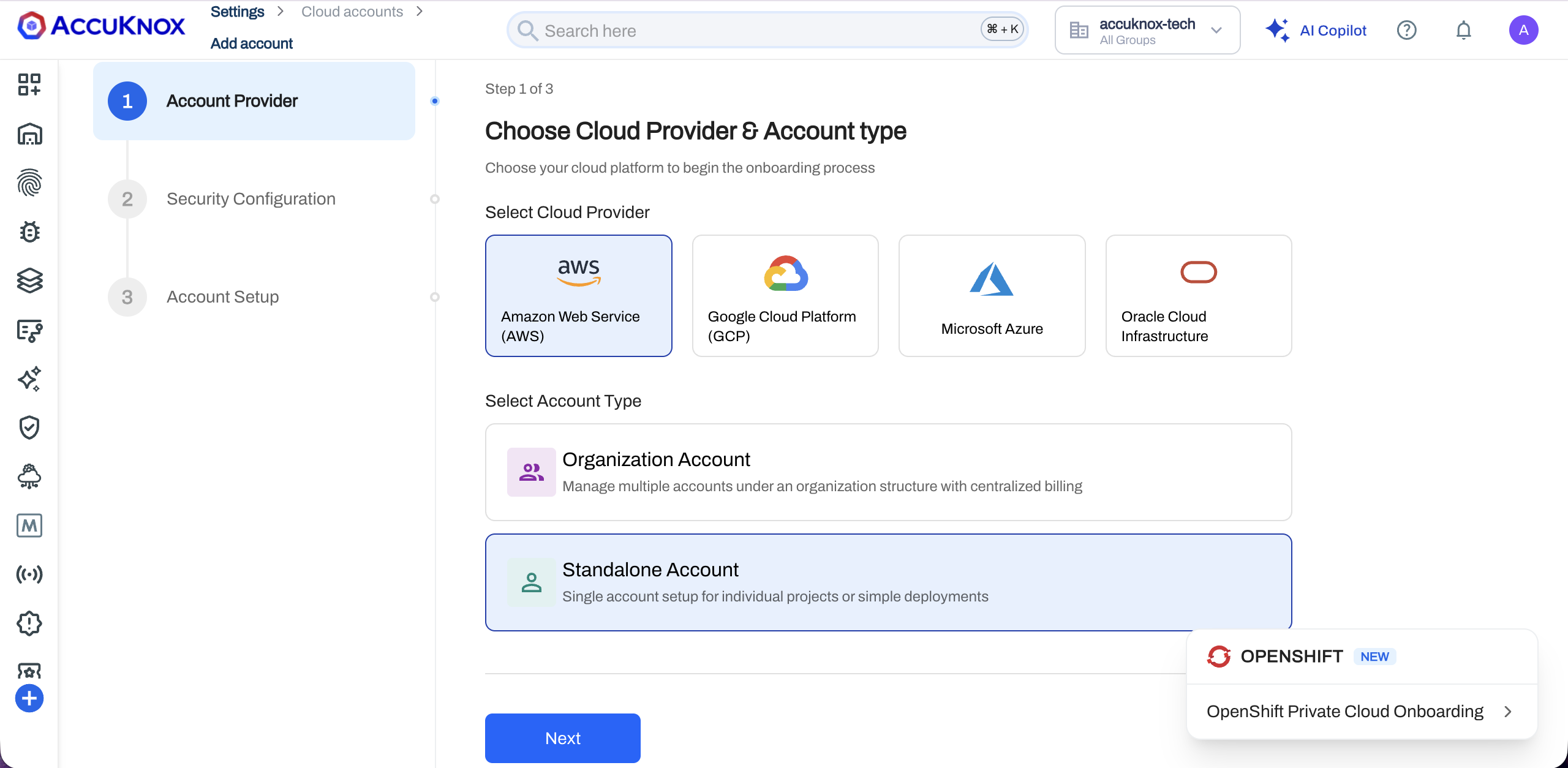
Choose the provider and the account type. In Step 1 of 3, select your cloud provider. Select Standalone Account, then select Next.
-
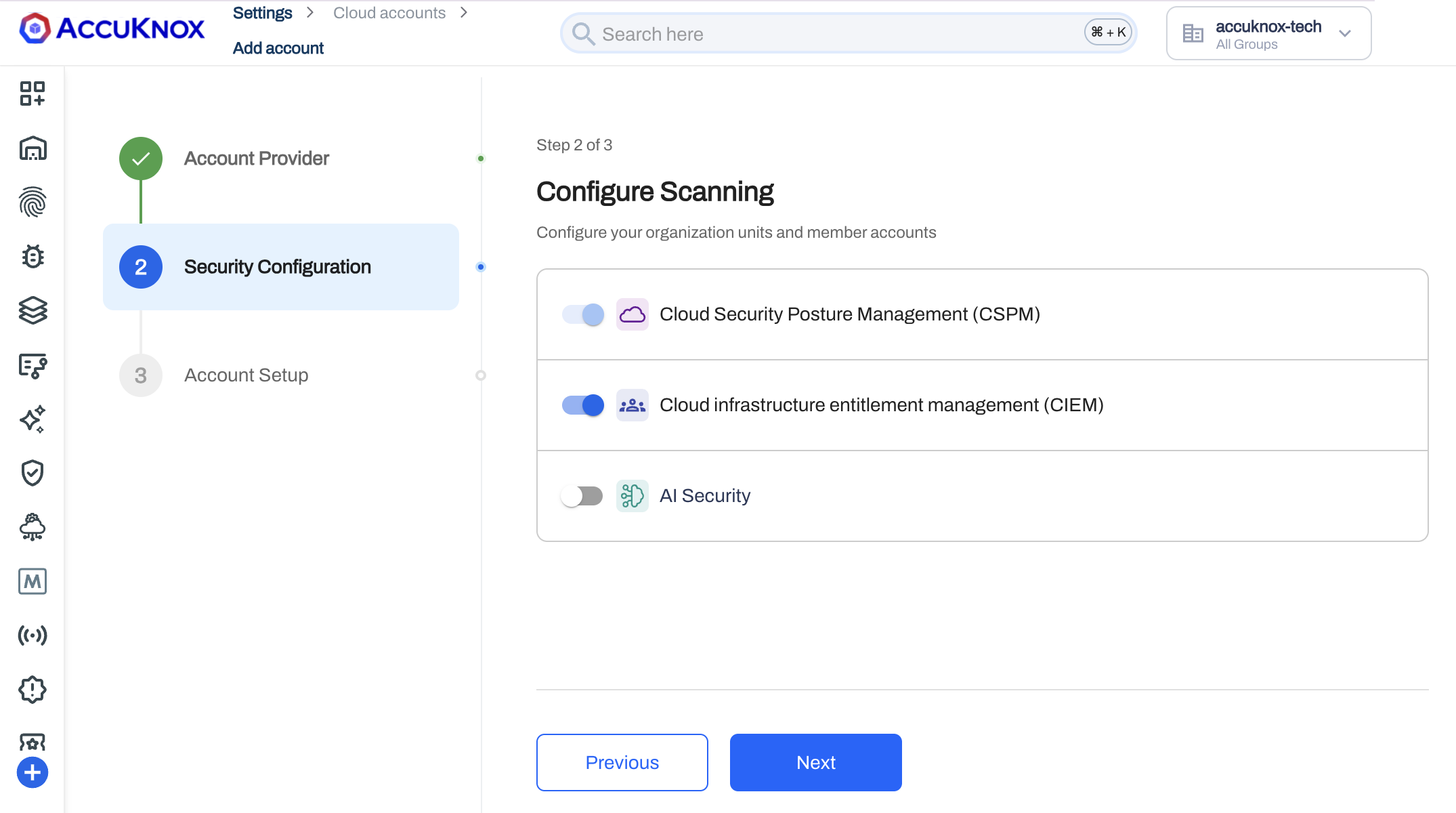
Keep CIEM turned on. In Step 2 of 3, Configure Scanning, the Cloud infrastructure entitlement management (CIEM) toggle is on by default. Select Next.
Onboard without CIEM
Turn the CIEM toggle off in this step to onboard the account without CIEM.
-
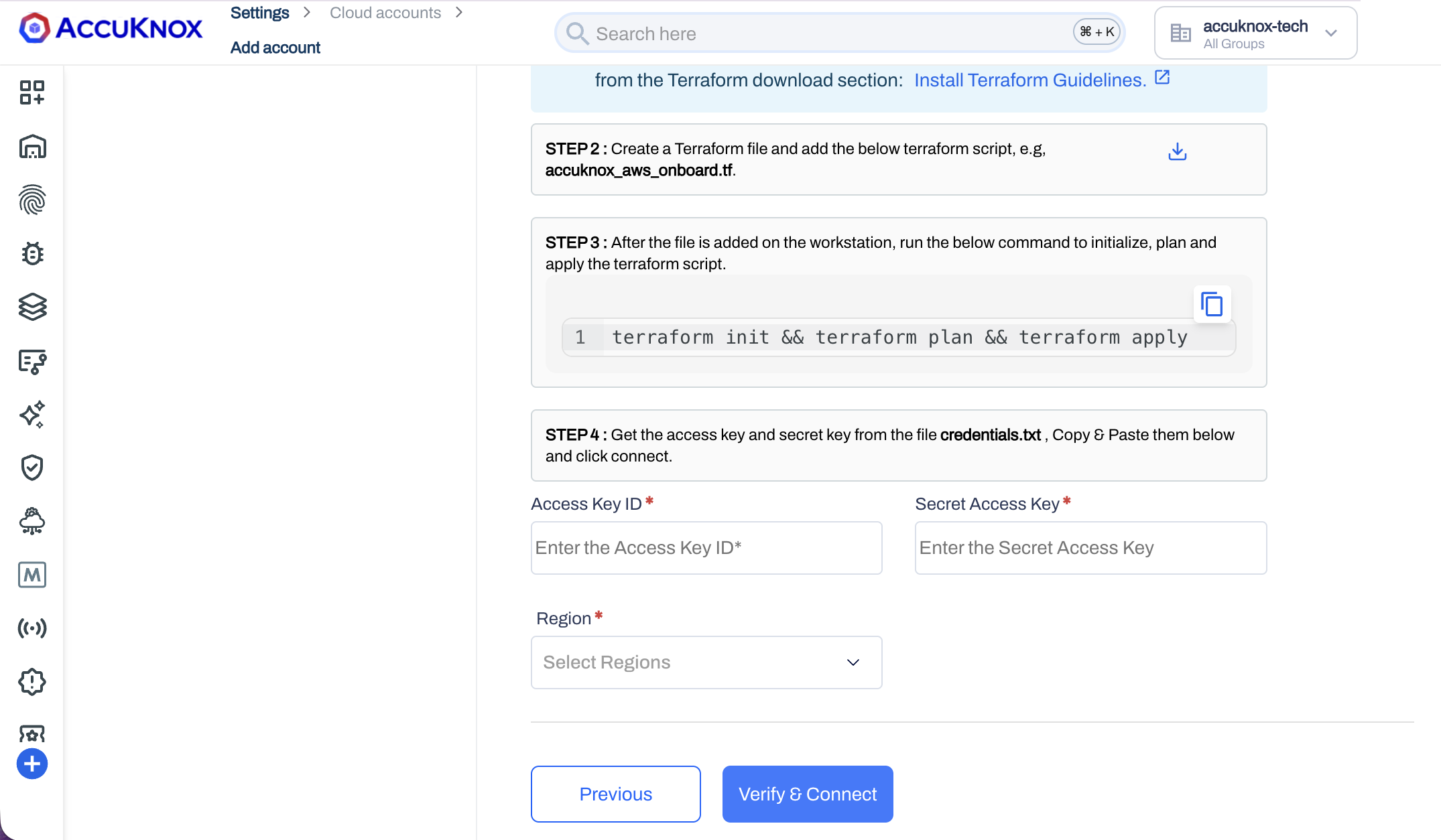
Connect the account. In Step 3 of 3, Account Setup, follow the setup for your cloud. On AWS, the setup runs a Terraform script.
- Install Terraform from the link Install Terraform Guidelines.
- Download the Terraform script. Save the script as a file, for example
accuknox_aws_onboard.tf. -
In the folder that holds the file, initialize, plan and apply the script.
terraform init && terraform plan && terraform apply -
Open the file
credentials.txtthat Terraform creates. Paste the access key into Access Key ID and the secret key into Secret Access Key. - Select the Region, then select Verify & Connect.
For GCP, Azure and OCI, follow the Account Setup in the console and the onboarding guide for your cloud.
Confirm That CIEM Is Active
-
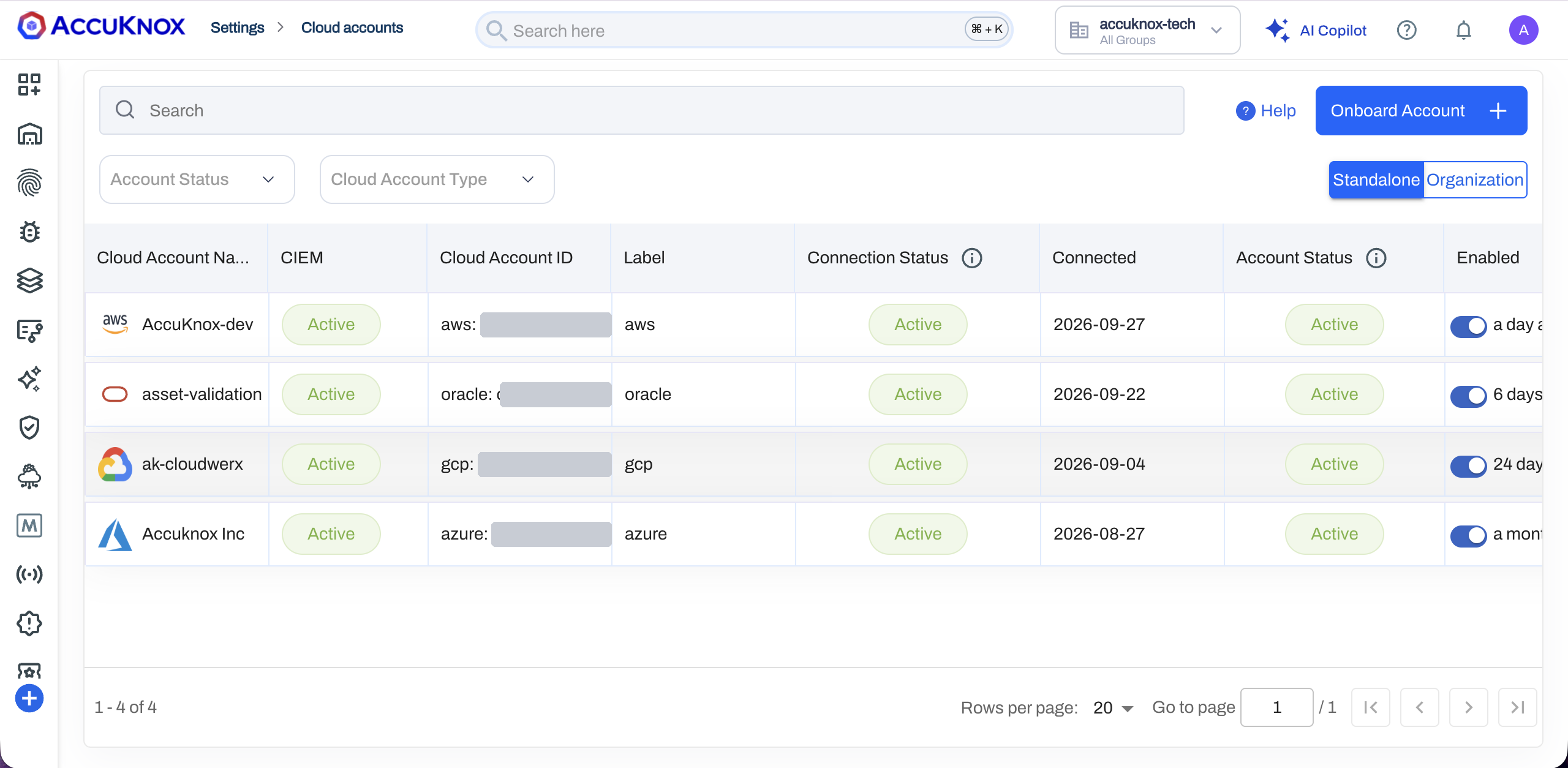
Go to Settings > Cloud Accounts. The CIEM column shows Active for the new account.
-
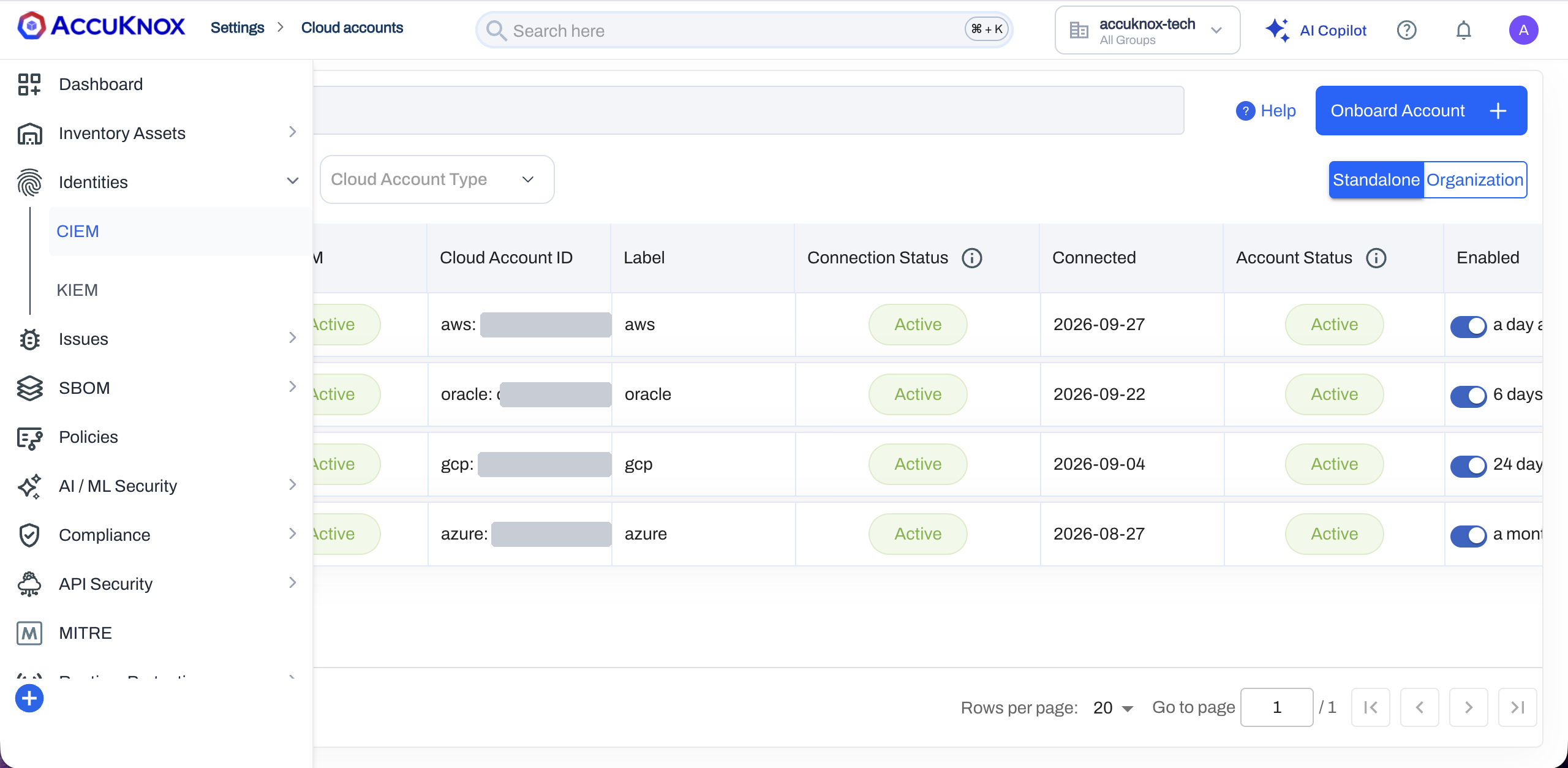
In the left navigation, go to Identities > CIEM.
-
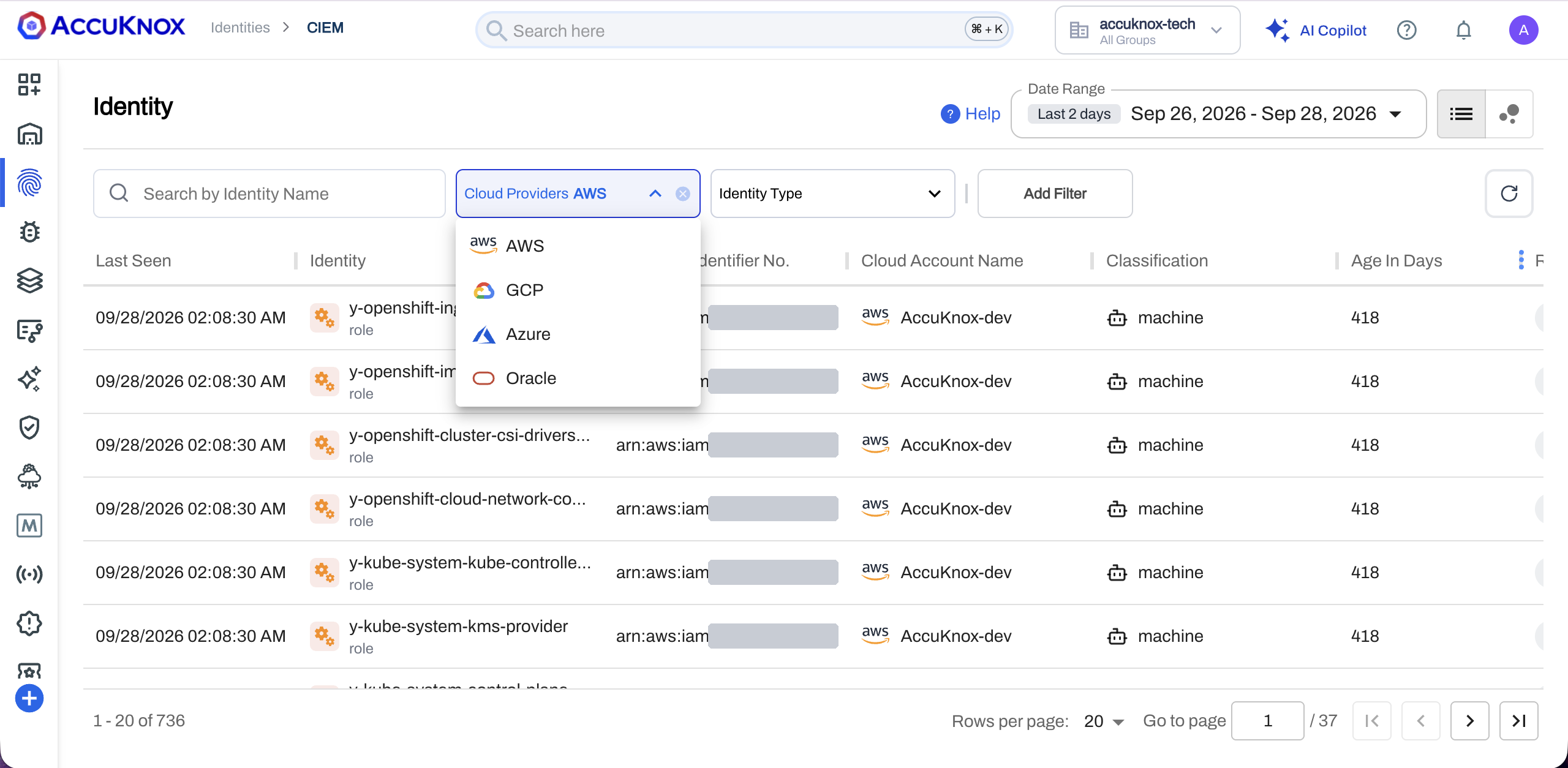
Select your cloud in the Cloud Providers filter. The list shows the identities of the new account.
To read the list, the identity panel and the graphs, see the CIEM overview.