Storing Secrets in Secrets Manager
The KV (Key/Value) secret engine stores static secrets. It is an encrypted, versioned store for passwords, API tokens, and configuration keys.
What the KV Engine Gives You
| Feature | Description |
|---|---|
| Encrypted storage | Keeps sensitive text safe at rest and in transit. |
| Version control | Tracks every version of a secret, so you can roll back. |
| Drop-in compatibility | Matches standard Vault KV paths and commands. |
Before You Start
You need a running Secrets Manager instance and a token that can enable engines. See the Deployment Guide.
Step 1: Sign In
Sign in to AccuKnox Secrets Manager.
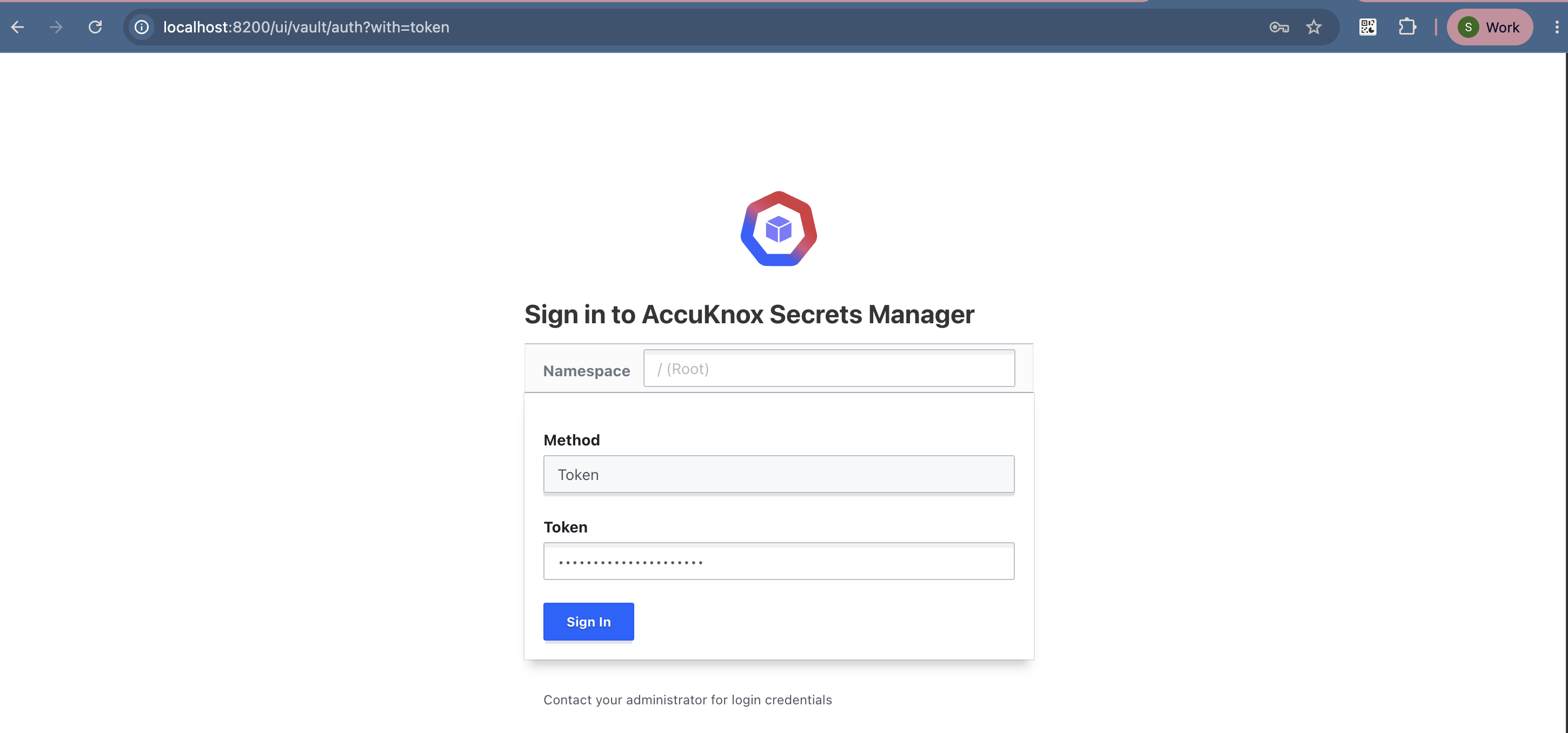
You land on the Secret Engines dashboard.
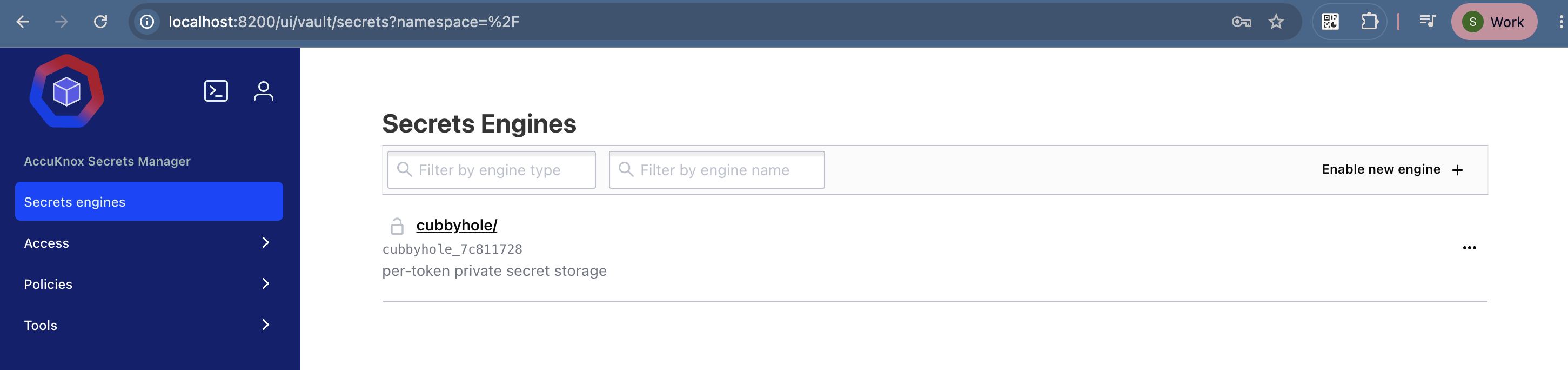
Click Enable new engine to set up the engine you need.
Step 2: Enable the KV Engine
Under Secrets Engines, select KV (Key/Value).
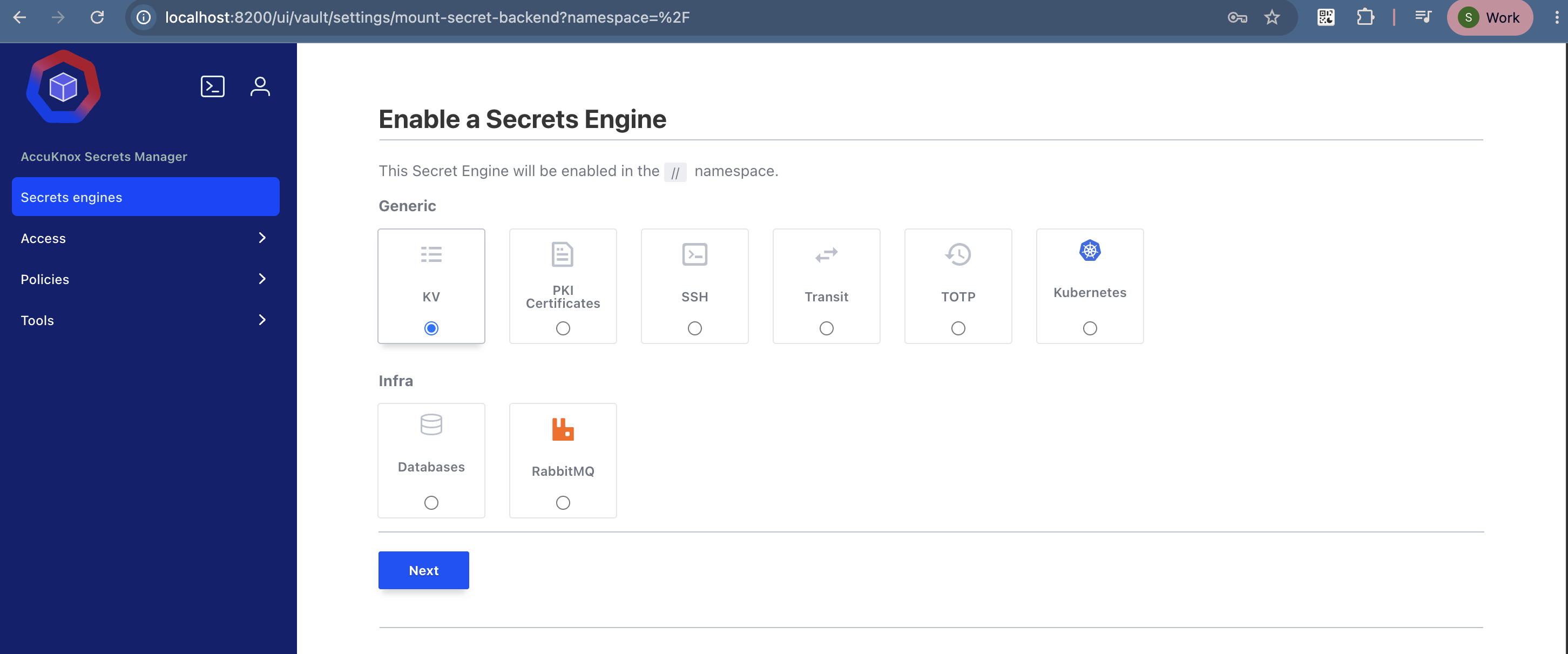
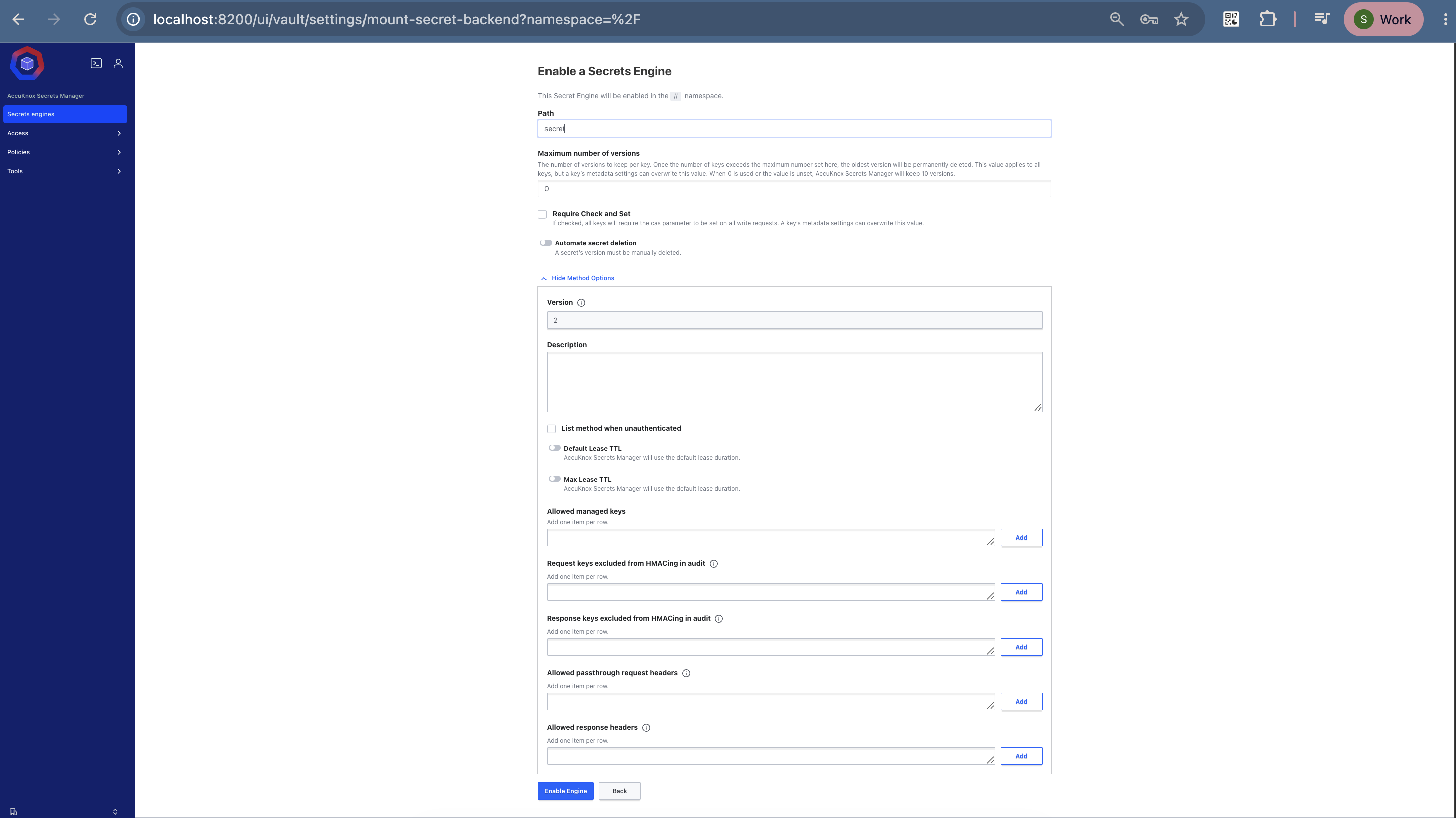
Fill in these fields:
| Field | Value |
|---|---|
| Version | 2 |
| Path | secret |
Keep Version at 2. Version 2 gives you versioning and rollback.
Choose a path that means something
The path can stand for a team, an environment, or a portal. To hold the credentials for your development environment and its backend, frontend, and database components, create a path such as development-env. Store all related secrets under it.
This guide uses the path secret.
Click Enable Engine.
Step 3: Create a Secret
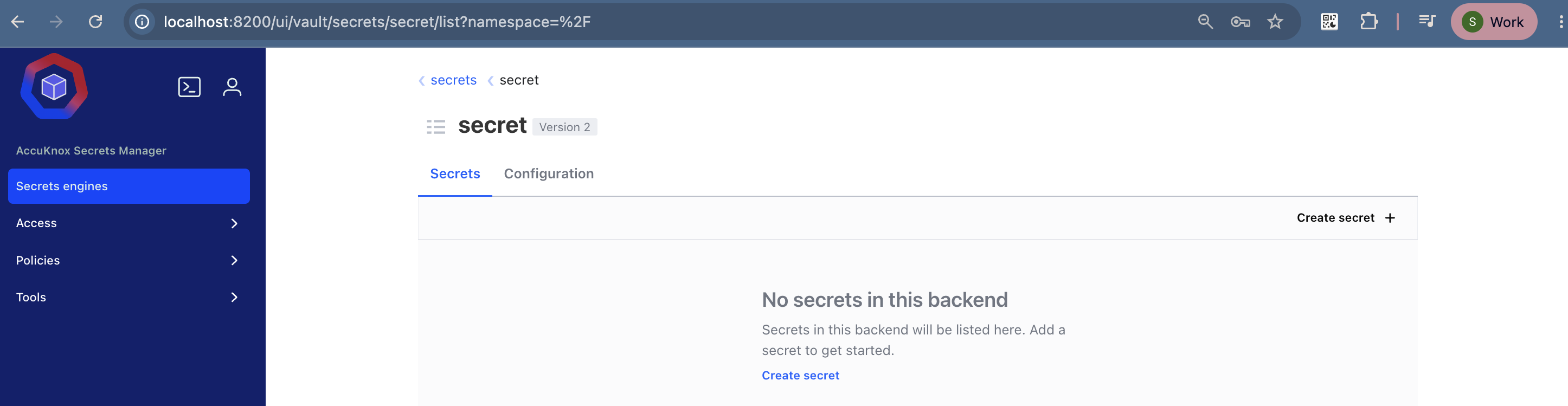
You land on the secret/ engine page. Click Create secret.
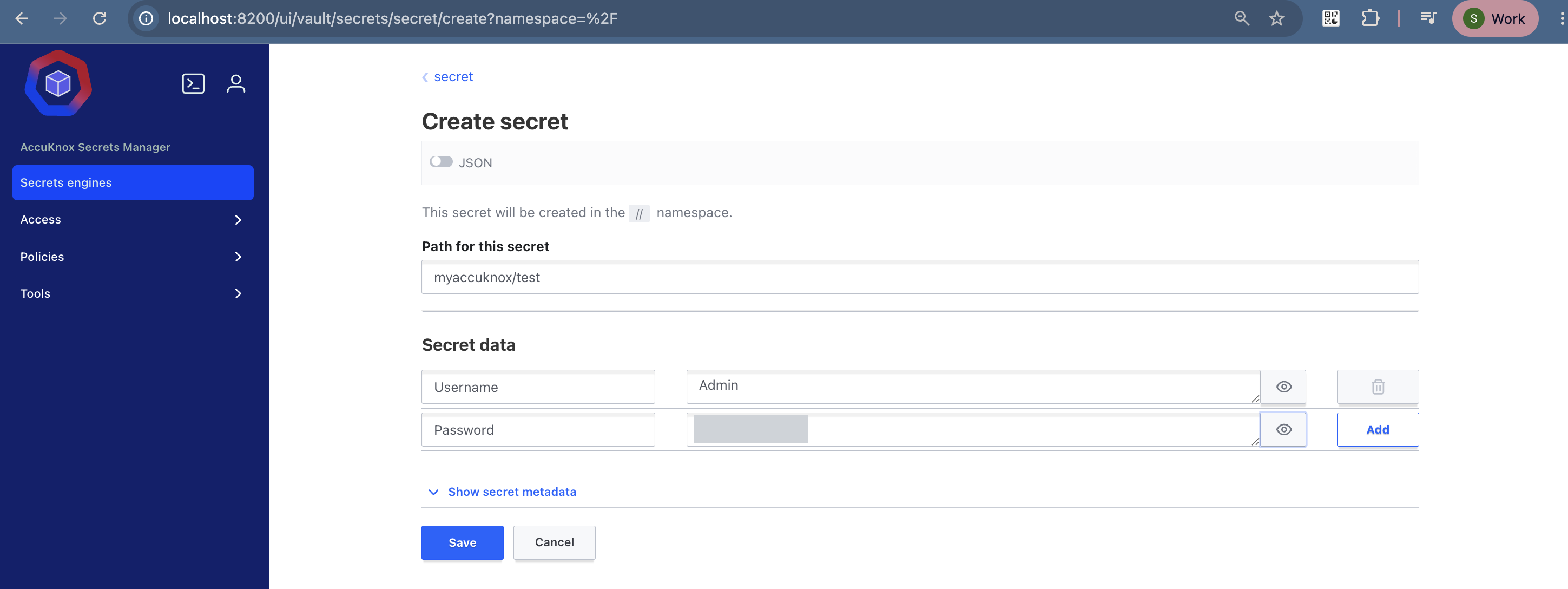
Fill in the secret:
- Set Path for this secret to
myaccuknox/test. - Add the key
usernamewith the valueAdmin. - Add the key
passwordwith your own value. - Click Save.
The secret path names the thing you are storing. Create one path per component, such as frontend, backend, or database, and store its credentials there.
Step 4: Secret Versioning
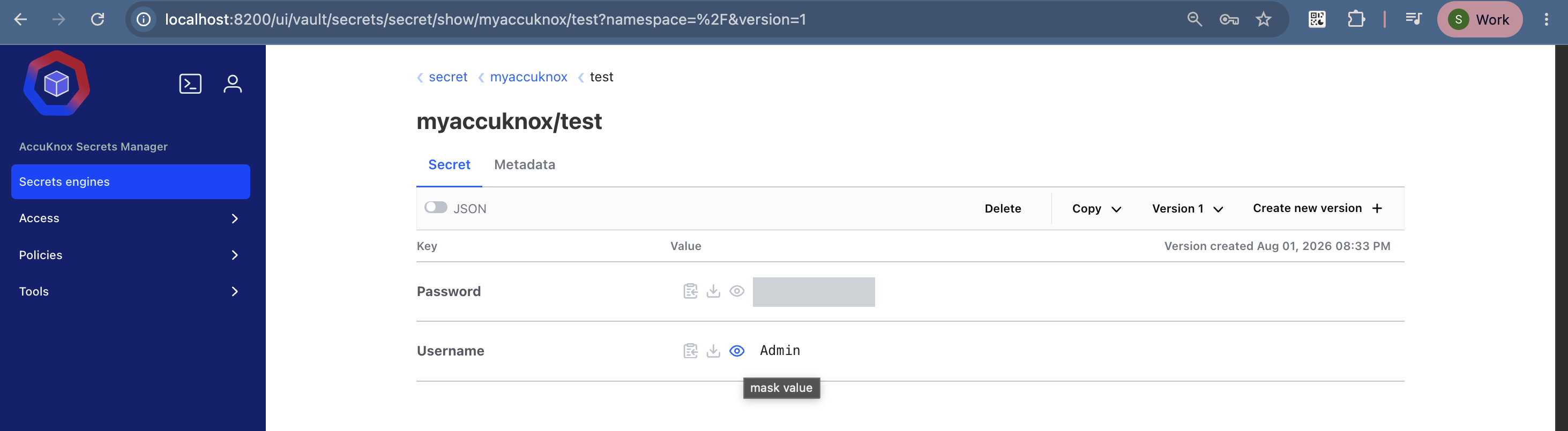
Go back to secret/. The path myaccuknox/test now appears in the list. Click it to see the keys.
Version 1
The original secret version.
{
  "username": "Admin",
  "password": "<your-password>"
}
Version 2
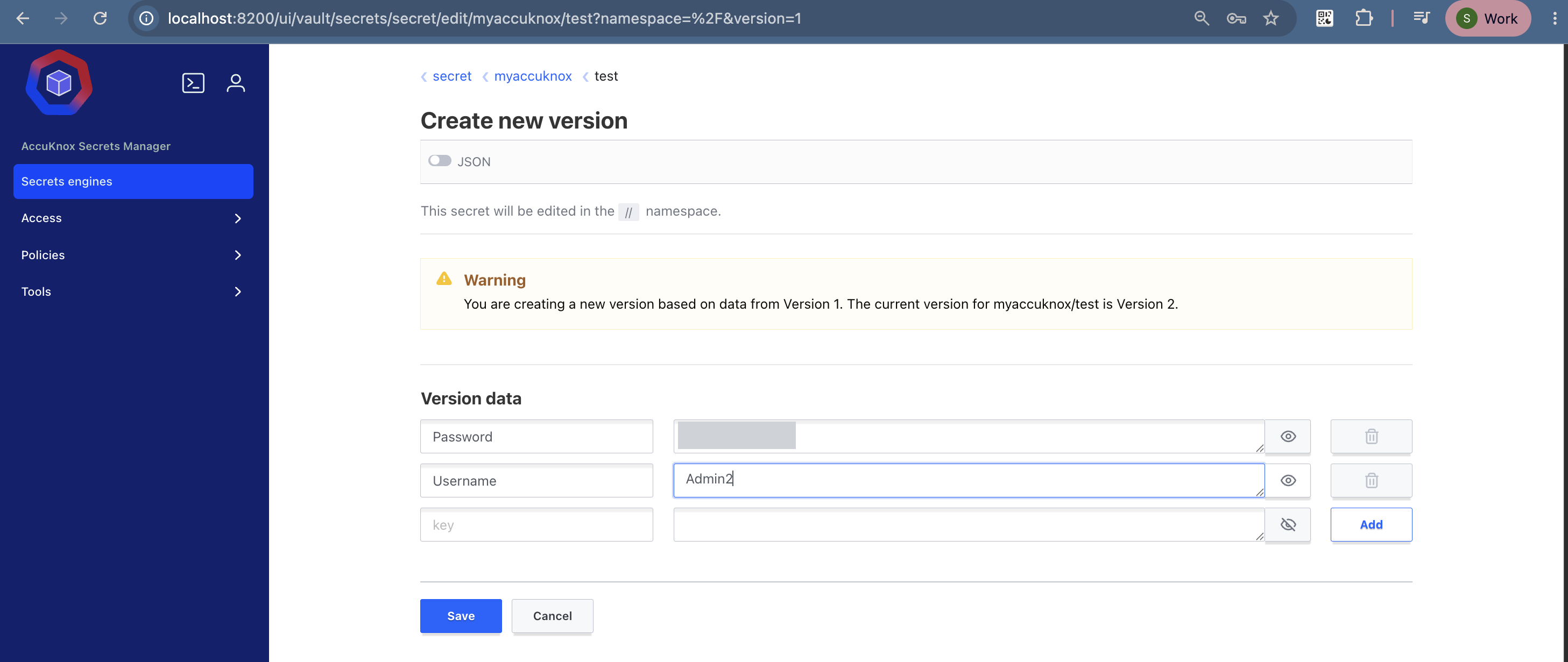
- Click Create new version.
- Change the username or the password, then save it.
{
  "Password": "<your-password>",
  "Username": "Admin2"
}
Version 3
Repeat the same steps to save a third version. Each save adds a version and keeps the ones before it.
Step 5: Delete a Version
You can delete a single version without losing the rest of the history.
- Click Delete.
- Select the version to delete.
- Confirm the deletion.
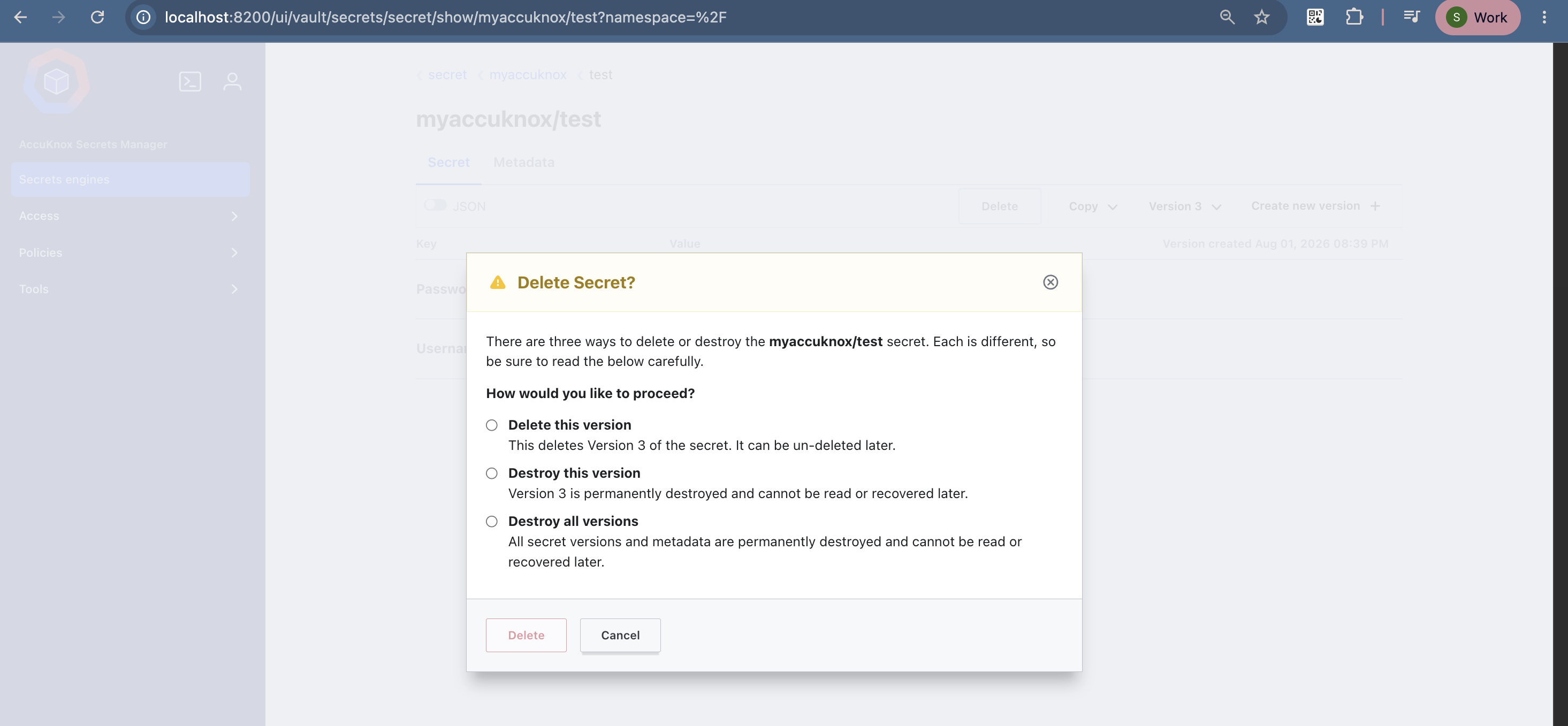
Version History
AccuKnox Secrets Manager keeps every past version of a secret. You can switch between versions, view the full change history, or diff two versions side by side.
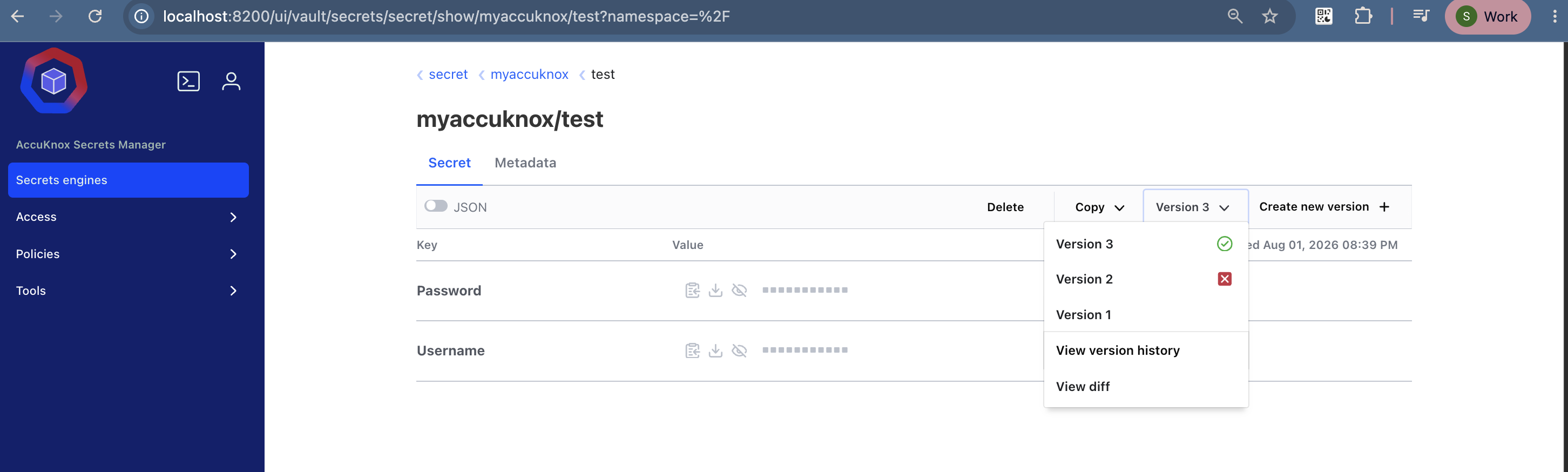
A typical history reads:
- Version 1 is the original secret version.
- Version 2 is a deleted version, marked with a red cross.
- Version 3 is the updated version of the secret.
Note
Secret Versioning gives you visibility into secret changes and version history.
Delete is not destroy
A deleted version stays recoverable until you destroy it. Use Destroy when you must remove the data for good.
Next Steps
-
Share this secret with your team
Create a scoped user and an ACL policy that reads only this path.
-
Encrypt data instead of storing it
Use the Transit engine when you want ciphertext in your own database.