AWS API Gateway Integration with Prompt Firewall
This guide provides instructions for deploying an AWS HTTP API Gateway integrated with AWS Lambda using Terraform. Ideally, this setup is designed for secure and efficient model interactions.
For the full source example, see the GitHub repository: AWS API Gateway Integration with Prompt Firewall
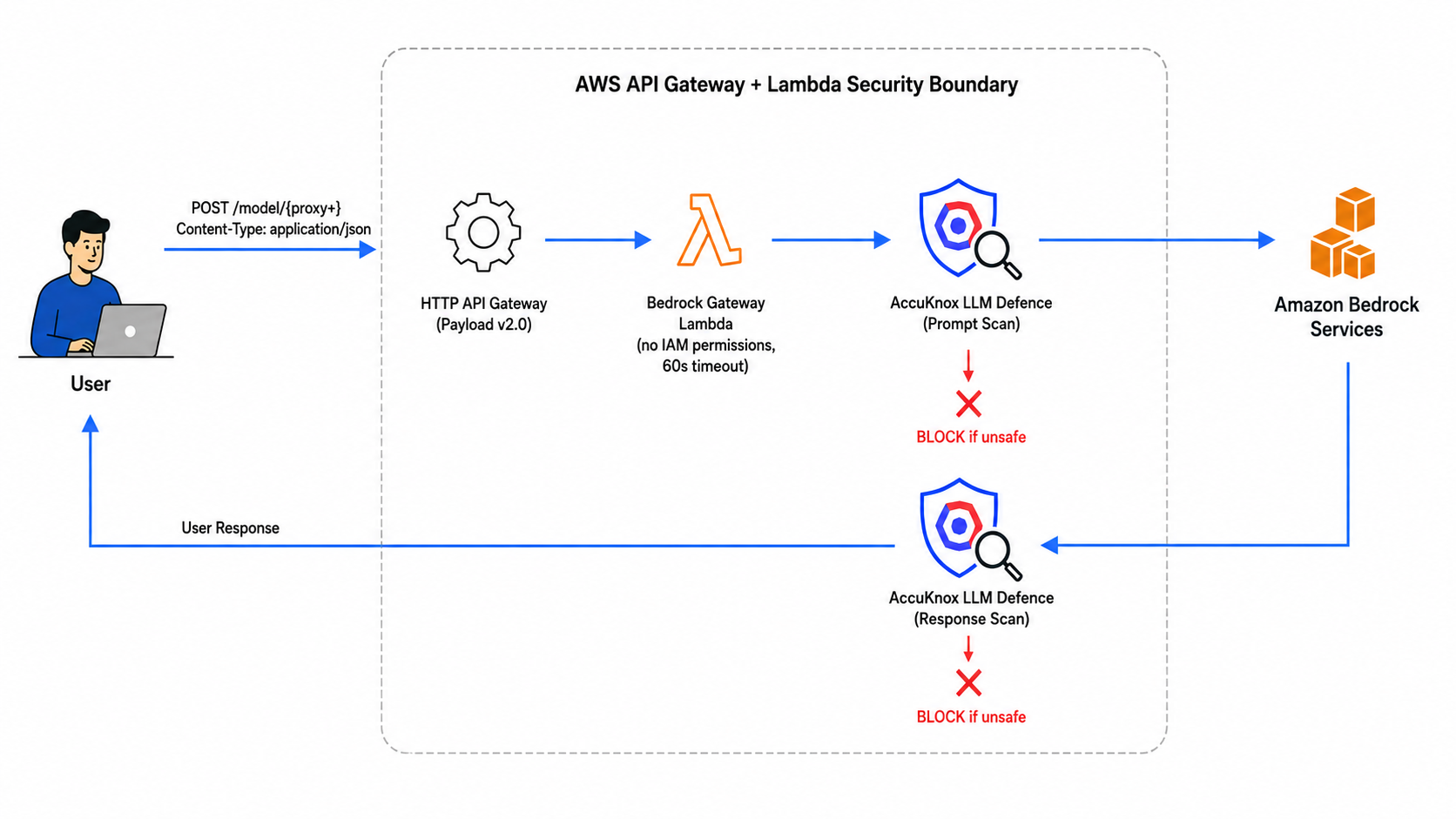
Key Configurations
- Payload format version: 2.0
- Lambda timeout: 60 seconds
- Permissions: Lambda has no permission policy (trust role only)
- Configuration:
.envis used for Terraform inputs - Routing: API Gateway proxies
POST /model/{proxy+}to Lambda - Deployment: Fully reproducible via Terraform
File Structure
project/
├ .env
├ lambda.py
├ variables.tf
├ main.tf
├ deploy.sh
└ README.md
Architecture
Client → API Gateway (HTTP API, payload 2.0) → Lambda (no AWS permissions)
Step 1: Create a Lambda Role
- Log in to the AWS Console.
- Navigate to IAM > Roles > Create role.
- Select the following options:
- Trusted entity: AWS service
- Use case: Lambda
- Important: Do not attach any permission policy.
- Set the Role name to:
bedrock_gateway_lambda_role
Configure Trust Policy
Ensure the Trust Policy matches the following JSON:
{
  "Version": "2012-10-17",
  "Statement": [
    {
      "Effect": "Allow",
      "Principal": { "Service": "lambda.amazonaws.com" },
      "Action": "sts:AssumeRole"
    }
  ]
}
Note: This role is intentionally configured with zero AWS permissions.
Action: Copy the Role ARN for use in later steps.
Step 2: Configure IAM User Policy
Attach the following policy to the IAM user whose access keys will be used for deployment:
{
  "Version": "2012-10-17",
  "Statement": [
    {
      "Effect": "Allow",
      "Action": [
        "lambda:*"
      ],
      "Resource": "*"
    },
    {
      "Effect": "Allow",
      "Action": [
        "apigateway:*",
        "apigatewayv2:*"
      ],
      "Resource": "*"
    },
    {
      "Effect": "Allow",
      "Action": [
        "iam:PassRole"
      ],
      "Resource": "arn:aws:iam::<ACCOUNT_ID>:role/bedrock_gateway_lambda_role"
    }
  ]
}
This user can deploy infrastructure but cannot manage IAM roles.
Step 3: Log In to AWS CLI
Run the following commands to configure your AWS CLI and verify identity:
aws configure
aws sts get-caller-identity
Step 4: Create .env File
Create a file named .env with the following content:
AWS_REGION=us-east-1
LAMBDA_ROLE_ARN=arn:aws:iam::<ACCOUNT_ID>:role/bedrock_gateway_lambda_role
STAGE_NAME=dev
API_NAME=bedrock-gateway
LAMBDA_NAME=BedrockGatewayLambda
Replace <ACCOUNT_ID>.
Step 5: Create Deployment Script
Create a file named deploy.sh with the following content:
#!/bin/bash
set -a
source .env
set +a

zip lambda.zip lambda.py

terraform init

terraform apply -auto-approve \
  -var="region=$AWS_REGION" \
  -var="lambda_role_arn=$LAMBDA_ROLE_ARN" \
  -var="stage_name=$STAGE_NAME" \
  -var="api_name=$API_NAME" \
  -var="lambda_name=$LAMBDA_NAME"
Step 6: Deploy Infrastructure
Run the deployment script:
chmod +x deploy.sh
./deploy.sh
Step 7: Verify Deployment
API Gateway Verification
- Go to API Gateway > HTTP API > Integrations.
- Ensure the following setting:
Payload format version = 2.0
Lambda Verification
- Go to Lambda > Configuration > General configuration.
- Ensure the following setting:
Timeout = 1 minute
Step 8: Get Endpoint URL
Terraform will output an endpoint URL similar to:
https://xxxx.execute-api.us-east-1.amazonaws.com/dev
Step 9: Test the API
Run the following command to test the API:
curl -X POST \
'https://xxxx.execute-api.us-east-1.amazonaws.com/dev/model/test/path' \
-H 'Content-Type: application/json' \
-d '{"hello":"world"}'
Endpoint Pattern
The endpoint structure maps as follows:
Original Bedrock Endpoint:
https://bedrock-runtime.us-east-1.amazonaws.com/model/<model>/converse
Gateway Endpoint:
https://<api-id>.execute-api.<region>.amazonaws.com/dev/model/<model>/converse