Azure Organization AI/ML Cloud Onboarding
Onboard an Azure Organization to AccuKnox AI Security to cover the AI/ML assets in many subscriptions from one connection. You pick the Management Groups and Subscriptions in scope, and a Terraform script connects them to AccuKnox.
What cloud onboarding enables
Onboarding turns on these AI Security features for the onboarded subscriptions:
- Model and Data Security
- Shadow AI Discovery
- Prompt Firewall for Cloud Assets
Onboarding one Azure subscription?
Use Azure Standalone AI/ML Cloud Onboarding for a single subscription.
1. Configurations
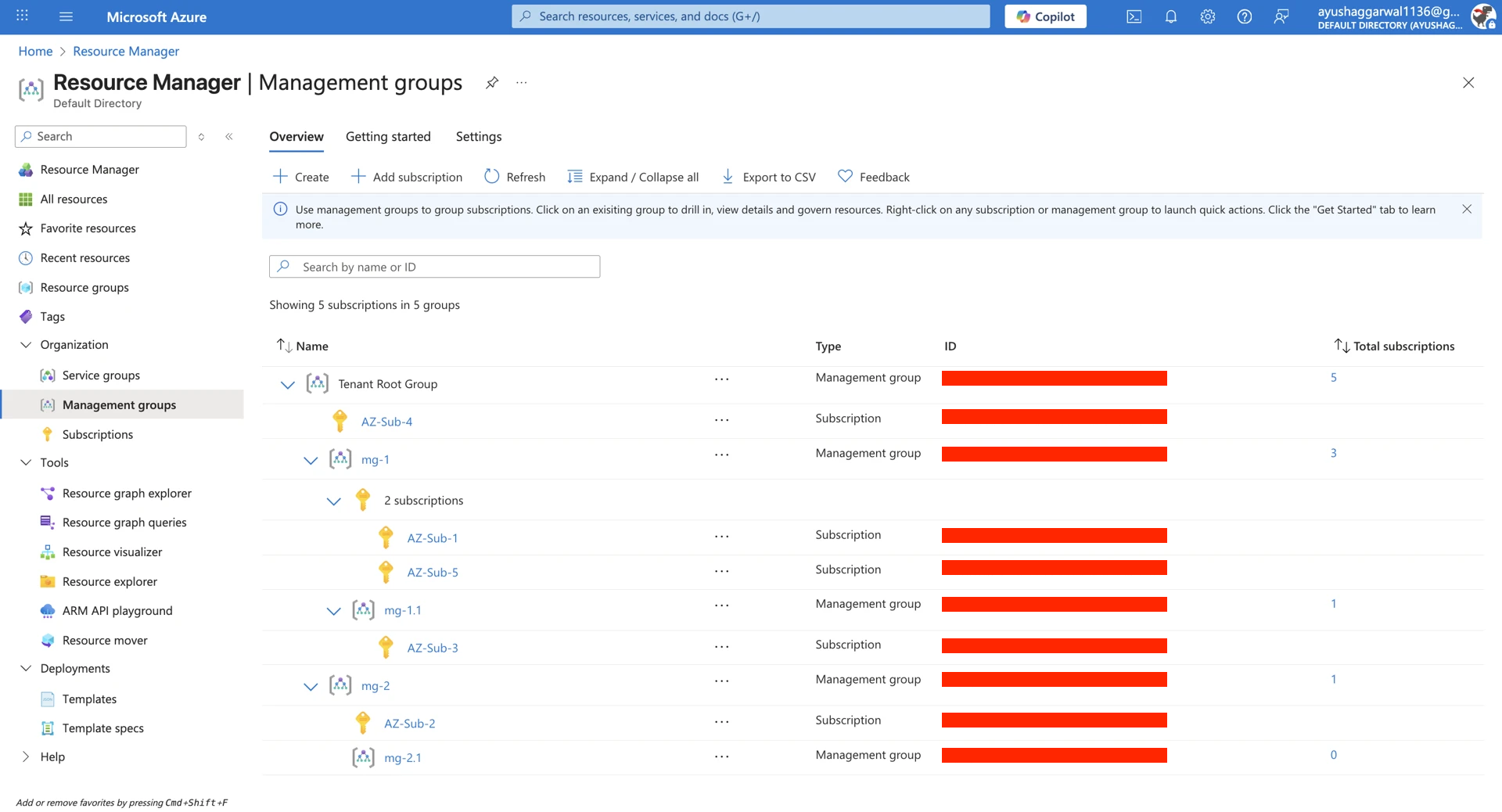
AccuKnox provides a flexible way to selectively onboard your Azure environment. You can choose to onboard specific Management Groups and Subscriptions or onboard everything while excluding specific parts.
1. Onboarding Steps from AccuKnox Control Plane
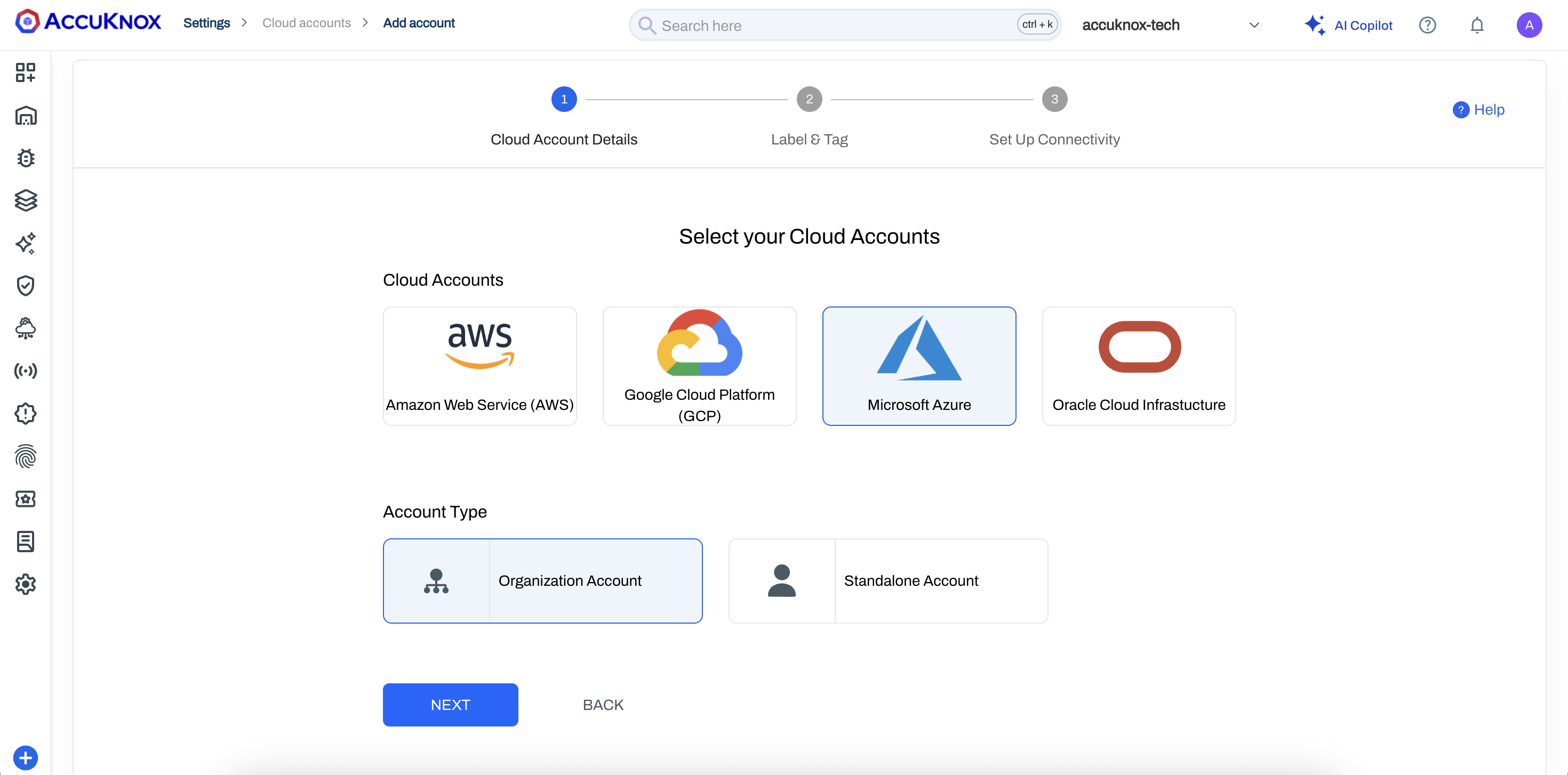
Step 1: Select Microsoft Azure and choose Organization Account, then click Next to begin onboarding the Azure org.
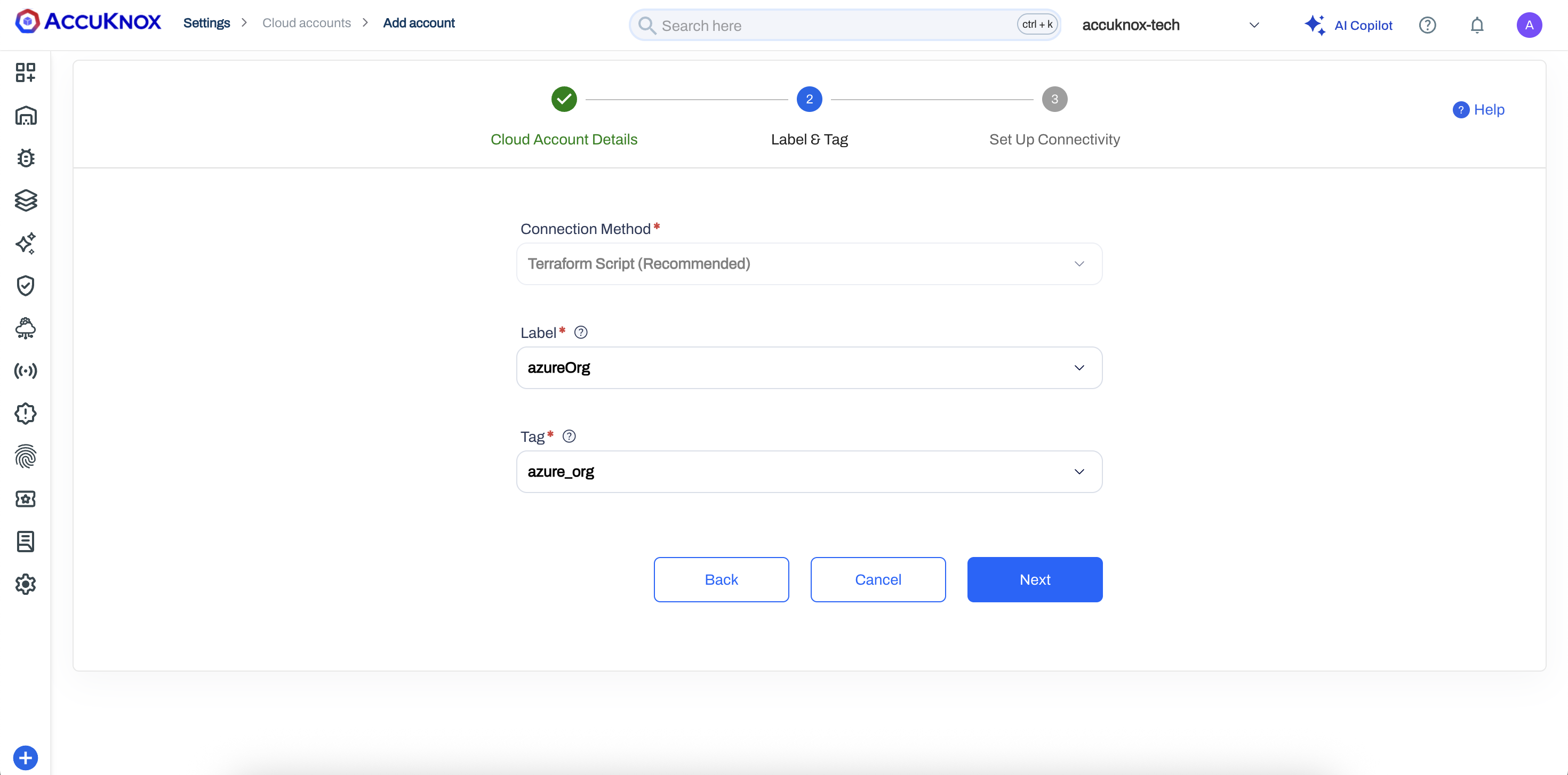
Step 2: Set the connection method (Terraform recommended), add a label and tag for the Azure organization, then proceed.
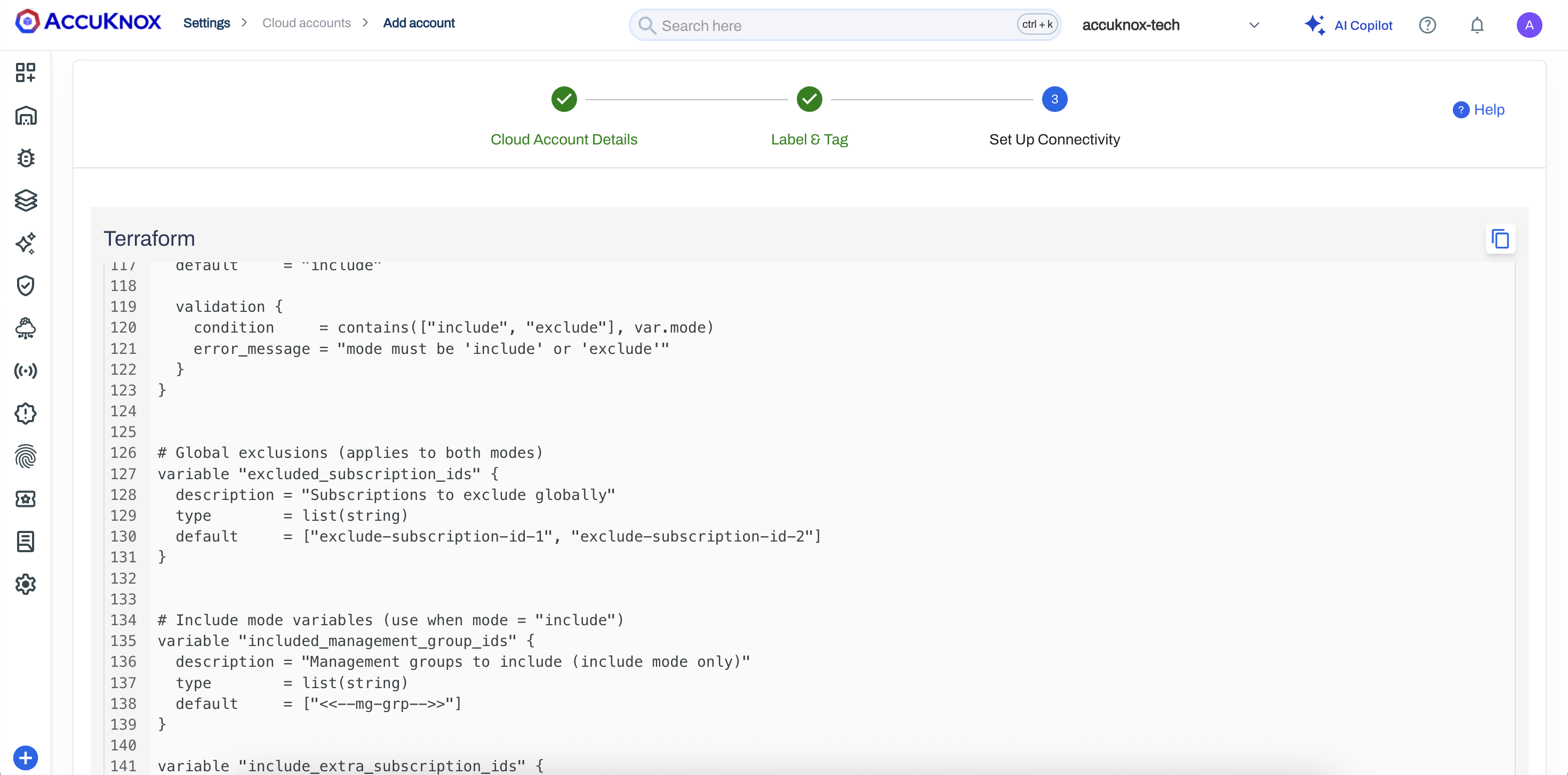
Step 3: Enter Tenant ID, Management Group, and Subscription scope details to define what the Azure org connection will monitor.
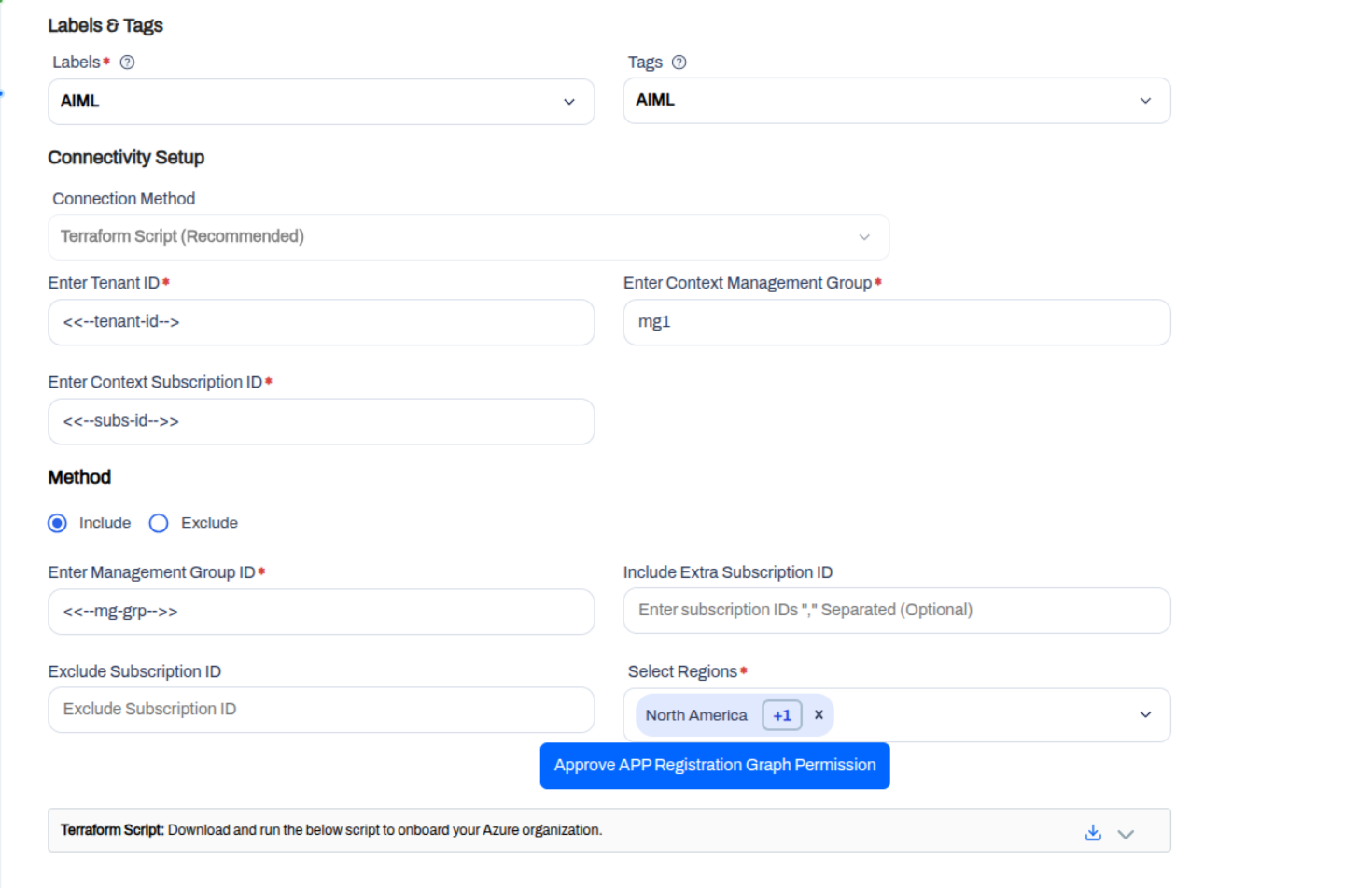
Choose the mode that best fits your organizational structure:
Best for: Onboarding specific departments, staging environments, or a subset of your organization.
- Included Management Groups (
included_management_group_ids): [Mandatory] Specify the list of Management Group IDs you want to onboard. All subscriptions within these groups will be included. - Include Extra Subscriptions (
include_extra_subscription_ids): [Optional] Specify individual Subscription IDs that are outside the selected Management Groups but should still be onboarded. - Exclude Subscriptions (
excluded_subscription_ids): [Optional] Specify individual Subscription IDs that are inside the selected Management Groups but should NOT be onboarded.
Best for: Onboarding the entire organization while omitting specific sensitive or sandbox environments.
- Excluded Management Groups (
excluded_management_groups): [Mandatory] Specify the list of Management Group IDs you want to skip. All other Management Groups under the root will be onboarded. - Excluded Subscriptions (
excluded_subscription_ids): [Optional] Specify individual Subscription IDs that you want to skip, even if their Management Group is being onboarded.
Step 4: Click Approve APP Registration Graph Permission to approve the Microsoft Graph permissions for the AccuKnox app registration.
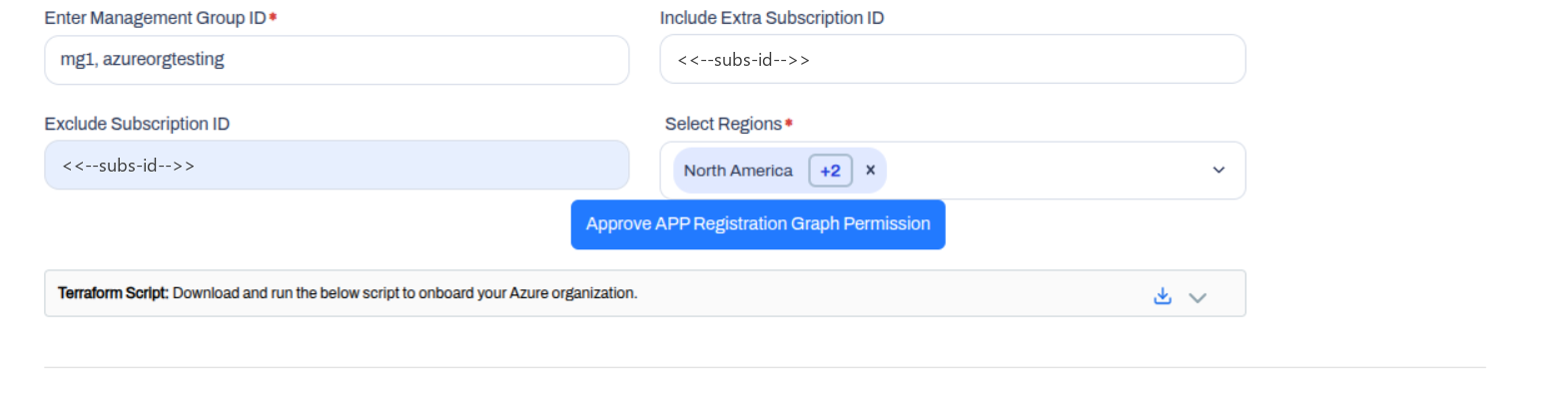
Step 5: Run the provided Terraform script to establish secure connectivity and complete Azure organization onboarding in the Control Plane.
2. Generate & Run Terraform Script
Once you have configured the parameters above, click Generate Terraform.
- Download the generated Terraform script.
-
Open your terminal and execute the following commands:
Log in to Azure CLI:
az loginInitialize Terraform:
terraform initApply Configuration:
terraform apply
After a successful run, the user will be able to authorize and view their accounts on the AccuKnox Portal.
2. AccuKnox Fetches New Subscriptions Automatically
Whenever a user creates a new subscription in their account that falls under the onboarded management group, AccuKnox automatically fetches and scans that subscription. For this to work, follow the steps below:
- Go to the Subscription in the Azure Portal and search for Resource providers.
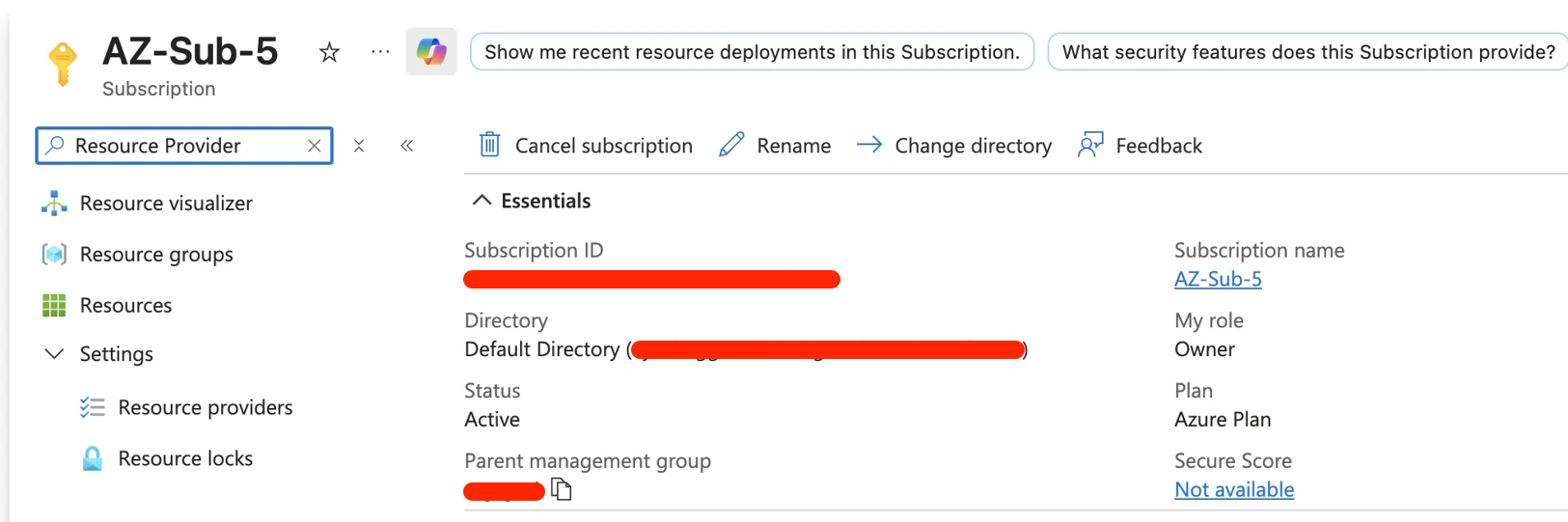
- Make sure the following providers are enabled:
Microsoft.ManagedServicesMicrosoft.PolicyInsights
After approximately 30 minutes, the subscription will be automatically delegated to AccuKnox, and resources will be queried.
- User's Azure Account
3. Roles and Permissions Assigned to the AccuKnox Service Principal
Onboarding assigns the following roles and permissions to the AccuKnox Service Principal.
Standard Permissions
| Area | Type | Role or permission |
|---|---|---|
| AI/ML | Built-in role | Storage Blob Data Reader |
| AI/ML | Built-in role | Cognitive Services Data Reader |
| Power Platform | Dataverse Application User | Registers the AccuKnox Service Principal as a Dataverse Application User |
| Power Platform | Security role | Assigns the Service Reader security role to the Dataverse Application User |
AI/ML Red Teaming Permissions
AI/ML red teaming uses the Foundry Agent Consumer role and the AccuKnox ML Scanner custom role.
| Type | Role or permission |
|---|---|
| Built-in role | Foundry Agent Consumer |
Custom role AccuKnox ML Scanner, actions |
Microsoft.MachineLearningServices/workspaces/onlineEndpoints/score/actionMicrosoft.MachineLearningServices/workspaces/onlineEndpoints/token/actionMicrosoft.MachineLearningServices/workspaces/serverlessEndpoints/listKeys/actionMicrosoft.MachineLearningServices/workspaces/agents/action |
Custom role AccuKnox ML Scanner, data actions |
Microsoft.CognitiveServices/accounts/AIServices/agents/writeMicrosoft.CognitiveServices/accounts/MaaS/*/actionMicrosoft.CognitiveServices/accounts/OpenAI/assistants/threads/writeMicrosoft.CognitiveServices/accounts/OpenAI/deployments/*/actionMicrosoft.CognitiveServices/accounts/AIServices/applications/invoke/actionMicrosoft.CognitiveServices/accounts/OpenAI/assistants/threads/runs/writeMicrosoft.CognitiveServices/accounts/AIServices/evaluations/writeMicrosoft.CognitiveServices/accounts/OpenAI/assistants/threads/messages/write |