Agent-Based Scanning for macOS
Install the AccuKnox Omni agent on a Mac to scan it for installed AI tools and send the results to AccuKnox. Discovered tools appear under AI/ML Security → Assets → Unmanaged, mapped to the Mac and its artifact label.
This flow enables Shadow AI Discovery
Omni finds supported AI tools from their installation evidence on disk, so a CLI agent, desktop app or IDE extension shows up even when nobody has opened it. See Shadow AI Discovery for the categories and the validated use cases.
Prerequisites
- Administrator access to the Mac.
curlon the Mac.- Network access to download the installer and its databases.
- An AccuKnox Artifact API token. Generate one under Settings > Tokens.
- Your AccuKnox artifact endpoint and tenant ID.
- An artifact label to identify the Mac. Create one under Settings > Labels.
- Disk space and system resources for Omni and its databases.
Install Omni
Open Terminal and run the command below. Before you run it, make these replacements:
- Replace
<REDACTED>with your Artifact API token. - Update the endpoint URL to match your environment.
- Replace
000with your tenant ID. - Replace
CHANGEMEwith your artifact label.
curl -fL "https://accuknox-omni.s3.us-east-1.amazonaws.com/latest/agent-install.sh" |
  OMNI_ARTIFACT_API_TOKEN="<REDACTED>" \
  bash -s -- \
    --artifact-endpoint="https://cspm.accuknox.com/api/v1/artifact/" \
    --tenant-id=000 \
    --artifact-label=CHANGEME
| Parameter | What it sets |
|---|---|
OMNI_ARTIFACT_API_TOKEN |
The token Omni uses to authenticate when it uploads results |
--artifact-endpoint |
The AccuKnox artifact endpoint for your environment |
--tenant-id |
The tenant ID for your environment |
--artifact-label |
The label that identifies this Mac or a group of endpoints |
The installer places the binary at /usr/local/bin/omni and stores its data under /var/lib/accuknox-omni/. It registers a daily launchd job named com.accuknox.omni and starts the first scan after installation.
Verify the Scan Ran
Check the launchd Job
Print the job status:
sudo launchctl print system/com.accuknox.omni
To show only the state, run count, last exit code and process ID:
sudo launchctl print system/com.accuknox.omni 2>/dev/null |
  grep -E 'state =|runs =|last exit code|pid ='
A registered job does not prove that a scan finished or that results uploaded. Check the log as well.
Read the Scan Log
Show the last 100 log lines:
sudo tail -n 100 /var/lib/accuknox-omni/omni.log
Follow the log while a scan runs:
sudo tail -n 100 -f /var/lib/accuknox-omni/omni.log
Look for scan errors, database download failures and upload failures.
Find the Results in the Console
- Sign in to the AccuKnox console.
- Go to AI/ML Security → Assets → Unmanaged.
- Confirm that the discovered AI tools list this Mac as the parent endpoint and show your artifact label.
AI Tools Validated on macOS
AccuKnox validated discovery on macOS with one tool of each type. Each tab shows the tool installed on the Mac, then the same tool under AI/ML Security → Assets → Unmanaged after one Omni scan. Hostnames and the tenant name are redacted.
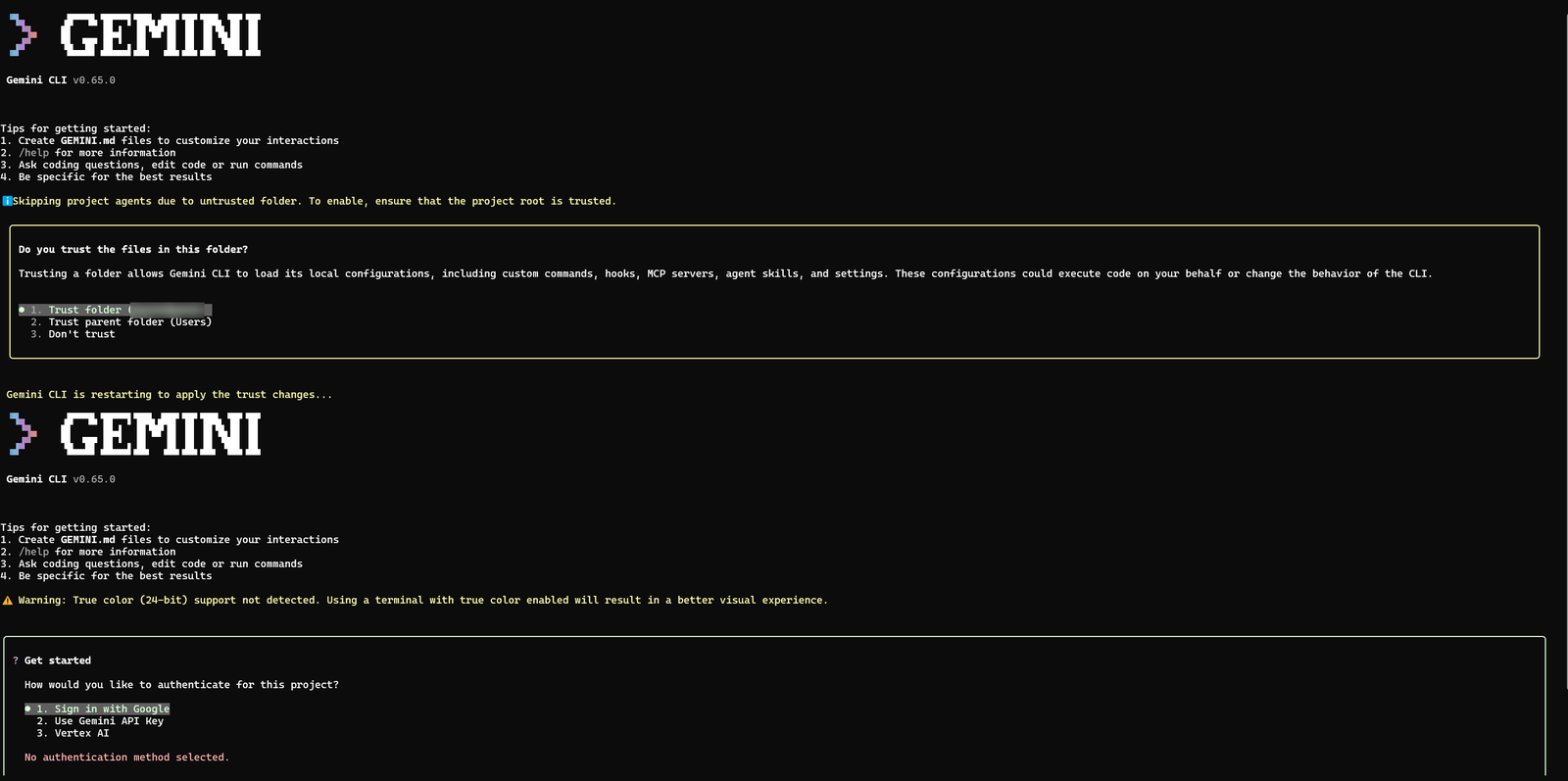
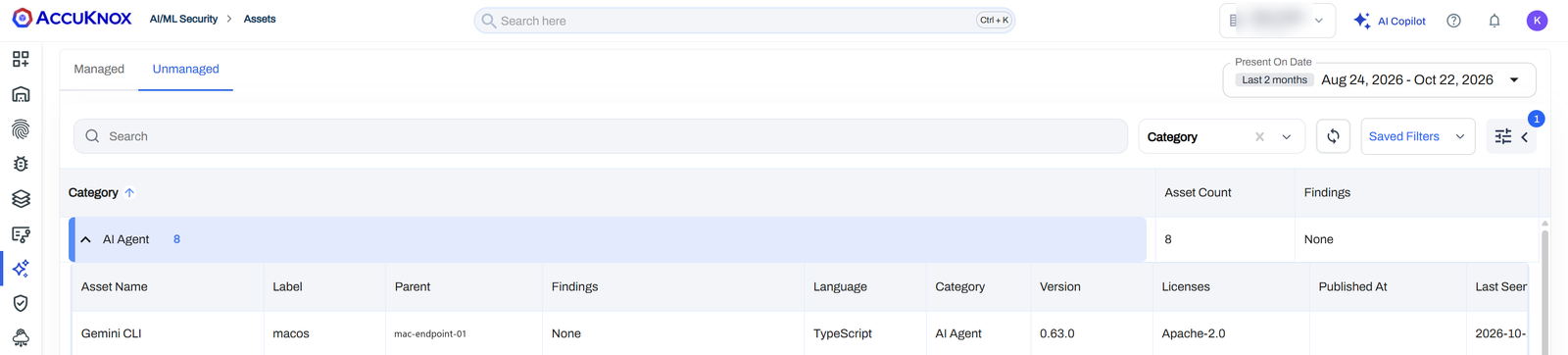
Gemini CLI appears as an AI Agent. Nobody had signed in to it when the scan ran.
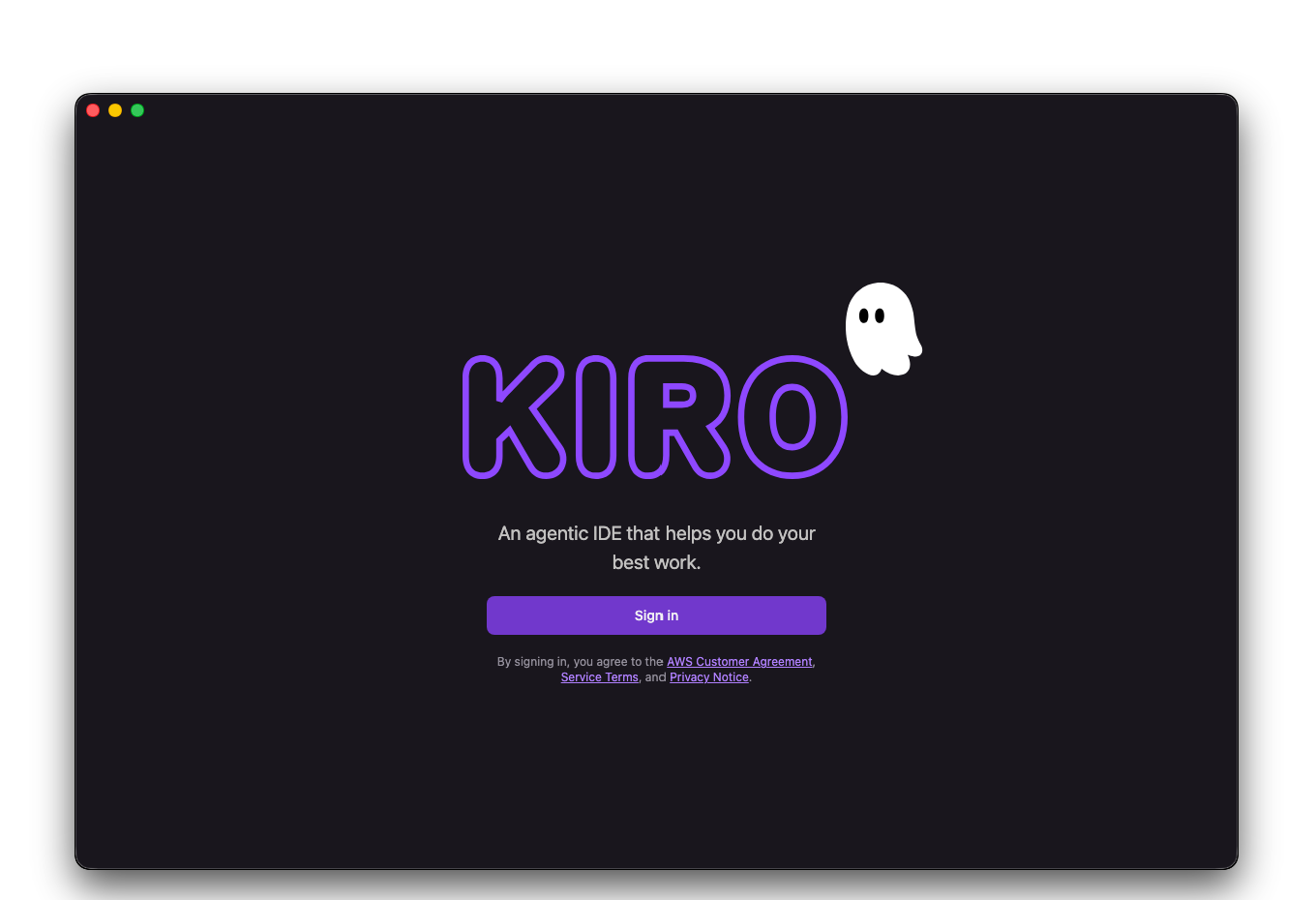
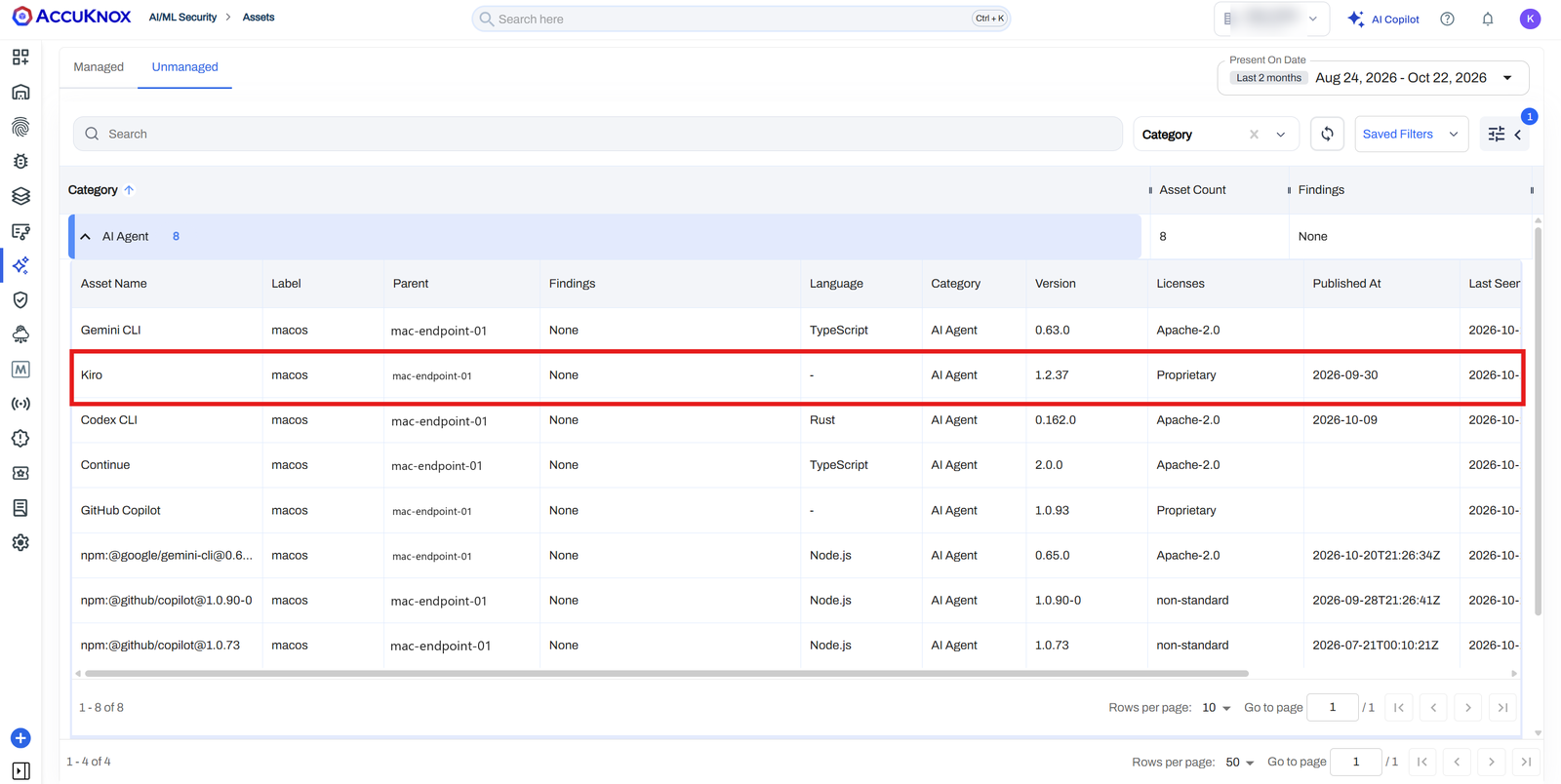
Kiro was installed and left on its sign-in screen. Omni still found it, because discovery reads the installation, not activity.
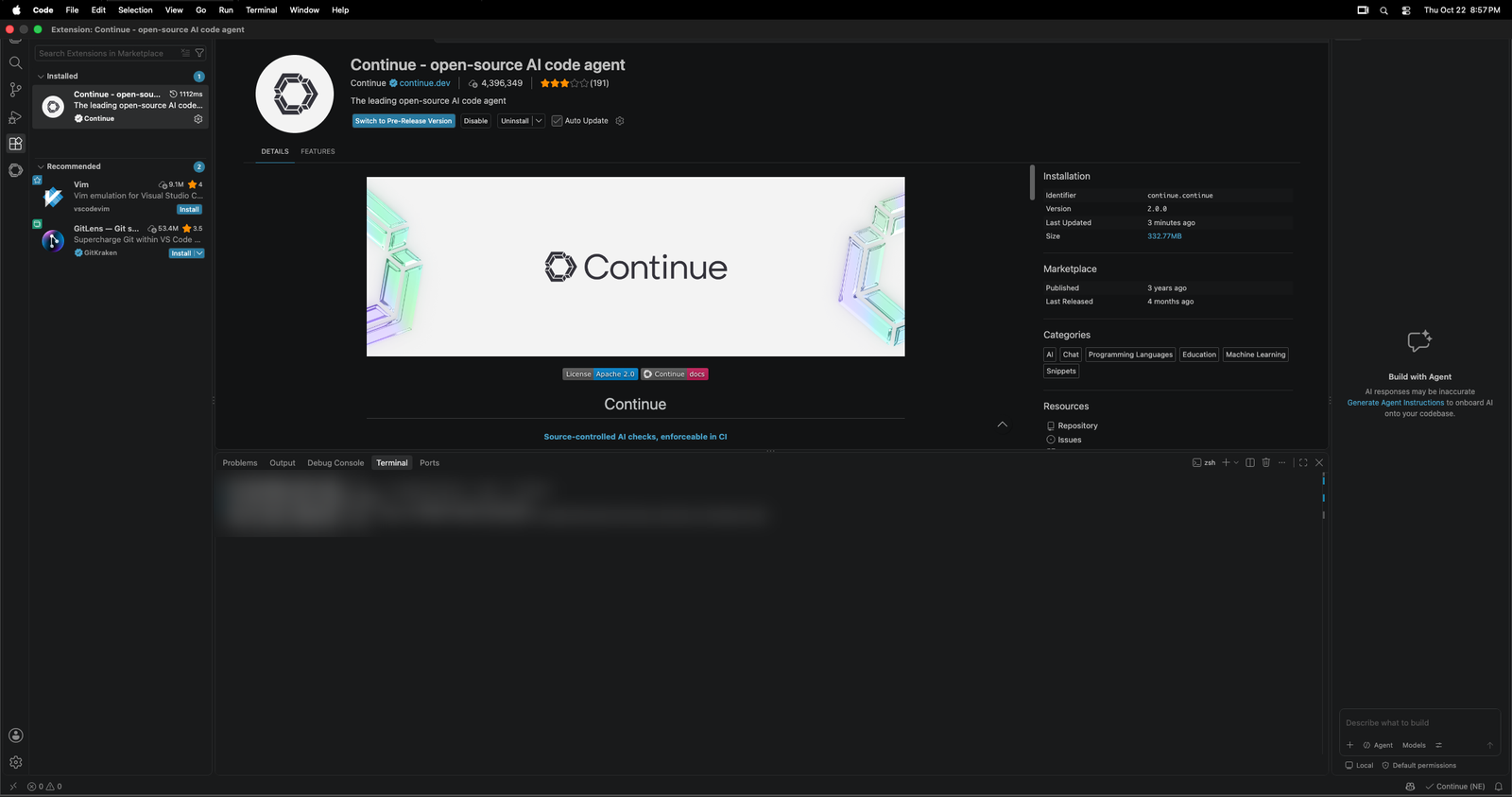
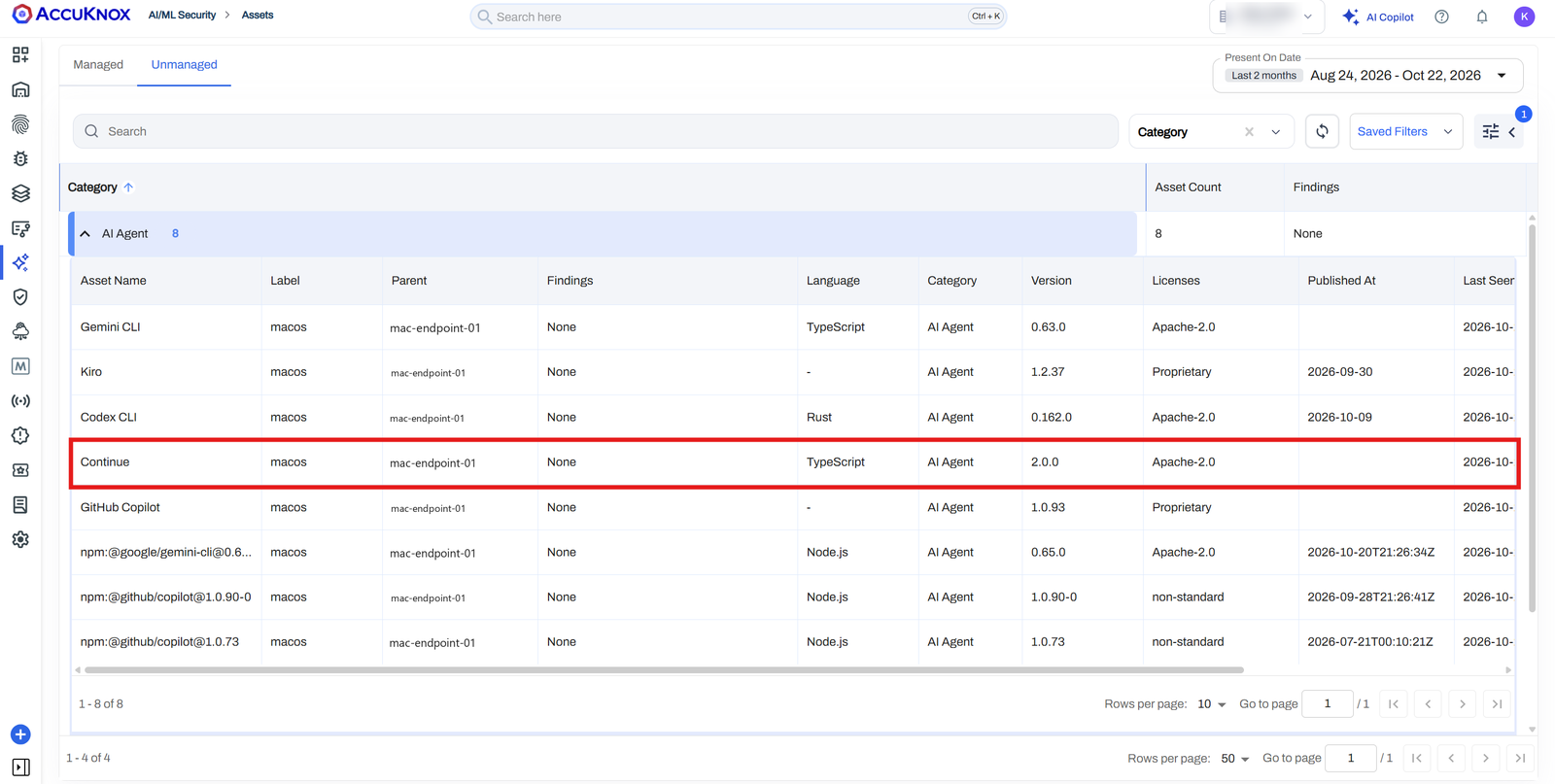
The Continue extension appears as an AI Agent with the same version that Visual Studio Code reports, 2.0.0.
To repeat the test, install one of these tools, install Omni, wait for the first scan to finish, and look for the tool on the Unmanaged tab.
What This Guide Does Not Cover
- This guide covers online installation. Air-gapped installation steps for macOS are not documented. Contact AccuKnox support for an offline Mac.
- Omni needs to reach the AccuKnox artifact endpoint to upload results. Without that path, results do not appear in the console.
- Discovery depends on the AI discovery features in the Omni release you install.