OpenShift Cluster Onboarding for CWPP and KSPM
Onboard a Red Hat OpenShift cluster to AccuKnox Cloud Workload Protection Platform (CWPP) and Kubernetes Security Posture Management (KSPM) with one Helm release. The release installs the AccuKnox agents, KubeArmor and the KSPM jobs into the agents namespace, and pulls every image from your own registry.
OpenShift blocks the agents by default through Security Context Constraints (SCC). This guide creates a KubeArmor SCC, grants the existing SCCs to each agent service account, and only then runs the Helm install.
Which OpenShift guide to use
- Use this guide to install from a private registry with the
kspm-runtime-0.2.0-patchchart. - Use Runtime Security Onboarding to install straight from the public AccuKnox registry with the command the console generates.
- Use Runtime Security Deployment for OpenShift to install KubeArmor from OperatorHub and send alerts to Elasticsearch.
Prerequisites
- No Helm release with AccuKnox agents in any namespace of the cluster. Remove an earlier install with Cluster Offboarding first.
- The
ocandhelmCLIs, logged in as a user who can create projects and SCCs and runoc adm policy. - A private container registry that the cluster can pull from, with its URL, username, password and image pull secret.
- The artifact store link from AccuKnox support, and
wgeton a machine that can reach it. - Access to the AccuKnox console to copy the Join Token and pick a Label.
Step 1. Allow the AccuKnox NAT Gateway IP Addresses
Add these four NAT gateway IP addresses to your firewall allowlist:
| NAT gateway IP address |
|---|
18.116.172.112 |
3.138.65.220 |
18.116.150.26 |
3.147.227.45 |
Step 2. Download the Helm Chart
Get the artifact store link from AccuKnox support
The download URLs in Step 2 and Step 3 are masked. Email support@accuknox.com for the artifact store link, then replace accukno-xxxx-xxxx.xxxx with the host they send you.
wget https://accukno-xxxx-xxxx.xxxx.your-objectstorage.com/kspm/kspm-runtime-0.2.0-patch.tar
You run the Helm install in Step 6 from the directory that holds this chart.
Step 3. Mirror the Images to Your Registry
The Helm release pulls 29 images from your registry. Download every image archive. Set BASE from the artifact store link that AccuKnox support sends you:
BASE=https://accukno-xxxx-xxxx.xxxx.your-objectstorage.com/releases/accuknox-images
for img in \
  agents-operator:v0.5.7 \
  discovery-engine-sumengine:v0.3.29 \
  rabbitmq:3.12.2-management \
  feeder-service:v0.10.11 \
  policy-enforcement-agent:v0.9.11 \
  policy-enforcement-agent:v0.9.12 \
  shared-informer-agent:v0.8.17 \
  knoxguard:v0.2.4 \
  kubearmor-snitch:latest \
  kubearmor:stable \
  kubearmor-init:stable \
  kubearmor-relay-server:latest \
  kubearmor-controller:latest \
  kubesheild:v0.5.1 \
  aquasec_trivy:2 \
  aquasecurity_trivy-db:2 \
  aquasecurity_trivy-java-db:1 \
  kyvernopre:v1.18.1 \
  kyverno:v1.18.1 \
  background-controller:v1.18.1 \
  cleanup-controller:v1.18.1 \
  reports-controller:v1.18.1 \
  knoxjobs:v0.1.11 \
  kube-bench:v0.15.5 \
  k8s-risk-assessment:v0.3.11 \
  kiem:latest \
  readiness-checker:latest \
  kyverno-cli:v1.18.1 \
  kubectl:latest
do
  wget "${BASE}/public.ecr.aws_k9v9d5v2_${img}.tar"
done
Load each archive with docker load or podman load, then push the image to the registry that you pass as global.registry.url in Step 6.
Two policy-enforcement-agent versions
policy-enforcement-agent:v0.9.12 is new in this release. Push it alongside v0.9.11. Do not replace v0.9.11.
Step 4. Prepare the Agents Project and Its SCCs
Create the KubeArmor SCC File
Save this configuration as kubearmor-scc.yaml. It lets the KubeArmor service accounts in the agents namespace use host paths, the host PID namespace and the capabilities KubeArmor needs, without running as privileged containers.
allowHostDirVolumePlugin: true
allowHostIPC: false
allowHostNetwork: true
allowHostPID: true
allowHostPorts: true
allowPrivilegeEscalation: false
allowPrivilegedContainer: false
allowedCapabilities:
- SETUID
- SETGID
- SETPCAP
- SYS_ADMIN
- SYS_PTRACE
- MAC_ADMIN
- SYS_RESOURCE
- IPC_LOCK
- CAP_DAC_OVERRIDE
- CAP_DAC_READ_SEARCH
- NET_ADMIN
apiVersion: security.openshift.io/v1
defaultAddCapabilities: null
fsGroup:
  type: RunAsAny
groups: []
kind: SecurityContextConstraints
metadata:
  annotations:
    kubernetes.io/description: kubearmor scc allows users to run with any non-root
      UID and access hostPath with some additional capabilities required for kubearmor.
  name: kubearmor-scc
priority: null
readOnlyRootFilesystem: false
requiredDropCapabilities: null
runAsUser:
  type: RunAsAny
seLinuxContext:
  type: RunAsAny
seccompProfiles:
- '*'
supplementalGroups:
  type: RunAsAny
users:
- system:serviceaccount:agents:kubearmor-controller
- system:serviceaccount:agents:kubearmor
- system:serviceaccount:agents:kubearmor-snitch
volumes:
- configMap
- downwardAPI
- emptyDir
- hostPath
- projected
- secret
Create the Project and Set Pod Security to Privileged
oc new-project agents
oc label namespace agents pod-security.kubernetes.io/enforce=privileged --overwrite
oc label namespace agents pod-security.kubernetes.io/warn=privileged --overwrite
oc label namespace agents pod-security.kubernetes.io/audit=privileged --overwrite
Apply the SCC and Grant SCCs to the Agent Service Accounts
oc create -f kubearmor-scc.yaml -n agents
oc adm policy add-scc-to-user anyuid -z agents-operator -n agents
oc adm policy add-scc-to-user privileged -z cis-service-account -n agents
oc adm policy add-scc-to-user hostmount-anyuid -z kubeshield-controller-manager -n agents
oc adm policy add-scc-to-user privileged -z kubeshield-controller-manager -n agents
oc adm policy add-scc-to-user anyuid -z kubeshield-agent -n agents
oc adm policy add-scc-to-user nonroot-v2 -z kyverno-chart-admission-controller -n agents
oc adm policy add-scc-to-user nonroot-v2 -z kyverno-chart-background-controller -n agents
oc adm policy add-scc-to-user nonroot-v2 -z kyverno-chart-cleanup-controller -n agents
oc adm policy add-scc-to-user nonroot-v2 -z kyverno-chart-reports-controller -n agents
| Service account | SCC |
|---|---|
kubearmor, kubearmor-controller, kubearmor-snitch |
kubearmor-scc |
agents-operator |
anyuid |
cis-service-account |
privileged |
kubeshield-controller-manager |
hostmount-anyuid and privileged |
kubeshield-agent |
anyuid |
kyverno-chart-admission-controller, kyverno-chart-background-controller, kyverno-chart-cleanup-controller, kyverno-chart-reports-controller |
nonroot-v2 |
Some commands can fail
A command fails when the namespace already has that rule. Read the error. If it says the resource or the binding already exists, move to the next command.
Step 5. Copy the Join Token and Label From the Console
You need two values from the console: the Join Token and the Label.
-
On the Dashboard, click + at the bottom left and select Connect > Cluster.
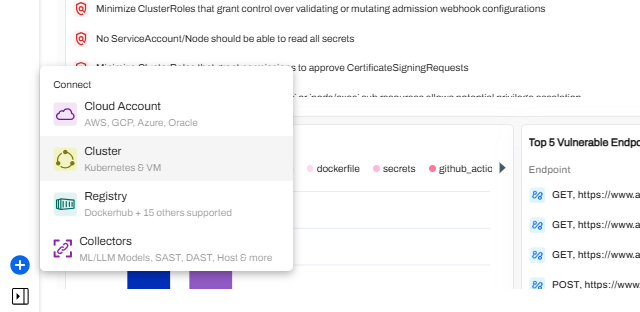
You can also go to Inventory Assets > Clusters and click Onboard Cluster.

-
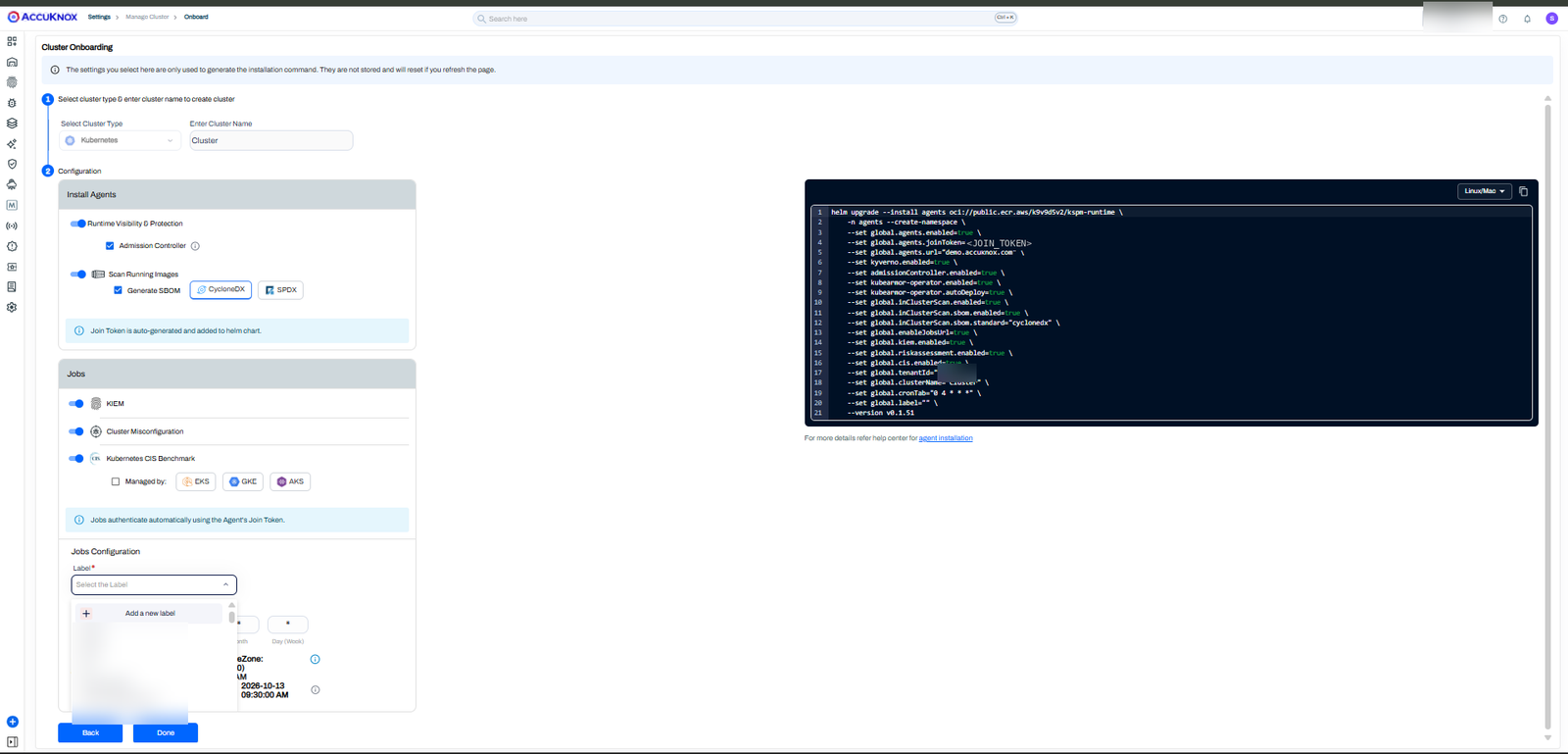
On the Cluster Onboarding page, select the cluster type and enter the cluster name. Under Jobs Configuration, select the Label.
-
Copy the Join Token from the
global.agents.joinTokenvalue in the generated command. The console creates the token for you.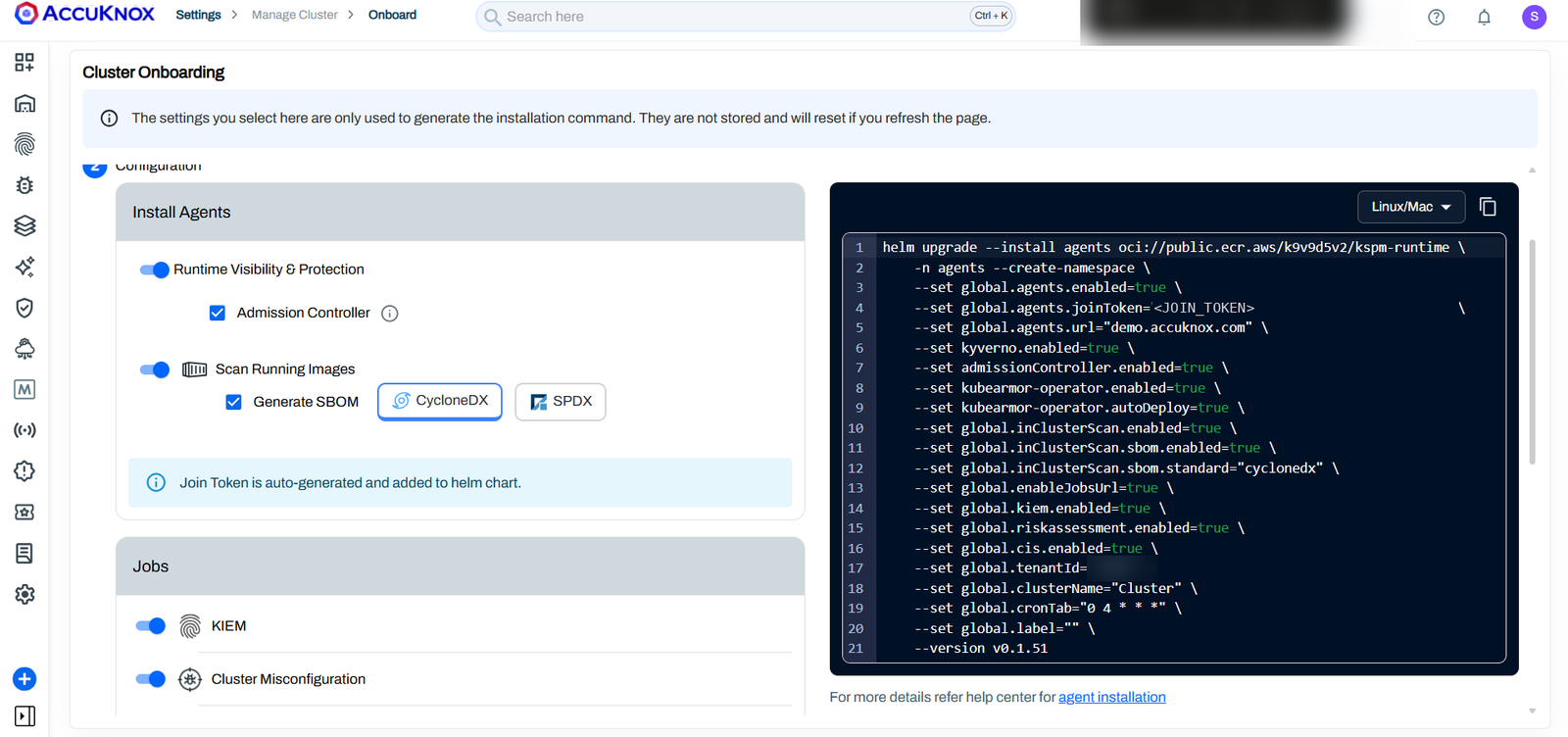
Do not run the console command
The console command installs from the public registry and leaves out the OpenShift settings. Copy only the Join Token and the Label from it, then use the command in Step 6.
| Value from the console | Parameter in the Step 6 command |
|---|---|
| Join Token | global.agents.joinToken |
| Label | global.label |
Step 6. Install Agents, KubeArmor and KSPM Jobs
Run this command from the directory that holds the chart from Step 2. It deploys the KSPM jobs, the AccuKnox agents and KubeArmor into the agents namespace.
helm upgrade --install agents kspm-runtime-0.2.0-patch \
    -n agents --create-namespace \
    --set global.agents.enabled=true \
    --set global.agents.joinToken="<JOIN_TOKEN>" \
    --set global.agents.url="<AGENTS_URL>" \
    --set kyverno.enabled=true \
    --set admissionController.enabled=true \
    --set kubearmor-operator.enabled=true \
    --set kubearmor-operator.autoDeploy=true \
    --set kubearmor-operator.imagePinning=true \
    --set kubearmor-operator.registry.secretName="<REGISTRY_SECRET_NAME>" \
    --set kubeshield-chart.scan.trivyConfig.dbSecretName="<TRIVY_DB_SECRET_NAME>" \
    --set kubearmor-operator.kubearmor.repo="<KUBEARMOR_REPO>" \
    --set global.inClusterScan.enabled=true \
    --set global.enableJobsUrl=true \
    --set global.kiem.enabled=true \
    --set global.riskassessment.enabled=true \
    --set global.cis.enabled=true \
    --set global.tenantId="<TENANT_ID>" \
    --set global.registry.url="<REGISTRY_URL>" \
    --set global.registry.secretName="<REGISTRY_SECRET_NAME>" \
    --set global.registry.username="<REGISTRY_USERNAME>" \
    --set global.registry.password="<REGISTRY_PASSWORD>" \
    --set global.registry.preserveUpstream=false \
    --set global.clusterName="<CLUSTER_NAME>" \
    --set global.cronTab="0 4 * * *" \
    --set global.label="<LABEL>" \
    --set kubearmor-operator.kubearmorOperator.env[0].name=REDHAT_CERTIFIED_OP \
    --set kubearmor-operator.kubearmorOperator.env[0].value=yes
| Placeholder | What to enter |
|---|---|
<JOIN_TOKEN> |
The Join Token from Step 5 |
<LABEL> |
The Label from Step 5 |
<AGENTS_URL> |
The global.agents.url value from the console command, such as demo.accuknox.com |
<TENANT_ID> |
Your AccuKnox tenant ID. The console command shows it as global.tenantId |
<CLUSTER_NAME> |
The cluster name you entered in Step 5 |
<REGISTRY_URL> |
The private registry that holds the images from Step 3 |
<REGISTRY_USERNAME>, <REGISTRY_PASSWORD> |
The credentials for that registry |
<REGISTRY_SECRET_NAME> |
The image pull secret for that registry |
<TRIVY_DB_SECRET_NAME> |
The secret for the Trivy vulnerability databases you mirrored in Step 3 |
<KUBEARMOR_REPO> |
The KubeArmor image repository in your registry |
The REDHAT_CERTIFIED_OP setting marks the KubeArmor Operator as a Red Hat certified operator, so the OpenShift SCCs admit its pod. The global.cronTab value runs the KSPM jobs every day at 04:00.
Add Proxy Settings When the Cluster Uses an HTTP Proxy
If the cluster reaches the internet through a proxy, add these three flags to the end of the Step 6 command:
    --set 'global.extraEnv.https_proxy=http://<PROXY_HOST>:<PROXY_PORT>' \
    --set 'global.extraEnv.http_proxy=http://<PROXY_HOST>:<PROXY_PORT>' \
    --set 'global.extraEnv.no_proxy=localhost\,127.0.0.1\,10.43.0.1\,10.43.0.0/16\,10.42.0.0/16\,10.122.0.0/20\,.svc\,.cluster.local'
The no_proxy CIDRs are examples. Replace them with your cluster's service and pod CIDRs, and keep the backslash before each comma, because Helm reads an unescaped comma as a separator.
Confirm the Cluster Is Connected
-
Check that the pods in the
agentsnamespace start:oc get pods -n agents -
In the AccuKnox console, go to Inventory Assets > Clusters. The cluster shows as connected under the Clusters tab.
If a KubeArmor Operator pod stays in CrashLoopBackOff or reports unable to validate against any security context constraint, check the SCC grants in Step 4 and the REDHAT_CERTIFIED_OP flags in Step 6. See the Runtime Security FAQ for more checks.